Two open source tools cover most PDF to Word jobs: LibreOffice, which converts from the command line with the right import filter, and pdf2docx, a Python library that reconstructs paragraphs, tables, and images into a DOCX. Calibre works for book-like text, poppler's pdftotext extracts plain text fastest, and OCRmyPDF unlocks scanned files for all of the above. This guide tests each, shows the exact commands, and flags the licensing details that matter for commercial use.
Which open source tool converts PDF to Word best?
LibreOffice gives the best no-code result and pdf2docx gives the best scripted result; everything else is a specialized fallback. PDF stores positioned glyphs rather than document structure, so each tool is really a reconstruction engine, and reconstruction quality is the whole comparison.
| Tool | Interface | Layout fidelity | Tables | Scanned PDFs | Batch | License |
|---|---|---|---|---|---|---|
| LibreOffice | GUI + CLI | Good (single column) | Partial | No (needs OCR first) | Yes (CLI) | MPL-2.0 |
| pdf2docx | Python + CLI + GUI | Good (text + tables) | Yes (bordered + borderless) | No | Yes (scriptable) | MIT (PyMuPDF is AGPL) |
| Calibre | GUI + CLI | Reflowed, not faithful | Poor | No | Yes (CLI) | GPL-3.0 |
| pdftotext (poppler) | CLI | Text only | Text alignment only | No | Yes | GPL |
| OCRmyPDF + either | CLI | Text recovery, minimal layout | Poor | Yes (that is the point) | Yes | MPL-2.0 |
Fidelity ratings are for typical text-based business documents. Any tool degrades on multi-column magazines, heavy floats, or footnote-dense academic layouts.
All five run offline: nothing uploads to a server, which is the other reason teams pick open source over web converters for contracts and financial documents.
How do you convert PDF to Word with LibreOffice?
Use the Writer import filter explicitly, because LibreOffice's default is to open PDFs in Draw, which fragments text into per-line frames. The difference between the two import paths is the single biggest quality lever in open source PDF conversion.
# Good: force the Writer PDF import filter, then export DOCX
soffice --headless --infilter="writer_pdf_import" \
  --convert-to docx --outdir ./out ./contract.pdf

# Risky: no infilter. LibreOffice may route the PDF through Draw,
# producing a DOCX full of disconnected text frames.
soffice --headless --convert-to docx ./contract.pdf
With the Writer filter, body text arrives as editable paragraphs and simple tables usually survive. Fonts fall back to whatever your system has, so expect font substitution unless the PDF's fonts are installed. The command-line parameters are documented in LibreOffice's help.
For the GUI route: open the PDF in LibreOffice, check that it opened in Writer (not Draw), fix anything visibly broken, then save as .docx. For batch folders, wildcards work: --convert-to docx *.pdf. The full automation story, including parallel workers and Docker, is in the LibreOffice headless conversion guide.
How do you convert PDF to Word with pdf2docx?
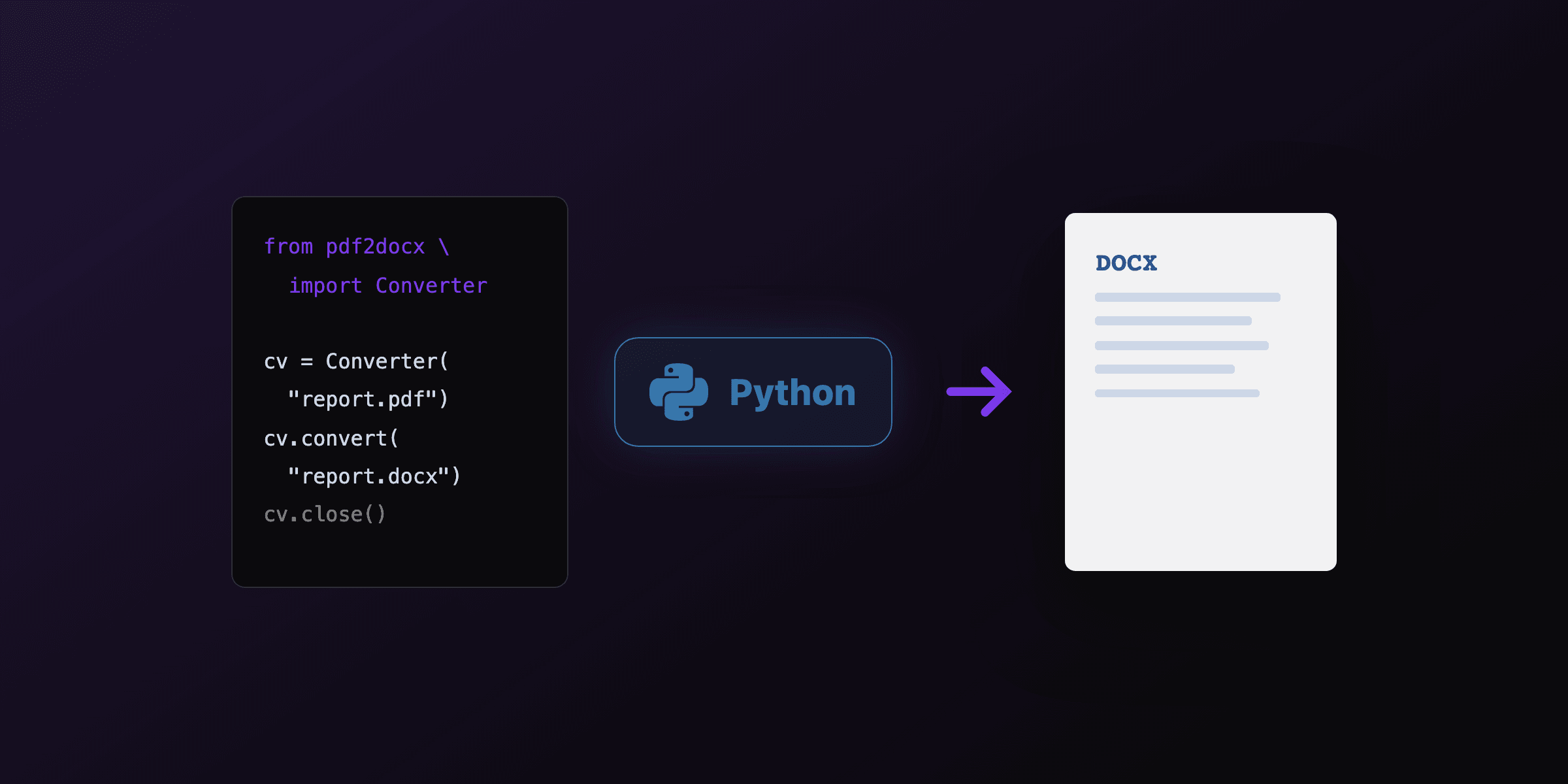
pdf2docx converts a PDF to DOCX in four lines of Python and is the strongest open source option for documents with tables. It parses the PDF with PyMuPDF, applies layout rules to detect paragraphs, bordered and borderless tables, and images, then writes a native DOCX with python-docx.
from pdf2docx import Converter

cv = Converter("report.pdf")
cv.convert("report.docx")   # all pages
cv.close()
Page ranges and the CLI:
pip install pdf2docx
pdf2docx convert report.pdf report.docx --start=0 --end=10
Two caveats before you build on it. First, the PyPI page notes the project is no longer actively maintained by Artifex, so treat it as stable-but-frozen: fine for a conversion script, worth a second thought as a core dependency of a long-lived product. Second, the license split: pdf2docx is MIT, but its engine PyMuPDF is AGPL-3.0 with a commercial option from Artifex. Internal scripts are unaffected; shipping it inside a product triggers the AGPL question.
The full Python treatment, including multi_processing, quality expectations per document type, and OCR wiring, is in convert PDF to Word in Python.
When are Calibre and pdftotext the better choice?
Pick Calibre when you want readable reflowed text from a book-like PDF, and pdftotext when you want the text content fast and do not need a Word file at all. Neither tries to preserve page-faithful layout, which is a feature, not a bug, for their use cases.
Calibre's converter treats the PDF as an ebook source:
ebook-convert book.pdf book.docxIt reflows text for readability, drops absolute positioning, and struggles with tables. For a novel, a report you plan to rewrite anyway, or a documentation dump, that is exactly right. The Calibre conversion manual covers its PDF input quirks, including why headers and footers can leak into body text.
poppler's pdftotext is the fastest path when the deliverable is text, not formatting:
pdftotext -layout report.pdf report.txtThe -layout flag preserves the visual column alignment in plain text. If the end goal is feeding content to a script or an LLM rather than editing in Word, skip DOCX entirely; the browser-based PDF to text extractorTry it free does the same job client-side with no install.
One tool that does not belong on this list despite appearing in almost every forum thread: Pandoc. Pandoc cannot read PDF input: PDF is an output-only format there, so pandoc file.pdf -o file.docx fails by design.
What about scanned PDFs?
Scanned PDFs need OCR before any converter can help, because the pages are images with no text objects. The open source pipeline is OCRmyPDF (MPL-2.0), which wraps Tesseract and adds an invisible text layer without altering the page images:
pip install ocrmypdf
ocrmypdf scan.pdf searchable.pdf
soffice --headless --infilter="writer_pdf_import" --convert-to docx searchable.pdf
Set expectations correctly: the output DOCX contains the recognized text in reading order, not a faithful reproduction of the scanned layout. OCRmyPDF's docs cover language packs and image preprocessing, which move accuracy more than any converter choice does. Commercial OCR suites still lead on degraded scans; the gap on clean 300 DPI office scans is small.
Which converter should you use for which document?
Match the tool to the document type and the destination, not the other way around. This table is the short version of everything above:
| Document | Best open source path | Expect |
|---|---|---|
| Contract, letter, simple report | LibreOffice with writer_pdf_import | Editable paragraphs, minor font swaps |
| Invoice or data tables | pdf2docx | Tables reconstructed, spot-check numbers |
| Hundreds of files, scripted | pdf2docx in Python, or LibreOffice batch | Consistent quality, easy retry logic |
| Book or long-form text | Calibre ebook-convert | Clean reflowed text, no layout |
| Scanned paper | OCRmyPDF, then LibreOffice | Correct text, layout mostly gone |
| Text for a script or LLM | pdftotext -layout | Fast plain text, no DOCX step |
| Multi-column magazine, complex layout | Commercial converter | Open source rule engines break here |
For the commercial side of that last row (Adobe, ABBYY, and friends) see the PDF to Word converters comparison, and for the broader method survey including Word and Google Docs, the how to convert PDF to Word guide.
The conversion you can avoid entirely
If the PDFs you keep converting are documents your own system generated, the durable fix is upstream: keep the source template and stop round-tripping through PDF. Converting PDF to Word to edit a value and re-export loses fidelity on every cycle.
PDF4.dev takes the template-first approach: the document lives as an HTML template with {{variables}}, edits happen in the template or the data, and the PDF is regenerated in one API call:
curl -X POST https://pdf4.dev/api/v1/render \
  -H "Authorization: Bearer p4_live_xxx" \
  -H "Content-Type: application/json" \
  -d '{ "template_id": "contract", "data": { "client": "Acme Corp", "start_date": "2026-08-01" } }'
Open source converters remain the right tool for PDFs that arrive from outside. For the ones you produce, generation beats conversion.
Free tools mentioned:
Frequently asked questions
- What is the best open source PDF to Word converter?
- LibreOffice for one-off conversions with decent layout, pdf2docx for scripted or batch conversion of text-and-table documents. LibreOffice (MPL-2.0) opens the PDF and exports DOCX from the command line with no code. pdf2docx (MIT, Python) reconstructs paragraphs, tables, and images programmatically. Neither matches Adobe or ABBYY on complex layouts, but both are free, offline, and scriptable.
- Can LibreOffice convert PDF to Word?
- Yes. From the command line, soffice --headless --infilter="writer_pdf_import" --convert-to docx file.pdf produces a DOCX. The infilter flag matters: without it, LibreOffice opens PDFs in Draw, which turns each text line into a separate frame and exports poorly to Word. The Writer import filter keeps text flowing as paragraphs.
- How do I convert PDF to Word on Linux?
- Two command-line paths work offline on any distribution. LibreOffice: soffice --headless --infilter="writer_pdf_import" --convert-to docx file.pdf. Python: pip install pdf2docx, then pdf2docx convert file.pdf file.docx. For text extraction without Word formatting, poppler's pdftotext -layout is faster than both.
- Is pdf2docx free for commercial use?
- pdf2docx itself is MIT licensed, which permits commercial use. It depends on PyMuPDF, which is AGPL-3.0 with a commercial license sold by Artifex. If you embed pdf2docx in a distributed or network-served product and cannot comply with AGPL obligations, you need the commercial PyMuPDF license. For internal scripts and one-off conversions this rarely matters.
- Can Pandoc convert PDF to Word?
- No. Pandoc can write PDFs (through LaTeX or other engines) but cannot read them: PDF is not an input format in Pandoc. This is a common misconception because Pandoc converts almost everything else. For PDF input you need LibreOffice, pdf2docx, or an extraction library.
- Do open source converters handle scanned PDFs?
- Not directly. A scanned PDF contains page images, not text, so layout reconstruction tools have nothing to reconstruct. Run OCRmyPDF first: it adds a searchable text layer using Tesseract, producing a PDF that LibreOffice or pdf2docx can then convert. Expect plain flowing text rather than faithful layout from that pipeline.
- Why does my converted DOCX look different from the PDF?
- PDF stores positioned glyphs, not paragraph structure, so every converter must guess where paragraphs, columns, and tables begin. Open source tools use rule-based reconstruction, which handles single-column text and simple tables well and degrades on multi-column layouts, floating figures, and footnotes. Commercial converters guess better on hard layouts but still guess.
- Is there an open source converter with a graphical interface?
- LibreOffice itself is the GUI option: open the PDF, edit, save as DOCX. pdf2docx also ships a small GUI (pdf2docx gui) on top of the same engine. Calibre's interface handles PDF to DOCX for book-like documents. All three run fully offline, so no document leaves your machine.
Start generating PDFs
Build PDF templates with a visual editor. Render them via API from any language in ~300ms.