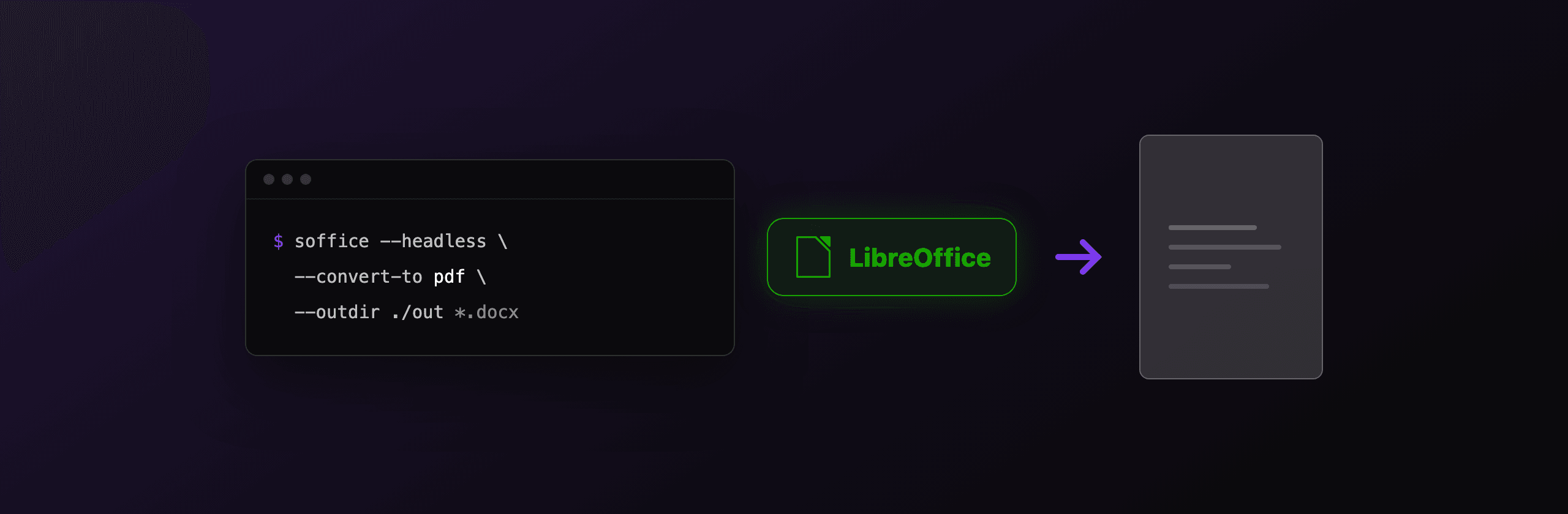
Convert any office document to PDF with one command: soffice --headless --convert-to pdf --outdir ./out document.docx. The same binary converts PDFs to Word with --infilter="writer_pdf_import", turns JPG and PNG images into PDFs, batch-processes folders, and exports PDF/A with a JSON filter option. This guide covers every direction that works, the profile-lock gotcha that breaks parallel jobs, a production Python wrapper, and where LibreOffice stops being the right tool.
How does soffice --headless --convert-to work?
The --convert-to flag opens the input file with LibreOffice's import filter for that format, then exports it with the filter matching your target extension, all without a GUI. The pattern is:
soffice --headless --convert-to <ext>[:<FilterName>[:<options>]] --outdir <dir> <files...>Three behaviors worth knowing before you script it:
- The extension picks the filter.
--convert-to pdfresolves to the right PDF export filter for the document type (Writer, Calc, Impress, Draw each have one). You only name filters explicitly for special cases. --outdiris where output goes. Without it, files land in the current working directory, not next to the input.- Exit codes lie.
sofficefrequently exits 0 even when conversion failed, and silently delegates to an already-running instance (more on that below). Scripts must verify the output file exists.
The full flag list is in the LibreOffice startup parameters documentation. On Windows the binary is soffice.exe inside the LibreOffice program folder; on macOS it is /Applications/LibreOffice.app/Contents/MacOS/soffice.
How do you convert DOCX, XLSX, or PPTX to PDF?
The plain command handles all office formats, and it is the standard open source answer for server-side Word to PDF:
soffice --headless --convert-to pdf --outdir ./out report.docx
soffice --headless --convert-to pdf --outdir ./out sheet.xlsx
soffice --headless --convert-to pdf --outdir ./out deck.pptx
Fidelity is high for typical business documents. The classic failure mode is fonts: if the server lacks the fonts the document uses, LibreOffice substitutes, and line breaks shift. Install the document's fonts (or fonts-liberation, metrically compatible with Arial and Times New Roman) in the environment.
Since LibreOffice 7.4, export filter options accept JSON on the command line, which unlocks PDF/A and other export settings (release notes):
# PDF/A-2b export (value 1 = PDF/A-1b, 2 = PDF/A-2b, 3 = PDF/A-3b)
soffice --headless \
  --convert-to 'pdf:writer_pdf_Export:{"SelectPdfVersion":{"type":"long","value":"2"}}' \
  --outdir ./out contract.docx
If you need PDF/A for archival compliance, the PDF/A compliance guide covers validation and the differences between conformance levels. For the manual one-off, the Word to PDF walkthrough compares this route with Word's own exporter.
How do you convert JPG or PNG images to PDF?
Pass the image straight to --convert-to pdf: LibreOffice opens it in Draw and exports a PDF page containing the image.
soffice --headless --convert-to pdf --outdir ./out photo.jpg
soffice --headless --convert-to pdf --outdir ./out scan-*.png
Each image becomes its own single-page PDF. Two limitations matter. Page geometry follows Draw's default document size rather than the image's aspect ratio, so expect margins or scaling rather than a tight fit. And multiple images produce multiple PDFs, not one combined document; merging is a second step.
When you want tight page-fits-image output or one PDF from many images, a purpose-built tool is simpler than post-processing Draw's output: the browser-based image to PDF converterTry it free does both client-side, and the images to PDF guide covers scripted options.
The reverse direction, PDF pages out as PNG or JPG, is not something LibreOffice does well headlessly. Use poppler's pdftoppm -png -r 150 file.pdf page instead, or the PDF to PNG toolTry it free for one-offs.
Can LibreOffice convert PDF to Word headlessly?
Yes, and the single flag that decides output quality is --infilter="writer_pdf_import". LibreOffice's default import route for PDFs is Draw, which models each text line as an independent frame; exporting that to DOCX produces a file that looks right and edits terribly.
# Correct: import the PDF into Writer, then export DOCX
soffice --headless --infilter="writer_pdf_import" \
  --convert-to docx --outdir ./out contract.pdf

# Default (no infilter): Draw import, fragmented text frames in the DOCX
soffice --headless --convert-to docx --outdir ./out contract.pdf
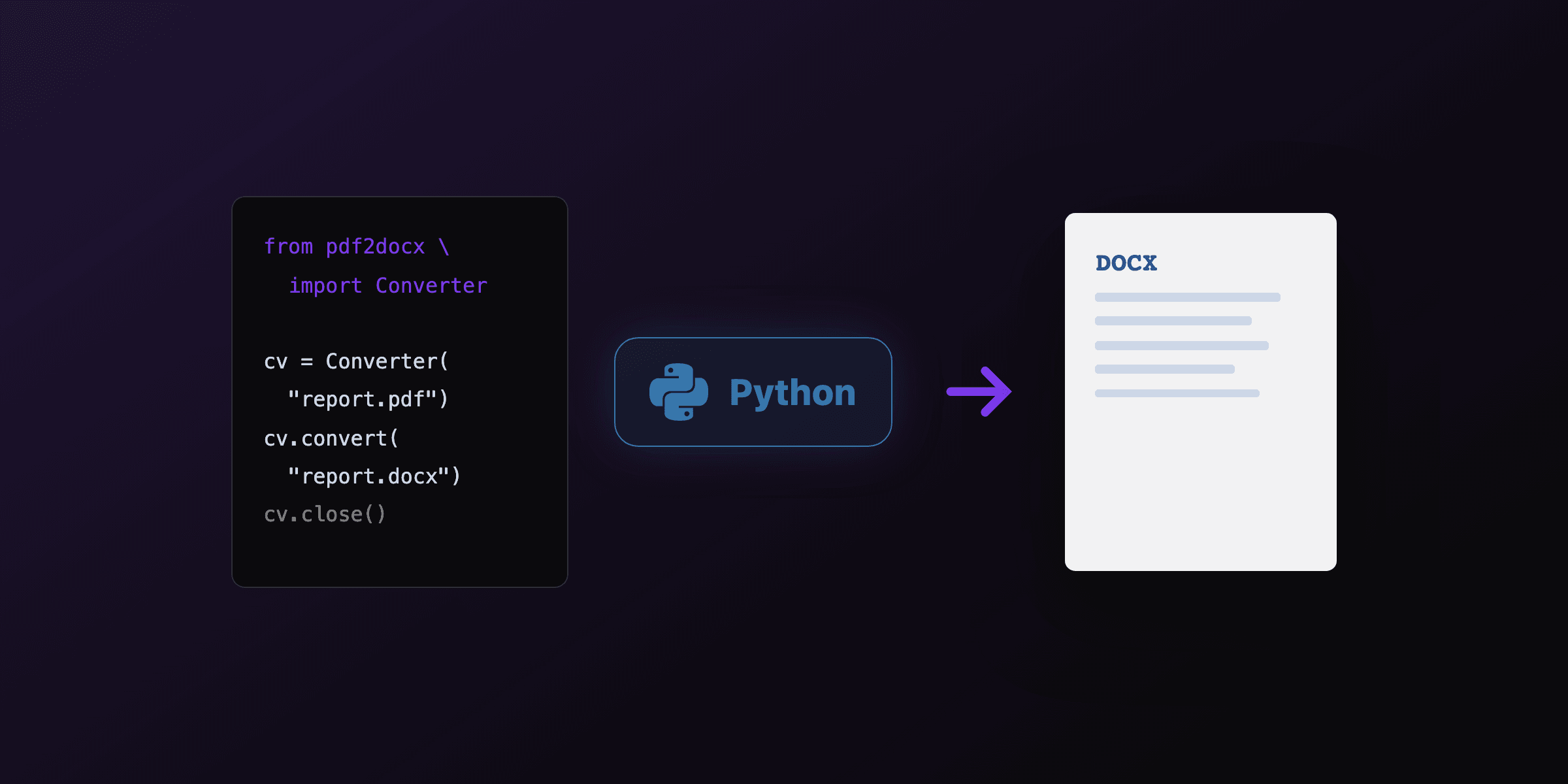
With the Writer filter, text-based PDFs come out as editable paragraphs, and simple tables usually survive. Multi-column layouts, floating figures, and scanned pages do not; scans need OCR first. Realistic expectations per document type are in the PDF to Word guide, and if your pipeline is Python-first, a library like pdf2docx may reconstruct tables better than the LibreOffice route.
How do you batch convert a folder?
One process, many files: --convert-to accepts multiple inputs, so shell globs are the whole batch story.
# Everything in one directory
soffice --headless --convert-to pdf --outdir ./pdf ./docs/*.docx

# Recursive, via find
find ./docs -name '*.docx' -print0 | \
  xargs -0 soffice --headless --convert-to pdf --outdir ./pdf
Sequential throughput is roughly 1-3 seconds per simple document on typical server hardware, dominated by LibreOffice's startup when you launch one process per file. Batching many files into one invocation amortizes that startup and is the easiest 2-5x win in most scripts.
How do you run LibreOffice conversions in parallel?
LibreOffice locks its user profile, so two soffice processes sharing a profile will not run concurrently: the second either queues into the first instance or exits silently. The fix is one profile per worker via -env:UserInstallation:
soffice --headless "-env:UserInstallation=file:///tmp/lo_w1" \
  --convert-to pdf --outdir ./out batch1/*.docx &
soffice --headless "-env:UserInstallation=file:///tmp/lo_w2" \
  --convert-to pdf --outdir ./out batch2/*.docx &
wait
This same lock explains the most-reported headless bug: a desktop LibreOffice window open on the same machine makes --convert-to do nothing and exit 0. Dedicated profiles make headless runs immune to that.
For sustained conversion services, process-per-batch is still wasteful. unoserver keeps one LibreOffice instance resident and exposes conversion over a local API (unoconvert in.docx out.pdf), removing startup cost entirely. It is the successor to unoconv by the same maintainer and the standard choice for a conversion microservice.
How do you call LibreOffice from Python?
Use subprocess.run with a timeout, a dedicated profile, and an existence check on the output, because the exit code alone does not signal success:
import subprocess
from pathlib import Path

def convert_to_pdf(src: Path, outdir: Path, timeout: int = 60) -> Path:
    outdir.mkdir(parents=True, exist_ok=True)
    subprocess.run(
        [
            "soffice", "--headless",
            "-env:UserInstallation=file:///tmp/lo_py",
            "--convert-to", "pdf", "--outdir", str(outdir), str(src),
        ],
        check=True,
        timeout=timeout,
        capture_output=True,
    )
    out = outdir / (src.stem + ".pdf")
    if not out.exists() or out.stat().st_size == 0:
        raise RuntimeError(f"conversion produced no output for {src.name}")
    return out
For a container, a Debian slim base with only the needed modules keeps the image reasonable:
FROM debian:bookworm-slim
RUN apt-get update && apt-get install -y --no-install-recommends \
    libreoffice-writer libreoffice-draw fonts-liberation \
    && rm -rf /var/lib/apt/lists/*
Expect the 700 MB to 1 GB range once fonts and dependencies land. That footprint is the price of the full office suite; it is still the best open source engine for office-format fidelity.
When is LibreOffice headless the wrong tool?
LibreOffice is the right engine for office files and the wrong one for HTML designed with modern CSS. Its HTML import goes through the word-processor model, so flexbox, grid, web fonts, and print CSS are mostly ignored. If your documents are designed in HTML (invoices, reports, certificates styled with real CSS), a Chromium-based renderer is the correct engine.
| Workload | Right tool |
|---|---|
| DOCX/XLSX/PPTX to PDF, batch | LibreOffice headless (this guide) |
| PDF to editable Word | LibreOffice writer_pdf_import, or pdf2docx in Python |
| Images to PDF, one-off | Image to PDF toolTry it free |
| HTML with modern CSS to PDF | Chromium: Playwright, Puppeteer, or a hosted API |
| Templated documents at scale, no infra | PDF4.dev API |
For the HTML path without operating Chromium (or a LibreOffice fleet), PDF4.dev renders HTML templates with headless Chromium behind one API call:
curl -X POST https://pdf4.dev/api/v1/render \
  -H "Authorization: Bearer p4_live_xxx" \
  -H "Content-Type: application/json" \
  -d '{ "template_id": "invoice", "data": { "customer": "Acme Corp", "total": "1,500.00 EUR" } }'
The two engines complement each other: LibreOffice converts documents that already exist as office files; an HTML-first API generates documents from data. The Python PDF generation guide covers the Chromium side in the same depth as this guide covers LibreOffice.
Free tools mentioned:
Frequently asked questions
- How do I convert a file to PDF with LibreOffice headless?
- Run soffice --headless --convert-to pdf --outdir ./out document.docx. The command works for any format LibreOffice can open (DOCX, XLSX, PPTX, ODT, HTML, even JPG and PNG images) and writes document.pdf into the output directory without opening a window.
- Can LibreOffice convert PDF to Word from the command line?
- Yes, with one required flag: soffice --headless --infilter="writer_pdf_import" --convert-to docx file.pdf. Without the infilter, LibreOffice routes PDFs through Draw, which fragments text into per-line frames and exports a barely editable DOCX. The Writer import filter keeps text as flowing paragraphs.
- Can LibreOffice convert JPG or PNG images to PDF?
- Yes. soffice --headless --convert-to pdf photo.jpg opens the image in Draw and exports a PDF page containing it. It works for jpg, png, tiff, and other image formats LibreOffice reads. For many images at once, pass them all in one command or use a shell glob like *.jpg.
- Why does soffice --convert-to silently produce no output?
- The most common cause is another LibreOffice process already running with the same user profile: soffice sends the job to the running instance and exits 0 without converting. Close other instances or give the headless run its own profile with -env:UserInstallation=file:///tmp/lo_profile. Also check write permissions on the --outdir and always verify the output file exists in scripts, because the exit code is not reliable.
- How do I run multiple LibreOffice conversions in parallel?
- Give each worker its own user profile: -env:UserInstallation=file:///tmp/lo_worker_1, _2, and so on. LibreOffice locks its profile directory, so two processes sharing one profile will not run concurrently. For sustained workloads, run unoserver instead: it keeps one LibreOffice instance warm and accepts conversion requests over a local API, avoiding the 1-2 second process startup per file.
- Can LibreOffice export PDF/A from the command line?
- Yes. Since LibreOffice 7.4 you can pass filter options as JSON: --convert-to 'pdf:writer_pdf_Export:{"SelectPdfVersion":{"type":"long","value":"2"}}' exports PDF/A-2b. Value 1 is PDF/A-1b and 3 is PDF/A-3b. Quote the whole argument so your shell does not eat the braces.
- How big is LibreOffice in a Docker image?
- A Debian slim image with libreoffice-writer, libreoffice-draw, and a basic font package lands in the 700 MB to 1 GB range depending on variants and fonts. Installing with --no-install-recommends and only the modules you need (writer for documents, draw for PDFs and images, calc for spreadsheets) keeps it at the low end.
- Is LibreOffice headless good for HTML to PDF?
- Only for simple HTML. LibreOffice imports HTML through its word-processor model, not a browser engine, so modern CSS (flexbox, grid, web fonts) is largely ignored. For HTML designed with real CSS, use a Chromium-based path: Playwright, Puppeteer, or a hosted API like PDF4.dev that renders with headless Chromium.
Start generating PDFs
Build PDF templates with a visual editor. Render them via API from any language in ~300ms.