Convert a PDF to Word in Python with pdf2docx: pip install pdf2docx, then Converter("input.pdf").convert("output.docx"). It reconstructs paragraphs, bordered and borderless tables, and images into a native DOCX, entirely offline. This guide documents the full convert() API (start, end, pages, multi_processing), what survives conversion and what breaks, the LibreOffice fallback, the OCR path for scans, and the licensing detail hidden under the MIT label.
Which Python library converts PDF to Word best?
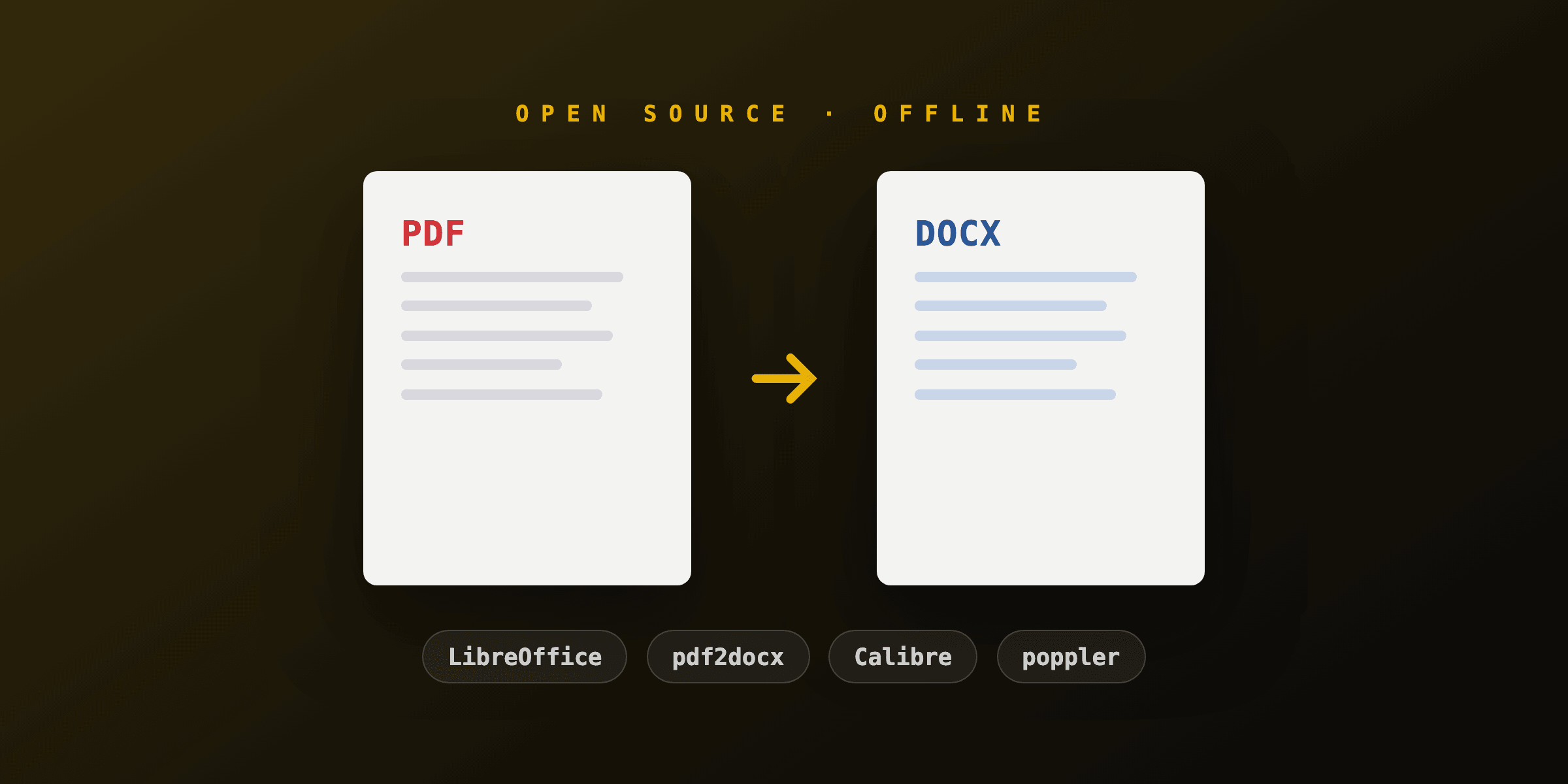
pdf2docx is the best pure-Python option, and driving LibreOffice as a subprocess is the best non-Python engine you can script from Python; everything else extracts content rather than converting layout. "High fidelity" has a ceiling here: PDF stores positioned glyphs, not document structure, so every converter reconstructs by heuristics.
| Approach | Tables | Layout fidelity | Speed | Dependency weight |
|---|---|---|---|---|
| pdf2docx | Yes, bordered + borderless | Good on single-column docs | Fast (C-backed parsing) | pip only |
| LibreOffice subprocess | Partial | Good flowing text | 1-3 s/doc + startup | Full office suite (~700 MB) |
| PyMuPDF + python-docx (custom) | You write the rules | As good as your code | Fast | pip only, high effort |
| OCR pipeline (OCRmyPDF, then above) | Poor | Text recovery only | Slow | Tesseract + suite |
If the deliverable is data rather than an editable Word file, skip DOCX and extract text directly; the text extraction approaches are simpler and faster, and the browser-based PDF to text toolTry it free handles one-offs.
How do you convert a PDF to DOCX with pdf2docx?
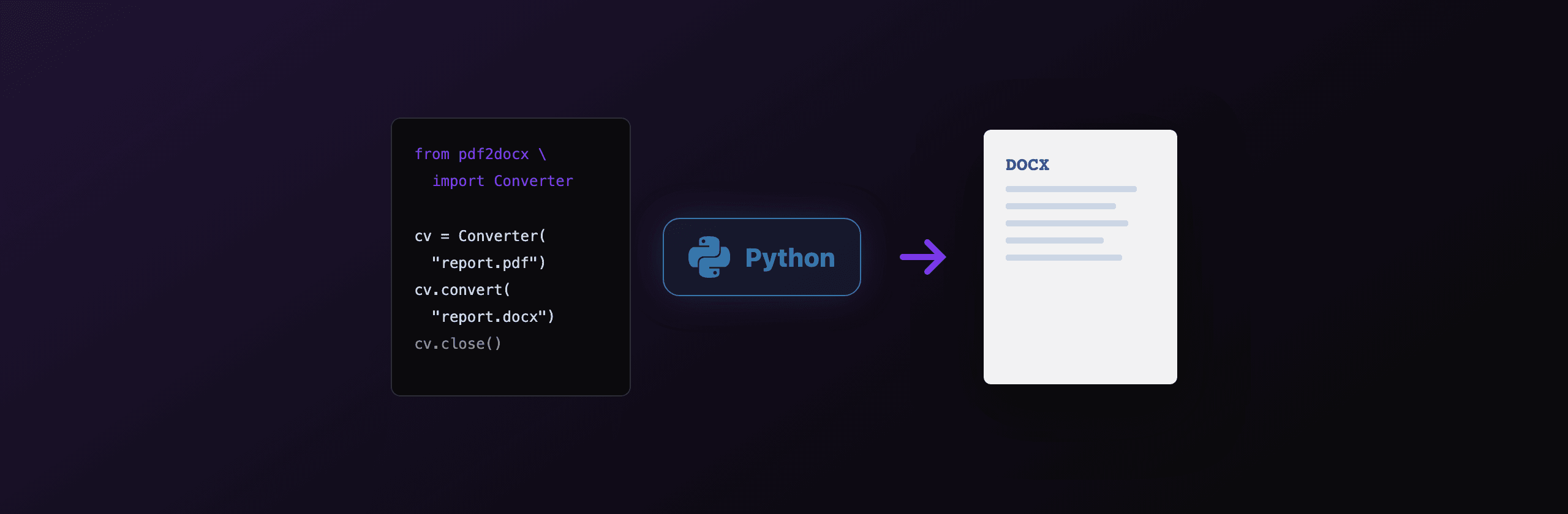
Three lines cover the whole default case, with a one-line shortcut if you do not need options:
from pdf2docx import Converter

cv = Converter("report.pdf")
cv.convert("report.docx")
cv.close()
# One-line shortcut
from pdf2docx import parse
parse("report.pdf", "report.docx")Password-protected files take the password in the constructor: Converter("locked.pdf", password="s3cret"). There is also a CLI (pdf2docx convert report.pdf report.docx) and a minimal GUI (pdf2docx gui) built on the same engine, documented in the official pdf2docx docs.
Under the hood, pdf2docx parses each page with PyMuPDF, runs layout rules to group glyphs into paragraphs, detect table grids (with or without visible borders), and place images, then emits the result through python-docx. Understanding that it is rules, not rendering, explains both its strengths and its failure modes.
What do the convert() parameters actually do?
convert() takes zero-based page indexes with an exclusive end, plus an explicit page list and multiprocessing switches. Since this is the part of the docs everyone searches for, here is the full parameter table:
| Parameter | Default | Meaning |
|---|---|---|
docx_filename | required | Output path for the Word file |
start | 0 | First page index to convert (zero-based) |
end | None | Stop index, exclusive; None means through the last page |
pages | None | Explicit list of page indexes, overrides start/end |
multi_processing | False | Parse pages across worker processes |
cpu_count | all cores | Worker count when multi_processing=True |
cv = Converter("big-report.pdf")

# First 10 pages (indexes 0-9)
cv.convert("part1.docx", start=0, end=10)

# Specific pages only
cv.convert("selection.docx", pages=[0, 2, 4])

# Parallel parsing for a 300-page document
cv.convert("full.docx", multi_processing=True, cpu_count=4)

cv.close()
Two batching notes from production use. multi_processing parallelizes pages within one document; for many separate files, parallelize at the file level with concurrent.futures.ProcessPoolExecutor, one Converter per file. And always close() (or use a try/finally), since the converter holds the source document open.
What survives conversion, and what breaks?
Text paragraphs, simple and borderless tables, and embedded images convert reliably; multi-column layouts, equations, forms, and scans do not. Plan your spot-checks around this table:
| PDF content | In the DOCX |
|---|---|
| Single-column text | Editable paragraphs, styles approximated |
| Bordered tables | Real Word tables, high accuracy |
| Borderless / aligned tables | Usually detected, verify column splits |
| Embedded images | Placed inline, position approximated |
| Multi-column layout | Often merged into one flow or misordered |
| Math equations | Rendered as images or garbled text, not editable equations |
| Form fields (AcroForm) | Values may flatten, fields lost |
| Scanned pages | Nothing without OCR first |
These are typical outcomes for rule-based reconstruction and vary with the source document's internal structure.
For scanned input, add an OCR stage before conversion:
pip install ocrmypdf
ocrmypdf scan.pdf searchable.pdf
python -c "from pdf2docx import parse; parse('searchable.pdf', 'scan.docx')"
OCRmyPDF adds an invisible Tesseract text layer; pdf2docx then has text objects to reconstruct. Expect correct words in reading order, not faithful layout.
When is LibreOffice the better Python path?
Choose the LibreOffice subprocess when the document is flowing text (contracts, letters, manuals) and you care more about paragraph continuity than table geometry. Its Writer PDF import produces natural paragraph flow where pdf2docx sometimes fragments, at the cost of a heavyweight dependency and slower startup:
import subprocess

subprocess.run(
    [
        "soffice", "--headless",
        "--infilter=writer_pdf_import",
        "--convert-to", "docx", "--outdir", "out", "contract.pdf",
    ],
    check=True,
    timeout=60,
)
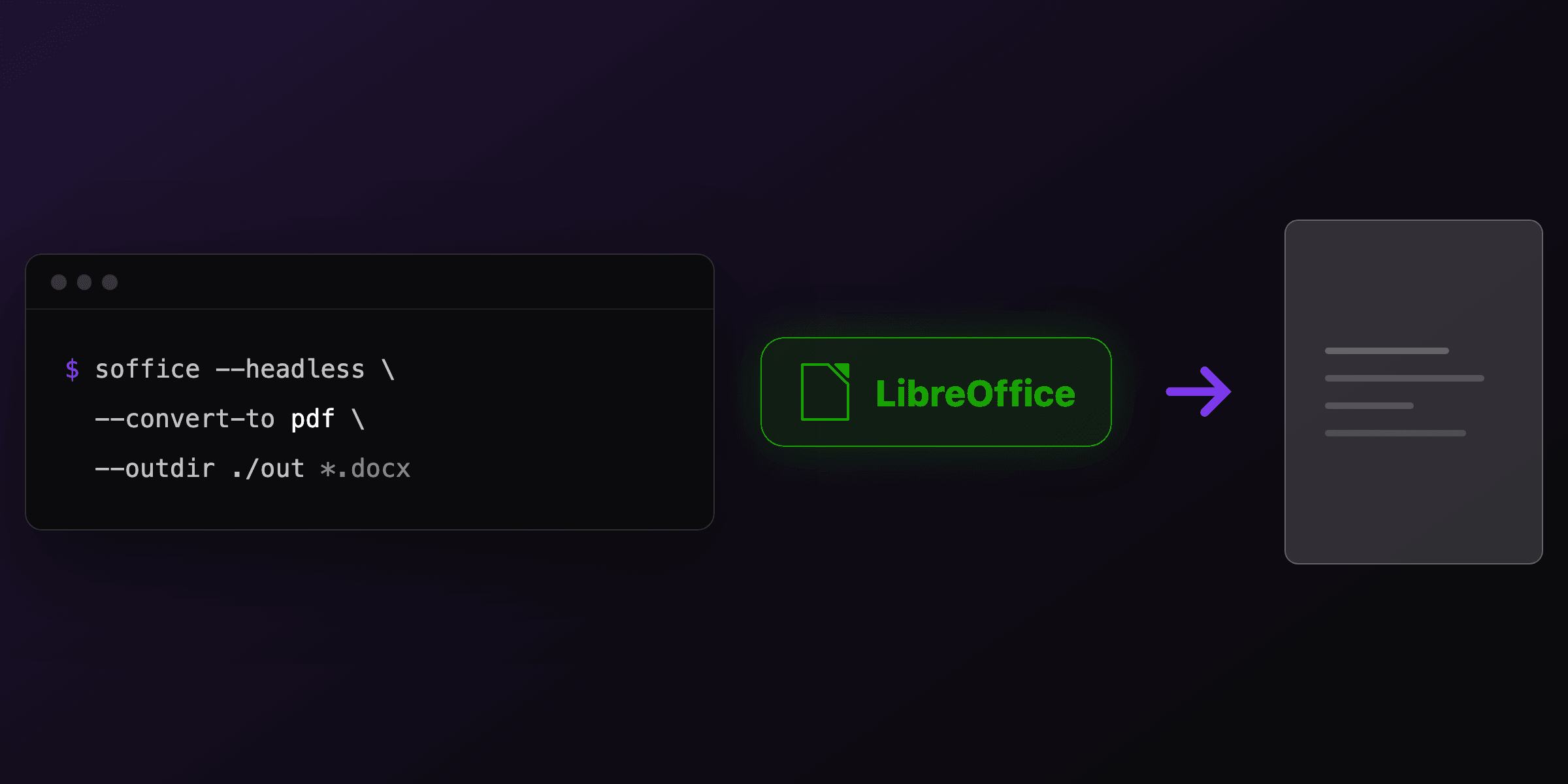
The --infilter=writer_pdf_import flag is load-bearing: without it, LibreOffice imports the PDF through Draw and the DOCX comes out as disconnected text frames. Profiles, parallel workers, Docker sizing, and the rest of the LibreOffice automation story are in the LibreOffice headless conversion guide.
Is pdf2docx safe to build on in 2026?
Yes for scripts and internal pipelines, with two eyes open: maintenance status and the license split. The PyPI page states the project is no longer actively maintained by Artifex, so treat the API as frozen and pin both pdf2docx and PyMuPDF versions in your lockfile.
The license detail that surprises teams: pdf2docx is MIT, but PyMuPDF underneath is AGPL-3.0 with a commercial option from Artifex. Running conversions internally is unaffected in practice; shipping the pipeline inside a distributed or network-served product is where AGPL obligations apply and where teams either buy the commercial license or switch to the LibreOffice route (MPL-2.0). The wider open source field, including Calibre and poppler, is compared in the open source converters roundup.
The conversion you should refuse to build
If the PDFs you are converting were generated by your own system, conversion is the wrong architecture: keep the document as a template and regenerate it instead. Round-tripping PDF to Word to PDF degrades layout on every pass and turns a data change into an editing session.
The template-first version of the same workflow with PDF4.dev, from Python:
import os
import requests

res = requests.post(
    "https://pdf4.dev/api/v1/render",
    headers={"Authorization": f"Bearer {os.environ['PDF4_API_KEY']}"},
    json={
        "template_id": "contract",
        "data": {"client": "Acme Corp", "start_date": "2026-08-01"},
    },
    timeout=30,
)
open("contract.pdf", "wb").write(res.content)
The layout lives in an HTML template with {{variables}}, edits are data edits, and the PDF is always a fresh render, no reconstruction heuristics involved. pdf2docx stays in the toolbox for documents that arrive from outside; for your own documents, generation beats conversion.
Free tools mentioned:
Frequently asked questions
- What is the best Python library to convert PDF to Word?
- pdf2docx is the standard choice. It parses the PDF with PyMuPDF, detects paragraphs, tables, and images with rule-based layout analysis, and writes a native DOCX via python-docx. For flowing text documents where table structure matters less, driving LibreOffice headless from a subprocess is a strong alternative. There is no Python library that perfectly reconstructs complex multi-column layouts.
- How do I convert a PDF to DOCX in Python?
- pip install pdf2docx, then three lines: create Converter("input.pdf"), call convert("output.docx"), call close(). The one-line shortcut parse("input.pdf", "output.docx") does the same. Conversion runs fully offline, no API or upload involved.
- How do the start, end, and pages parameters of pdf2docx work?
- convert() accepts zero-based page indexes: start is the first page to convert (default 0), end is the stop index, exclusive (default None, meaning to the last page), and pages is an explicit list like pages=[0, 2, 4] that overrides start and end. So convert(f, start=0, end=10) converts the first ten pages.
- Does pdf2docx preserve tables?
- Yes, table reconstruction is pdf2docx's strongest feature: it detects both bordered and borderless tables and rebuilds them as real Word tables. Accuracy is high on clean single-column business documents. Merged cells, nested tables, and tables spanning pages are where you should spot-check the output.
- Can pdf2docx convert scanned PDFs?
- No. pdf2docx reconstructs text objects, and a scanned PDF has none, only page images. Run OCR first: ocrmypdf scan.pdf searchable.pdf adds a Tesseract text layer, then pdf2docx converts the searchable PDF. Expect recovered text in reading order rather than faithful layout.
- Is pdf2docx still maintained?
- The PyPI page states pdf2docx is no longer actively maintained by Artifex, though the code is stable and MIT licensed. Treat it as frozen: fine for scripts and pipelines you control, but pin your PyMuPDF version (the engine underneath) and test before upgrading either package.
- Is pdf2docx free for commercial use?
- pdf2docx itself is MIT licensed. Its engine, PyMuPDF, is AGPL-3.0 with a commercial license available from Artifex. Internal tooling is unaffected in practice; embedding the pipeline in a distributed or network-served product raises the AGPL question, and that is when teams buy the PyMuPDF license or switch engines.
- How do I speed up pdf2docx on large PDFs?
- Pass multi_processing=True and optionally cpu_count to convert(): cv.convert("out.docx", multi_processing=True, cpu_count=4) parses pages across worker processes. For many separate files, parallelize at the file level instead with concurrent.futures, one Converter per file.
Start generating PDFs
Build PDF templates with a visual editor. Render them via API from any language in ~300ms.