PDF manipulation covers every operation you can perform on an existing PDF document, from combining multiple files into one, to extracting specific pages, reducing file size, or adding watermarks. This guide walks through each technique with practical examples.
Why manipulate PDFs?
PDFs are the universal document format. But they're notoriously hard to modify. Unlike Word documents or spreadsheets, PDFs were designed to be a final, fixed-layout format. That's great for consistency, but frustrating when you need to:
- Combine multiple documents before sending them
- Extract just a few pages from a long report
- Reduce file size for email attachments
- Reorder pages that got scanned out of order
- Add watermarks for draft or confidential documents
The good news: modern browser-based tools can handle all of this without installing software or uploading files to a server.
Merging PDF files
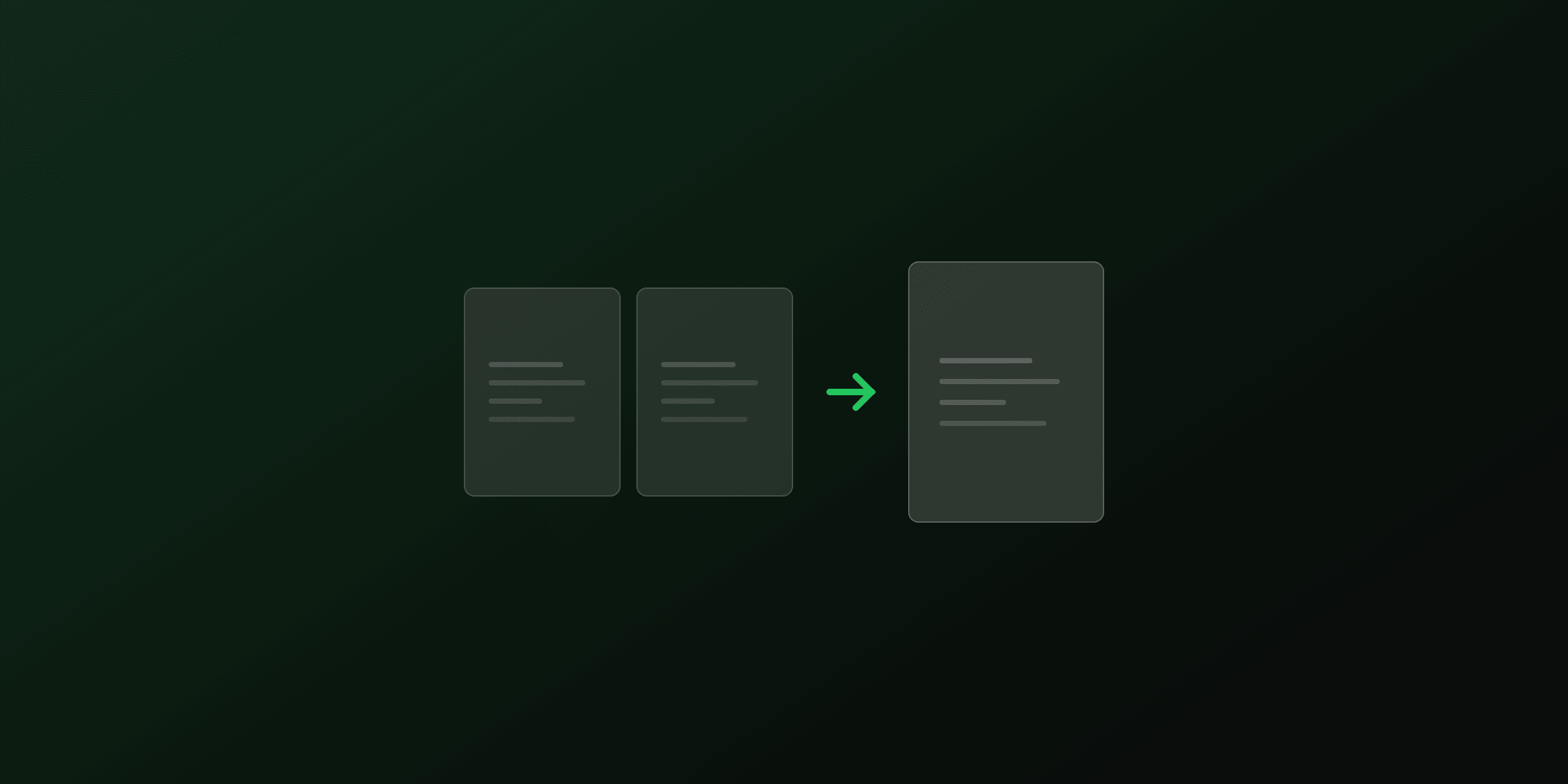
Merging (or combining) PDFs is the most common operation. You have multiple documents, invoices, contracts, appendices, and need them in a single file.
How it works
PDF merging copies pages from multiple source documents into a new PDF. The underlying library (pdf-lib) reads each file's page tree, copies the page objects (including all embedded fonts, images, and annotations), and appends them to a new document.
import { PDFDocument } from 'pdf-lib';

async function mergePdfs(files) {
  const merged = await PDFDocument.create();

  for (const file of files) {
    const pdf = await PDFDocument.load(file);
    const pages = await merged.copyPages(pdf, pdf.getPageIndices());
    for (const page of pages) {
      merged.addPage(page);
    }
  }

  return await merged.save();
}
Best practices
- Check page sizes: merging A4 and Letter documents creates a PDF with mixed page sizes. This is valid but can cause printing issues.
- Watch file size: merging many image-heavy PDFs can create very large files. Consider compressing afterward.
- Preserve order: most tools merge files in the order you add them. Double-check before downloading.
Try it now: Merge PDF, free, no upload required
Splitting PDFs
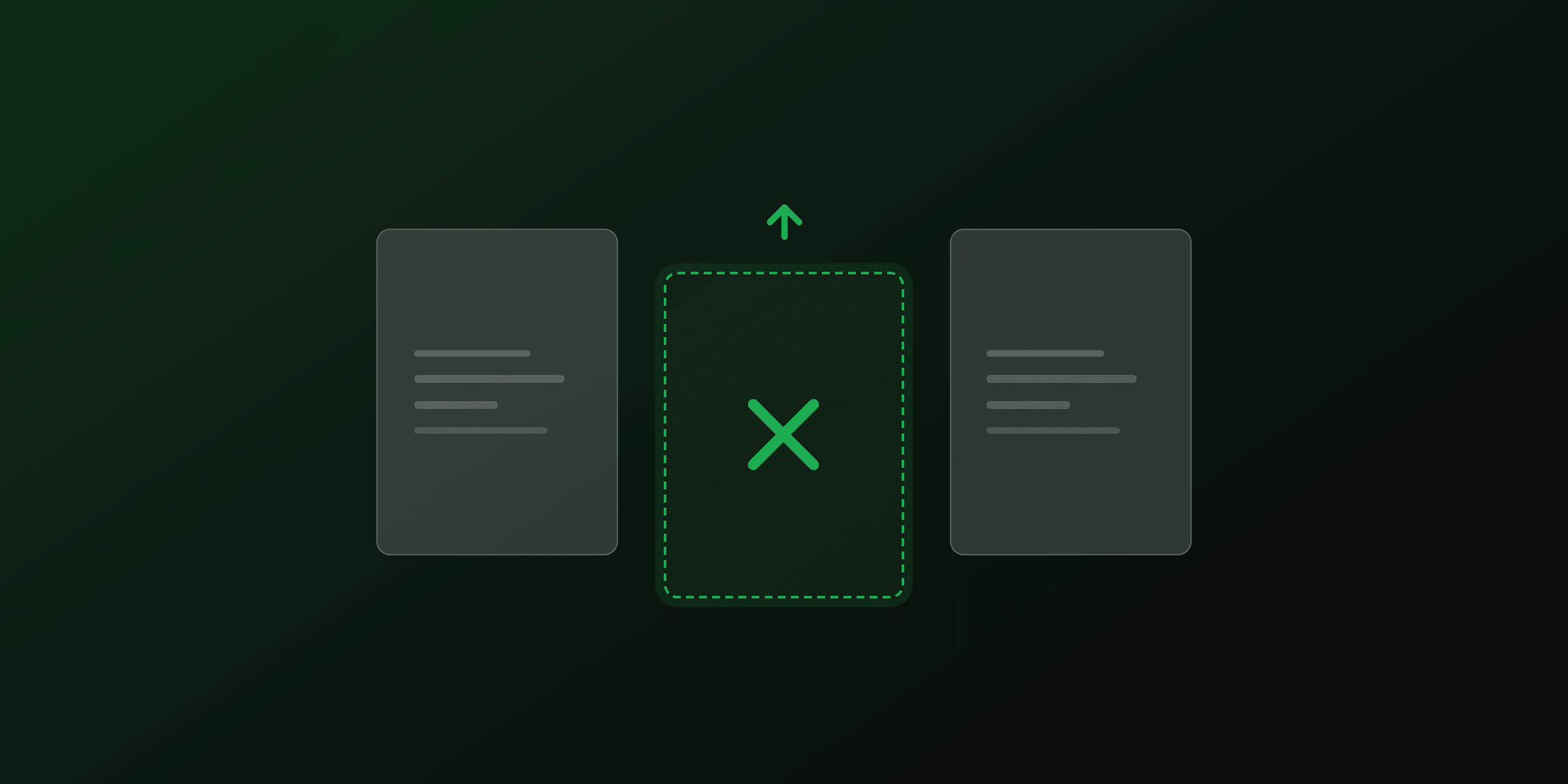
Splitting is the reverse of merging: extracting specific pages from a document.
Common use cases
- Extract pages 1-3 from a 50-page report
- Split each page into a separate file
- Remove unwanted pages (by keeping only the ones you want)
How it works
import { PDFDocument } from 'pdf-lib';

async function splitPdf(file, pageRanges) {
  const source = await PDFDocument.load(file);
  const result = await PDFDocument.create();

  for (const pageIndex of pageRanges) {
    const [page] = await result.copyPages(source, [pageIndex]);
    result.addPage(page);
  }

  return await result.save();
}
Try it now: Split PDF, free, no upload required
Compressing PDFs
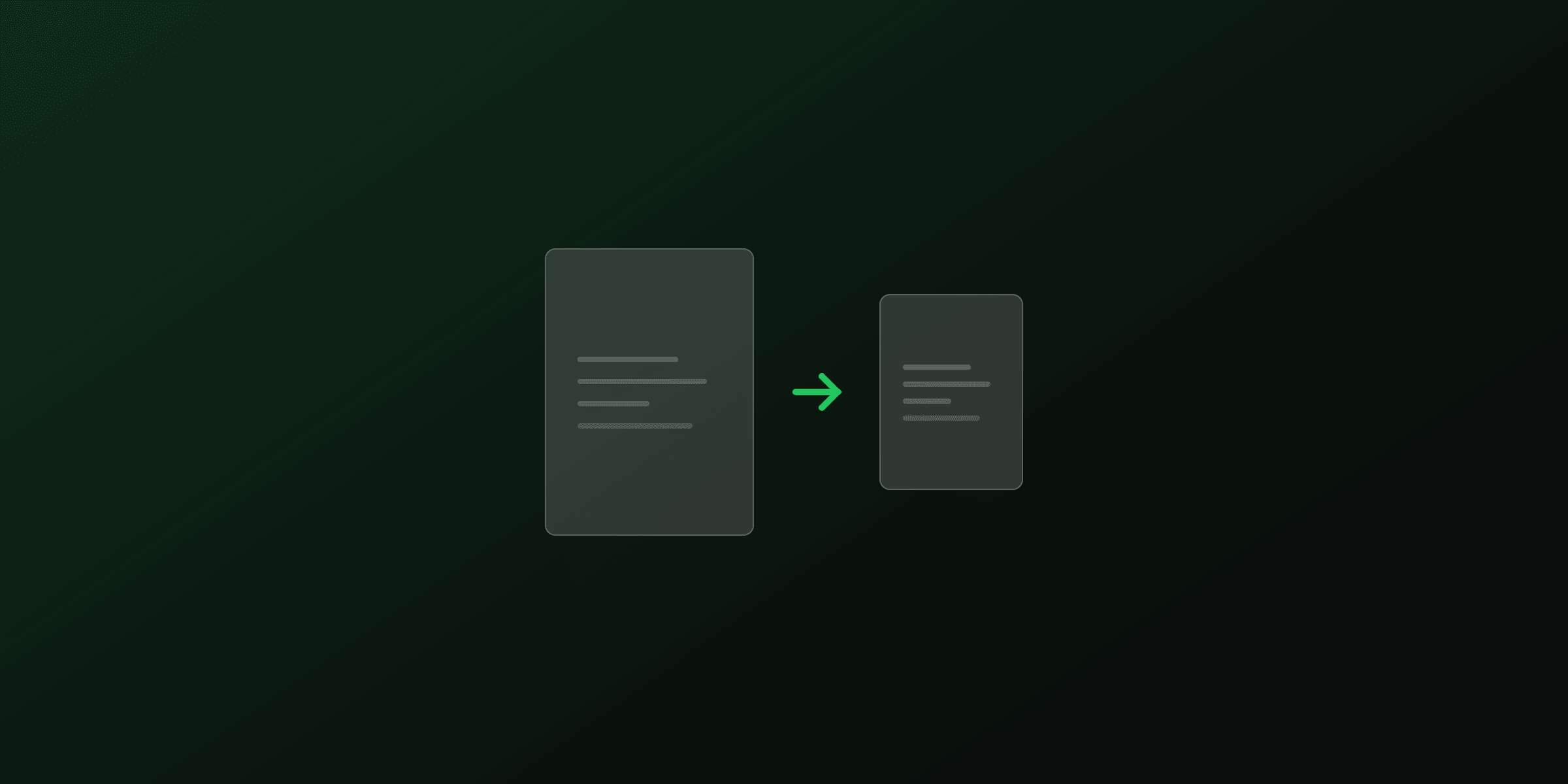
Large PDFs are problematic: slow to load, hard to email, expensive to store. Compression reduces file size while maintaining acceptable quality.
How compression works
PDF compression targets the largest elements in a document:
- Images, downscale resolution and re-encode as JPEG. A 300 DPI image at 4000x3000 pixels might become 150 DPI at 2000x1500, half the size with minimal visible difference.
- Fonts, subset fonts to include only the characters actually used in the document.
- Metadata, strip unnecessary metadata, XMP data, and thumbnails.
Compression results
| Document Type | Original | Compressed | Reduction |
|---|---|---|---|
| Scanned document | 15 MB | 3 MB | 80% |
| Text-heavy report | 2 MB | 800 KB | 60% |
| Image-heavy presentation | 25 MB | 8 MB | 68% |
Approximate ranges at
/ebookquality (150 DPI). Results vary by original image resolution and whether images were already compressed. See the full compression guide for methodology details.
Try it now: Compress PDF, free, no upload required
Rotating pages
Sometimes scanned documents come in sideways, or you need landscape pages in a portrait document. Rotation fixes this without re-scanning.
Rotation options
- 90° clockwise, portrait to landscape (right)
- 90° counter-clockwise, portrait to landscape (left)
- 180°, upside-down to right-side-up
You can rotate individual pages or all pages at once.
Try it now: Rotate PDF, free, no upload required
Reordering pages
Drag-and-drop page reordering lets you rearrange a document without splitting and re-merging.
When you need it
- Scanned pages in the wrong order
- Moving an appendix before the bibliography
- Reorganizing a presentation deck
Try it now: Reorder PDF, free, no upload required
Adding watermarks
Watermarks overlay text (like "DRAFT", "CONFIDENTIAL", or your company name) on every page of a document.
Watermark options
- Text: any string, positioned diagonally across the page
- Opacity: 10-50% is typical, visible but doesn't obscure content
- Color: gray is standard, but any color works
- Font size: auto-scaled to fit the page, or manually set
Try it now: Watermark PDF, free, no upload required
Adding page numbers
Page numbers make multi-page documents navigable. You can add them to headers or footers, with customizable format (1, 2, 3 or Page 1 of 10). This tool is coming soon to PDF4.dev.
Flattening PDFs
Flattening converts interactive form fields into static content. This is useful when:
- Sending filled forms that shouldn't be editable
- Reducing file size (form fields add overhead)
- Ensuring consistent rendering across different PDF viewers
This tool is coming soon to PDF4.dev.
Privacy: client-side processing
All PDF4.dev manipulation tools run entirely in your browser. Your files are never uploaded to a server, the processing happens locally using WebAssembly and JavaScript libraries like pdf-lib and pdfjs-dist.
This means:
- No upload wait, processing starts instantly
- No file size limits, limited only by your device's memory
- Complete privacy, your documents stay on your machine
- Works offline, once the page is loaded, no internet needed
Manipulating PDFs vs generating them
Everything above applies to existing PDFs: files you received, scanned documents, exports from other systems. But if you're creating PDFs as part of an application (invoices, reports, certificates, contracts), manipulation is often the wrong layer.
If you generate the PDF correctly from the start, you rarely need to merge, split, or post-process it. Design a template that includes all the sections you need, inject dynamic data at render time, and the output is already exactly what you want.
# One API call, one complete document, no post-processing
curl -X POST https://pdf4.dev/api/v1/render \
  -H "Authorization: Bearer p4_live_xxxxx" \
  -H "Content-Type: application/json" \
  -d '{
    "template_id": "invoice",
    "data": {
      "company": "Acme Corp",
      "invoice_number": "INV-042",
      "items": [{ "description": "Service", "total": "$1,200" }]
    }
  }'
When to use manipulation tools: on existing PDFs you don't control (received documents, user uploads, legacy exports).
When to use an API: when your application generates the PDFs in the first place. Design the output correctly upfront instead of fixing it afterward.
PDF4.dev has a free tier. Create a template, add Handlebars variables, and generate PDFs via REST API from any language.
Summary
| Operation | Use Case | Tool |
|---|---|---|
| Merge | Combine multiple files | Merge PDF |
| Split | Extract specific pages | Split PDF |
| Compress | Reduce file size | Compress PDF |
| Rotate | Fix page orientation | Rotate PDF |
| Reorder | Rearrange pages | Reorder PDF |
| Watermark | Add text overlay | Watermark PDF |
| Page Numbers | Add headers/footers | Coming soon |
| Flatten | Lock form fields | Coming soon |
All tools are free, require no signup, and process files entirely in your browser.
Frequently asked questions
- What is PDF manipulation?
- PDF manipulation covers any operation on an existing PDF: merging multiple files, splitting pages, compressing file size, rotating pages, adding watermarks, reordering pages, or protecting with a password.
- What is the best free tool for PDF manipulation?
- PDF4.dev offers free browser-based tools for all common PDF operations including merge, split, compress, rotate, reorder, and watermark. All tools run locally in the browser.
- Can I manipulate PDFs without installing software?
- Yes. Browser-based tools like those at PDF4.dev run entirely in your browser using JavaScript. No installation or account is required.
- Is it safe to use online PDF tools?
- PDF4.dev processes all files locally in your browser. Your documents are never uploaded to a server.
- What is the difference between merging and splitting PDFs?
- Merging combines multiple PDF files into one document. Splitting extracts specific pages or page ranges from a PDF into separate files.
Start generating PDFs
Build PDF templates with a visual editor. Render them via API from any language in ~300ms.