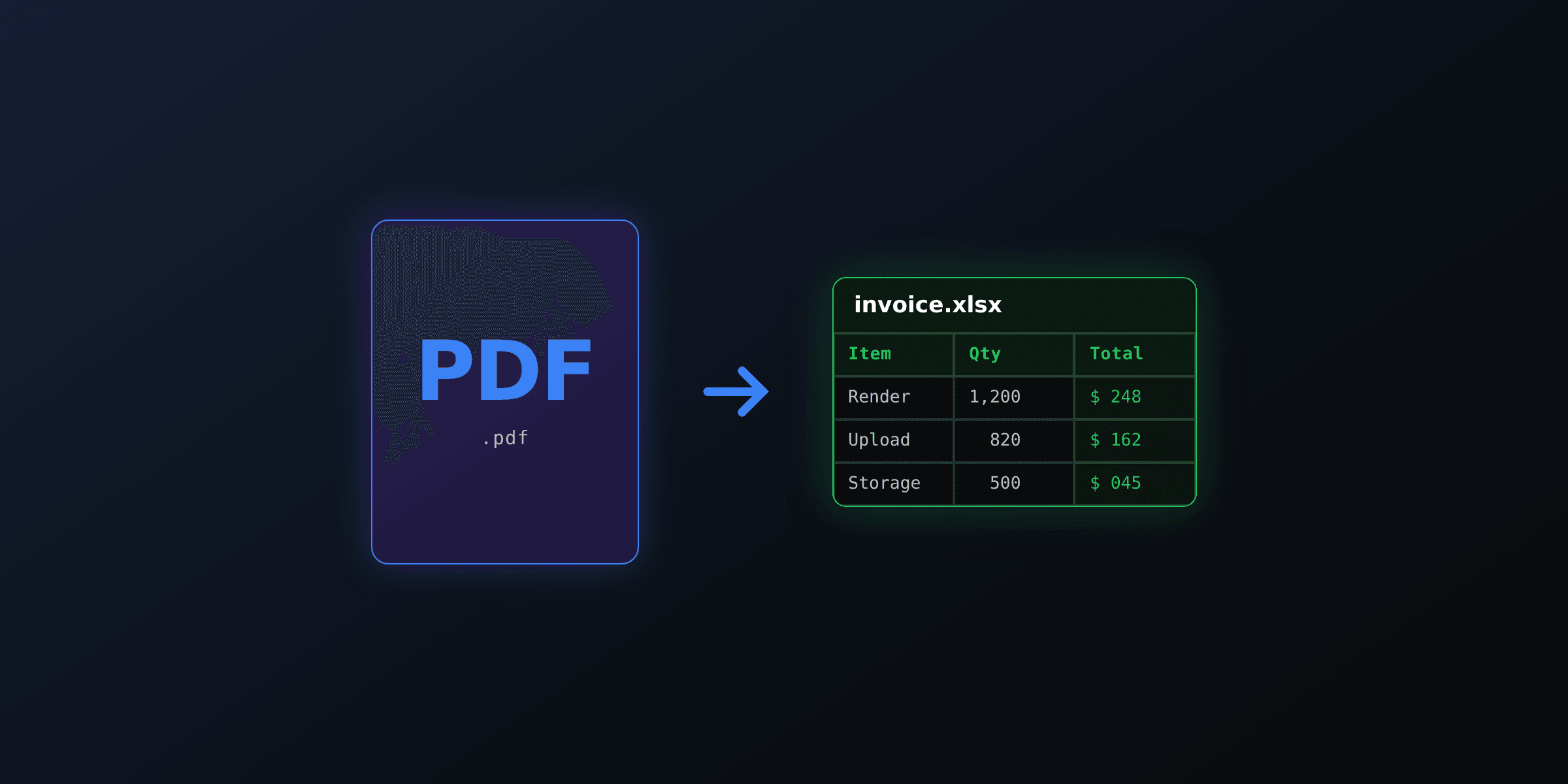
Picking a PDF-to-Word converter in 2026 is a tradeoff between fidelity, automation, and cost. Adobe Acrobat Online wins on overall fidelity for single complex documents. pdf2docx wins for Python automation. LibreOffice headless wins for batch CLI on Linux servers, with the caveat that it struggles on equations. ABBYY FineReader wins for scanned PDFs. This guide tests all five on the same five real documents and scores them on text, layout, tables, equations, and images.
How PDF-to-Word actually works
PDF and DOCX are structurally different formats. A PDF stores positioned glyphs on a fixed canvas: each character has explicit x/y coordinates and no concept of paragraph, heading, or table row. A DOCX file stores a logical tree of paragraphs, runs, tables, and styles that reflows depending on the page size.
Converting from PDF to DOCX is therefore a reconstruction problem, not a translation. Every converter applies heuristics to group glyphs into words, words into lines, lines into paragraphs, and detect tables, columns, and images. The quality of those heuristics is exactly what separates the tools tested below.
Two strategies dominate in 2026:
- Text-layer reconstruction: the source PDF has an embedded text layer (it was generated digitally, for example by a Word export or a PDF API). Converters read the text layer and rebuild paragraphs from coordinates.
- OCR plus reconstruction: the source PDF is scanned (no text layer, just pixels). The converter runs optical character recognition first, then reconstructs structure from the recognized text.
A digital PDF and a scanned PDF will give wildly different results in the same tool. That's why this comparison includes both.
The test setup
Each tool was tested on the same five documents, scored on a 1 to 5 scale per criterion. Total score is the sum across all documents.
| # | Document | Type | What it tests |
|---|---|---|---|
| 1 | Invoice with line-item table | Digital | Table reconstruction |
| 2 | 6-page contract with footnotes | Digital | Footnote and reference handling |
| 3 | Scientific paper with equations | Digital | Equation recognition |
| 4 | Scanned letter (200 dpi) | Scanned | OCR accuracy |
| 5 | Multi-column newsletter | Digital | Column flow reconstruction |
Scoring criteria per document:
- Text (1-5): character-level accuracy
- Layout (1-5): preservation of margins, spacing, headings
- Tables (1-5): row/column integrity
- Equations (1-5): native Word equation objects vs. broken images
- Images (1-5): figure placement and resolution
Each document also has a recorded time and cost for the conversion. Test machine: M3 MacBook Pro, 18 GB RAM, macOS 15. CLI tools were also re-run inside a Docker container on a 2-vCPU Linux VM to confirm reproducibility.
Side-by-side results
The table below averages each tool's score across all five test documents (max 25 per criterion, max 125 total).
| Tool | Text | Layout | Tables | Equations | Images | Total /125 | Cost |
|---|---|---|---|---|---|---|---|
| Adobe Acrobat Online | 24 | 22 | 22 | 18 | 21 | 107 | Paid |
| pdf2docx (Python) | 23 | 21 | 22 | 8 | 19 | 93 | Free |
| ABBYY FineReader | 24 | 21 | 20 | 21 | 20 | 106 | Paid |
| LibreOffice headless | 22 | 18 | 16 | 4 | 17 | 77 | Free |
| Google Docs | 21 | 14 | 12 | 6 | 13 | 66 | Free |
Scoring is comparative on the five test documents and not a universal benchmark. A converter that scores low here may still be the best tool for a specific document type. Run the same five-document test on your own corpus before committing to a workflow.
Three patterns stand out:
- The two paid tools (Adobe, ABBYY) are within one point of each other overall, but ABBYY wins decisively on equations and Adobe wins on table reconstruction.
- pdf2docx is the strongest free tool by a wide margin on digital PDFs, mostly because of its careful table heuristics.
- Every tool falls apart on equations except Adobe and ABBYY. If equations matter, the free tools are not viable.
Adobe Acrobat Online: best overall
Adobe Acrobat Online is the highest-fidelity converter in the test. It correctly reconstructs the line-item table in the invoice, keeps the contract footnotes anchored to the right page, and recognizes inline equations as native Word equation objects (not images). The conversion ran in about 25 to 35 seconds per document via the browser uploader.
Strengths:
- Best-in-class table reconstruction
- Inline equation recognition (digital PDFs)
- Recognized headings, page numbers, and lists reliably
- No install needed for the web version
Limitations:
- Paid: subscription required for unlimited conversions
- No batch CLI for automation
- Browser-only UX for the online version (Acrobat Pro desktop has more options but is also paid)
- API-based access requires the Adobe PDF Services API, which is metered separately
Best for: single high-value documents (legal contracts, financial reports, scientific papers) where manual cleanup time would cost more than the subscription.
LibreOffice headless: best free batch CLI
LibreOffice in headless mode runs from the terminal with no GUI, which makes it the standard tool for batch conversion on Linux servers and inside Docker images. The key flag is --infilter='writer_pdf_import', which forces LibreOffice to use its PDF import filter (otherwise it tries to auto-detect and sometimes picks the wrong filter).
soffice --headless \
  --infilter='writer_pdf_import' \
  --convert-to docx \
  document.pdf
See the LibreOffice command-line parameters reference for the full list of flags.
Strengths:
- Free and open source (Mozilla Public License 2.0)
- Scriptable, runs in Docker and CI/CD
- Handles dozens of files in seconds
- No vendor lock-in
Limitations:
- Drops or breaks complex equations (4/25 on the equation criterion)
- Sometimes flattens multi-column tables into single columns
- Performance degrades on PDFs above 100 pages
- First call is slow because LibreOffice has to spin up its user profile (workaround: pre-create a profile directory and pass
-env:UserInstallation=file:///tmp/lo)
Best for: Linux server batch conversion of digital PDFs where equations and complex tables are rare.
pdf2docx (Python): best for developer automation
pdf2docx is an MIT-licensed Python library that focuses on layout preservation. It scored 93/125 overall, the highest of any free tool. The reason: its table reconstruction heuristics are specifically tuned for digital PDFs, and the library exposes a small but useful API for converting page ranges or specific pages.
from pdf2docx import Converter

cv = Converter("input.pdf")
cv.convert("output.docx")
cv.close()
Strengths:
- MIT license, free for commercial use
- No system dependencies (pure Python, runs on Windows, macOS, Linux)
- Strong table reconstruction
- Easy to integrate into existing Python pipelines
Limitations:
- No built-in OCR: scanned PDFs convert poorly (you have to OCR with Tesseract first)
- Equation handling is weak (8/25): equations come out as images
- Performance is acceptable but not fast: a 50-page PDF takes around 8 to 15 seconds
Best for: Python data pipelines that handle digital PDFs (invoices, statements, reports) and need a layout-preserving converter without paying for a SaaS.
ABBYY FineReader: best for scanned PDFs
ABBYY FineReader PDF is a commercial OCR-first product that has been the reference for scanned document recognition for over two decades. In the test, it scored within one point of Adobe overall but won decisively on the scanned letter and on equations.
Strengths:
- Most accurate OCR engine in the test (scanned letter: 24/25 on text)
- Native equation recognition, both digital and scanned
- Recognizes handwriting in mixed-content documents (with caveats)
- Server SDK available for high-volume pipelines
Limitations:
- Paid: standard pricing around $199/year for personal use, more for the server SDK
- Desktop-first UX (server version requires a separate license)
- Overkill for digital-only workflows
- No free tier beyond a short trial
Best for: archives, document digitization projects, and any pipeline where the source is predominantly scanned. If your corpus is fully digital, Adobe or pdf2docx will be cheaper for similar results.
Google Docs: best for one-offs without an account
Google Docs converts PDFs to editable documents directly in the browser. Upload to Drive, right-click the file, choose Open with then Google Docs, and the conversion happens server-side. To export as DOCX, click File then Download then Microsoft Word.
Strengths:
- Free with any Google account
- No install
- Basic OCR included (works on simple scanned PDFs)
- Works on any device with a browser
Limitations:
- One document at a time, no API
- Layout is the weakest in the test (14/25): tables often collapse and columns merge
- Equations come out as inline images
- Hidden processing limit on very large PDFs (over about 50 pages tends to fail silently)
Best for: quick one-off conversions on a borrowed device, or as a fallback when no other tool is available.
How to pick
The decision tree below maps the most common requirements to the tool that ranked highest in the test for that requirement.
| Requirement | Recommended tool | Why |
|---|---|---|
| One-off, free, simple text PDF | Google Docs | No install, works in any browser |
| Batch automation on Linux | LibreOffice headless | Free, scriptable, runs in Docker |
| Python pipeline, layout-preserving | pdf2docx | MIT licensed, strong table reconstruction |
| Scanned PDFs with OCR | ABBYY FineReader | Best OCR accuracy, equation recognition |
| Single complex document, highest fidelity | Adobe Acrobat Online | Top scores on tables, columns, equations |
| API-based DOCX extraction | Adobe PDF Services API | Metered REST API, documented here |
A practical workflow for mixed corpora: pre-classify each PDF as digital or scanned (using a fast heuristic like "does the file contain a text layer at least 100 characters long?"), then route digital PDFs through pdf2docx or LibreOffice headless and scanned PDFs through ABBYY or a Tesseract plus pdf2docx pipeline. This avoids paying for ABBYY licenses on documents that do not need OCR.
When PDF-to-Word is the wrong move
Sometimes the cleanest pipeline does not start from a PDF at all. If you control the upstream system that generated the PDF (your own backend, a templating system, an internal report builder), it is almost always cheaper and more reliable to render Word directly from the structured source data, or to render HTML and convert to DOCX once at the end.
A typical example: your application currently exports invoices as PDFs via PDF4.dev or another HTML-to-PDF API. A client asks for editable Word versions. Rather than running every PDF back through pdf2docx and accepting the layout drift, render the same Handlebars template to HTML and use LibreOffice (or pandoc) to convert HTML to DOCX in one step. The result preserves more of the original intent because the converter is working from a flow-based source rather than reconstructing one.
This pattern is especially relevant when you are already generating PDFs programmatically. See generate PDFs from HTML in Node.js for the upstream half of the pipeline, and PDF4.dev's render API for the HTML-first approach.
PDF-to-Word conversion is the right move when you do not control the source PDF (third-party documents, archives, scanned uploads). When you do control the source, render the format you actually need, once.
Frequently asked questions
What's the best PDF to Word converter in 2026?
For overall fidelity on a single complex document, Adobe Acrobat Online ranks first because it reconstructs tables, columns, and even inline equations with the fewest manual fixes. For free Python automation, pdf2docx is the strongest. For batch CLI on Linux servers, LibreOffice headless is the most reliable. For scanned PDFs, ABBYY FineReader wins on OCR accuracy.
Is there a free PDF to Word converter that preserves layout?
Yes. pdf2docx is an MIT-licensed Python library that preserves paragraphs, tables, images, and most layout features from digital PDFs. LibreOffice Writer also imports PDFs and exports DOCX. Both are fully free for personal and commercial use.
How do I convert a PDF to Word using Python?
Install pdf2docx with pip install pdf2docx, then use the Converter class. A two-line script converts a digital PDF to DOCX while preserving paragraphs, tables, and images. The library is MIT licensed and runs on Windows, macOS, and Linux without any system dependencies.
Does LibreOffice convert PDFs to Word documents?
Yes. LibreOffice Writer opens PDF files and saves them as DOCX. In headless mode, the command soffice --headless --infilter='writer_pdf_import' --convert-to docx file.pdf converts a PDF from the terminal. It is the standard choice for batch conversion on Linux servers.
How accurate is Adobe Acrobat's PDF-to-Word feature?
Adobe Acrobat Online produces the cleanest DOCX output for complex documents in this test, with the strongest table and equation reconstruction. The tradeoff is cost (paid subscription) and lack of a batch CLI. It is best for one-off high-value documents rather than automated pipelines.
Can I convert scanned PDFs to editable Word documents?
Yes, with an OCR engine. ABBYY FineReader PDF is the most accurate commercial option. Microsoft Word and Google Docs both include basic OCR. Open-source pipelines use Tesseract to extract text, then pdf2docx or pandoc for the DOCX output.
How do I convert multiple PDFs to Word at once?
LibreOffice headless converts a folder of PDFs in one command. For Python pipelines, loop over a folder and call pdf2docx Converter on each file. Both approaches process dozens of files in seconds and run well in CI/CD or Docker.
Why does my PDF-to-Word conversion lose formatting?
PDFs store positioned glyphs on a fixed canvas; DOCX uses flow-based paragraphs and runs. Every converter has to reconstruct the document structure by heuristic, which is why multi-column layouts, decorative fonts, footnotes, and complex tables often need manual cleanup.
Can ABBYY FineReader handle equations?
Yes. ABBYY FineReader PDF includes equation recognition for both digital and scanned PDFs and exports them as native Word equation objects in most cases. It is the most accurate commercial tool for scientific and academic PDF conversion.
Is Google Docs PDF-to-Word free?
Yes. Uploading a PDF to Google Drive and opening it with Google Docs is free with any Google account. You can then export as DOCX via File then Download then Microsoft Word. The tradeoffs are one document at a time, no API, and weak layout preservation on complex documents.
Free tools mentioned:
Frequently asked questions
- What's the best PDF to Word converter in 2026?
- For overall fidelity on a single complex document, Adobe Acrobat Online ranks first because it reconstructs tables, columns, and even inline equations with the fewest manual fixes. For free Python automation, pdf2docx is the strongest choice. For batch CLI on Linux servers, LibreOffice headless is the most reliable. For scanned PDFs, ABBYY FineReader wins on OCR accuracy.
- Is there a free PDF to Word converter that preserves layout?
- Yes. pdf2docx is an MIT-licensed Python library that preserves paragraphs, tables, images, and most layout features from digital PDFs. LibreOffice Writer (free and open source) also imports PDFs and exports DOCX, though it sometimes flattens complex tables. Both are fully free for personal and commercial use.
- How do I convert a PDF to Word using Python?
- Install pdf2docx with pip install pdf2docx, then use the Converter class. A two-line script (cv = Converter("input.pdf"); cv.convert("output.docx")) converts a digital PDF to DOCX while preserving paragraphs, tables, and images. The library is MIT licensed and runs on Windows, macOS, and Linux.
- Does LibreOffice convert PDFs to Word documents?
- Yes. LibreOffice Writer opens PDF files and saves them as DOCX. In headless mode, the command soffice --headless --infilter='writer_pdf_import' --convert-to docx file.pdf converts a PDF from the terminal. The tool is free, open source, and runs in Docker, which makes it the standard choice for batch conversion on Linux servers.
- How accurate is Adobe Acrobat's PDF-to-Word feature?
- Adobe Acrobat Online (and the desktop Acrobat Pro) typically produces the cleanest DOCX output for complex documents, with the strongest table and equation reconstruction in this comparison. The tradeoff is cost (paid subscription) and lack of a batch CLI. It is best for one-off high-value documents rather than automated pipelines.
- Can I convert scanned PDFs to editable Word documents?
- Yes, but you need an OCR engine. ABBYY FineReader PDF is the most accurate commercial option and handles scanned text plus equations. Microsoft Word and Google Docs both include basic OCR. Open-source pipelines use Tesseract to extract text first, then pdf2docx or pandoc for the DOCX output.
- How do I convert multiple PDFs to Word at once?
- LibreOffice headless converts a folder of PDFs in one command: soffice --headless --convert-to docx --outdir ./output ./input/*.pdf. For Python pipelines, loop over a folder and call pdf2docx Converter on each file. Both approaches process dozens of files in seconds and run well in CI/CD or Docker.
- Why does my PDF-to-Word conversion lose formatting?
- PDFs store positioned glyphs on a fixed canvas; DOCX uses flow-based paragraphs and runs. Every converter has to reconstruct the document structure by heuristic, which is why multi-column layouts, decorative fonts, footnotes, and complex tables often need manual cleanup. The more "design-heavy" the source PDF, the more cleanup you should expect.
- Can ABBYY FineReader handle equations?
- Yes. ABBYY FineReader PDF includes equation recognition for both digital and scanned PDFs, and exports them as native Word equation objects in most cases. It is currently the most accurate commercial tool for scientific and academic PDF conversion, though pricing is positioned for professional rather than casual use.
- Is Google Docs PDF-to-Word free?
- Yes. Uploading a PDF to Google Drive and opening it with Google Docs is free with any Google account. You can then export the result as DOCX via File then Download then Microsoft Word. The tradeoffs are one document at a time, no API, and weak layout preservation on complex documents.
Start generating PDFs
Build PDF templates with a visual editor. Render them via API from any language in ~300ms.