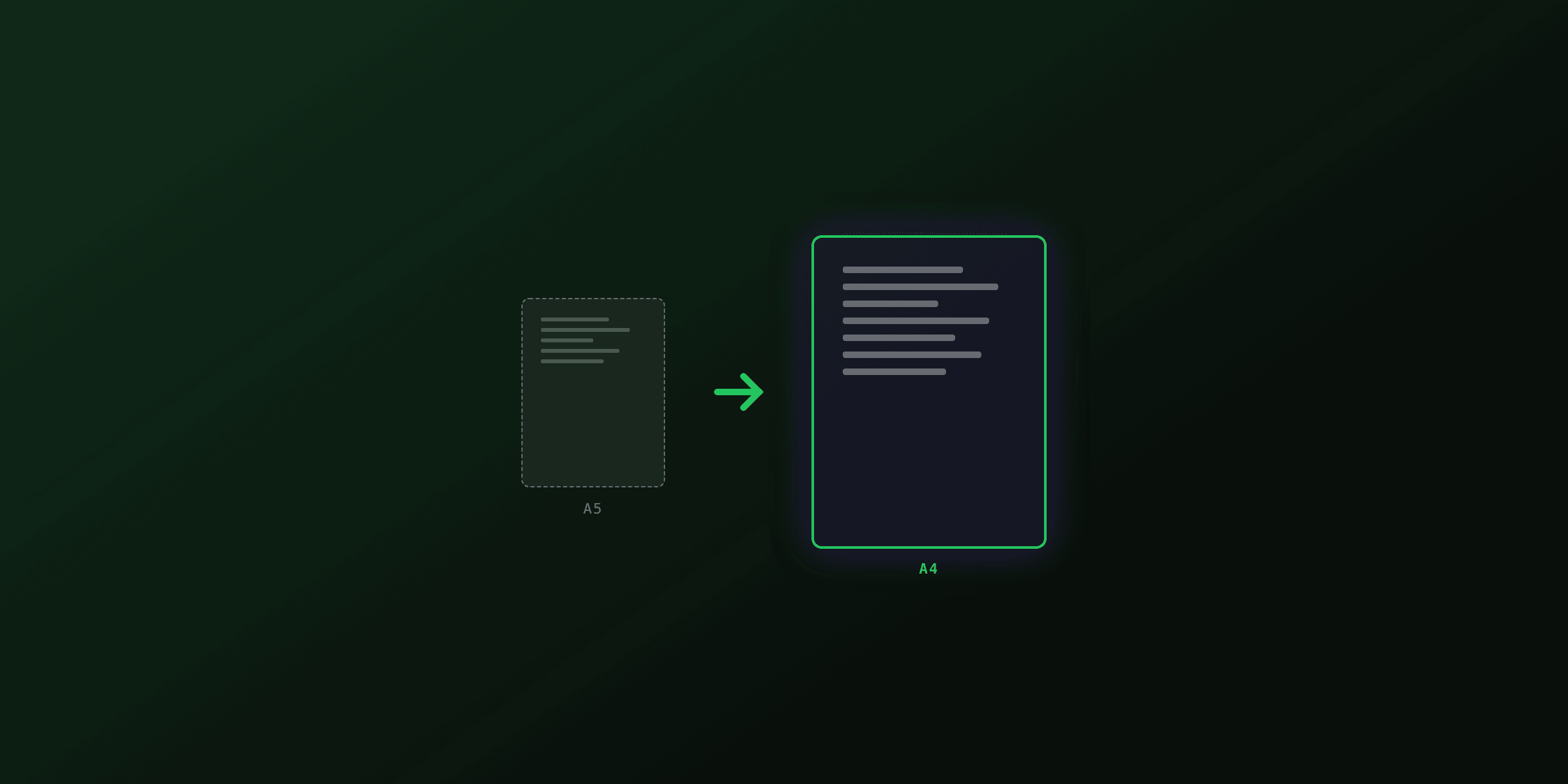
PDF page size is measured in PostScript points, where one point equals 1/72 inch. An A4 page is 595 by 842 points (210 by 297 mm); US Letter is 612 by 792 points (8.5 by 11 inches). This guide lists every standard PDF paper size in points, millimeters, inches, and pixels, explains how the A series and US sizes relate, and shows how to set the page size when you generate a PDF from HTML.
What are the standard PDF page sizes?
The most common PDF page sizes are A4 and US Letter. A4 (595 by 842 points) is the ISO standard used everywhere except North America; Letter (612 by 792 points) is the default in the United States and Canada. Both are close in size but not interchangeable: A4 is narrower and taller.
Inside a PDF, the page size lives in the MediaBox of each page object, stored in points. A point is 1/72 inch, the native PDF unit defined by the PDF specification (ISO 32000). Points are resolution-independent, so a 595 by 842 page is A4 whether it is viewed on screen or printed at 300 DPI.
This table covers the sizes you will meet most often, in all four units. Pixel values use 96 DPI, the CSS reference pixel that browsers assume.
| Size | Points (w × h) | Millimeters | Inches | Pixels @ 96 DPI |
|---|---|---|---|---|
| A4 | 595 × 842 | 210 × 297 | 8.27 × 11.69 | 794 × 1123 |
| US Letter | 612 × 792 | 216 × 279 | 8.5 × 11 | 816 × 1056 |
| US Legal | 612 × 1008 | 216 × 356 | 8.5 × 14 | 816 × 1344 |
| A3 | 842 × 1191 | 297 × 420 | 11.69 × 16.54 | 1123 × 1587 |
| A5 | 420 × 595 | 148 × 210 | 5.83 × 8.27 | 559 × 794 |
| Tabloid / Ledger | 792 × 1224 | 279 × 432 | 11 × 17 | 1056 × 1632 |
| Executive | 522 × 756 | 184 × 267 | 7.25 × 10.5 | 696 × 1008 |
All values are portrait orientation. For landscape, swap width and height.
The ISO A series, explained
The A series is defined by ISO 216 and is built on one rule: A0 has an area of exactly one square meter, and each smaller size is the previous one cut in half across its longer side. A5 is half of A4, A4 is half of A3, all the way up to A0.
Every A size keeps the same aspect ratio of 1 to the square root of 2 (about 1.414). That ratio is what makes the halving work without distortion: fold any A sheet in half and you get the next size down with identical proportions. This is why scaling a layout from A4 to A3 or A5 never stretches it.
The practical consequence for PDF generation: if your document looks right on A4, it will look right on any A size with no layout changes, only a scale factor. Mixing the A series with US sizes does not share this property, because Letter and Legal use a different aspect ratio.
| Size | Points (w × h) | Millimeters | Typical use |
|---|---|---|---|
| A0 | 2384 × 3370 | 841 × 1189 | Posters, engineering drawings |
| A1 | 1684 × 2384 | 594 × 841 | Posters, technical plans |
| A2 | 1191 × 1684 | 420 × 594 | Drawings, large charts |
| A3 | 842 × 1191 | 297 × 420 | Spreadsheets, two-up A4 |
| A4 | 595 × 842 | 210 × 297 | Documents, letters, reports |
| A5 | 420 × 595 | 148 × 210 | Booklets, flyers, notebooks |
| A6 | 298 × 420 | 105 × 148 | Postcards, tickets |
North American paper sizes
The United States, Canada, and parts of Latin America use the ANSI and "loose" sizes rather than the A series. Letter is the everyday default; Legal is for contracts; Tabloid is the two-up Letter size used for newspapers and large tables.
Unlike the A series, US sizes do not share a single aspect ratio, so scaling between them changes proportions. Letter is 1.29 to 1, Legal is 1.65 to 1, Tabloid is 1.55 to 1. A layout built for Letter will not map cleanly onto Legal without reflow.
| Size | Points (w × h) | Inches | Millimeters | Typical use |
|---|---|---|---|---|
| Letter | 612 × 792 | 8.5 × 11 | 216 × 279 | Default US document |
| Legal | 612 × 1008 | 8.5 × 14 | 216 × 356 | Contracts, legal filings |
| Tabloid / Ledger | 792 × 1224 | 11 × 17 | 279 × 432 | Newspapers, wide tables |
| Executive | 522 × 756 | 7.25 × 10.5 | 184 × 267 | Letterhead, memos |
| Half Letter / Statement | 396 × 612 | 5.5 × 8.5 | 140 × 216 | Notepads, booklets |
A4 versus Letter: which should you use?
Use A4 if your audience is outside North America, and Letter if it is inside the United States or Canada. This single decision prevents most printing problems, because printers load one default paper tray and scale anything that does not match.
A4 and Letter differ by 17 points in width (A4 is narrower) and 50 points in height (A4 is taller). That gap is enough to push a tightly laid out table off the edge or add a blank strip when the wrong size is printed.
| Factor | A4 | US Letter |
|---|---|---|
| Dimensions | 595 × 842 pt | 612 × 792 pt |
| Region | Worldwide (ISO 216) | US, Canada, Mexico |
| Width | Narrower by 17 pt | Wider by 17 pt |
| Height | Taller by 50 pt | Shorter by 50 pt |
| Aspect ratio | 1 : 1.414 | 1 : 1.294 |
| Safe default for | International documents | North American documents |
If a document will be printed in both regions, design the content area to fit inside the smaller common rectangle (595 points wide, 792 points tall) so it prints without clipping on either paper size.
How to set PDF page size from HTML
Set the page size in CSS with the @page rule, then generate the PDF with a headless browser. The @page { size: A4 } rule is read by Chromium and other print engines and takes priority over any format option passed to the rendering library.
CSS accepts named sizes (A4, Letter, Legal) and explicit dimensions (210mm 297mm). Add an orientation keyword for landscape: size: A4 landscape. Always pair the page size with matching @page margins so content does not run to the edge.
/* Named size */
@page {
  size: A4;
  margin: 20mm;
}

/* Custom size, portrait */
@page {
  size: 210mm 297mm;
  margin: 15mm 20mm;
}

/* Landscape */
@page {
  size: A4 landscape;
}
When you drive the render from code, you can also set the format on the library call. The examples below produce the same A4 output. For the full CSS print model (margins, page breaks, headers), see the CSS print styles for PDF generation guide.
import { chromium } from "playwright";

const browser = await chromium.launch();
const page = await browser.newPage();
await page.setContent(html, { waitUntil: "networkidle" });

await page.pdf({
  path: "out.pdf",
  format: "A4", // or width: "210mm", height: "297mm"
  printBackground: true,
  margin: { top: "20mm", bottom: "20mm", left: "15mm", right: "15mm" },
});

await browser.close();
How to change the page size of an existing PDF
To change the size of a finished PDF, you either rescale the content to fit a new page or re-box the page boundary. Rescaling keeps everything visible at a new physical size; re-boxing changes only the MediaBox, which can crop content that falls outside the new box.
With pdf-lib in JavaScript, page.setSize(width, height) sets new dimensions in points, and page.scaleContent() rescales the drawing to match. Ghostscript does the same from the command line with -sPAPERSIZE=a4 -dFIXEDMEDIA -dPDFFitPage.
import { PDFDocument } from "pdf-lib";
import fs from "fs";

const pdf = await PDFDocument.load(fs.readFileSync("in.pdf"));
const A4 = [595.28, 841.89]; // points

for (const page of pdf.getPages()) {
  page.setSize(A4[0], A4[1]);
}

fs.writeFileSync("out.pdf", await pdf.save());
For a no-code option, the browser-based resize PDF toolTry it free changes page dimensions in your browser without uploading the file anywhere. To trim margins rather than rescale, the crop PDF toolTry it free adjusts the visible page boundary instead. Both run client-side using pdf-lib, so the document never leaves your machine.
Common page size mistakes
The most frequent mistake is generating a Letter-size PDF for an A4 audience (or the reverse), which forces the printer to scale or clip every page. Set the page size to match the target region before rendering, not after.
A second mistake is setting the page size in two places that disagree, such as @page { size: Letter } in CSS plus format: "A4" in the Playwright call. The CSS @page size wins in Chromium, so the format option is silently ignored. Define the size in one place.
A third is confusing pixels with physical size. Pixel dimensions only mean something with a DPI attached: A4 is 794 pixels wide at 96 DPI but 2480 pixels at 300 DPI. When a design tool exports "A4 at 794 px," it is assuming 96 DPI, which is fine for screen but too low for print. Work in points or millimeters for layout and let the renderer handle pixels.
Do not set an explicit pixel width on the page body when generating a PDF. Browsers map CSS to physical units through the @page rule; a hard-coded width: 794px on body fights the page box and produces unexpected scaling. Size the page with @page, and size content in percentages or millimeters.
Setting the right page size, every time
This works for most documents. Pick the page size for your audience's region, set it once in the @page rule, and keep content inside matching margins. The renderer turns those physical units into correct points in the PDF MediaBox.
At scale, the harder part is not the page size but operating the browser that renders the HTML: keeping a warm Chromium pool, handling concurrency, and avoiding cold starts on serverless. If you would rather not run that infrastructure, the HTML to PDF toolTry it free and the PDF4.dev API render HTML to a correctly sized PDF from a single call, with format and CSS @page both supported. For the code side of HTML rendering, see the Node.js HTML to PDF guide.
Related: CSS print styles for PDF generation · How to resize PDF pages · How to crop a PDF · resize PDFTry it free
Free tools mentioned:
Frequently asked questions
- What is the size of an A4 page in a PDF?
- An A4 page is 595 by 842 PostScript points, which is the native unit inside a PDF (1 point = 1/72 inch). That equals 210 by 297 mm, 8.27 by 11.69 inches, or 794 by 1123 pixels at 96 DPI. A4 is the default page size in most of the world outside North America.
- What is the difference between A4 and Letter size?
- A4 (210 by 297 mm) is taller and narrower than US Letter (216 by 279 mm). A4 is about 6 mm narrower and 18 mm taller. In points, A4 is 595 by 842 and Letter is 612 by 792. A4 is the ISO standard used worldwide; Letter is the default in the United States, Canada, and parts of Latin America. A document laid out for one will reflow or clip if printed on the other.
- What unit does a PDF use for page size?
- PDF measures page size in PostScript points, where 1 point equals 1/72 of an inch. The page size is stored in the MediaBox entry of each page object as four numbers: the lower-left and upper-right coordinates. A 595 by 842 MediaBox is an A4 page. Points are resolution-independent, so the same MediaBox prints correctly at any DPI.
- How do I set the page size when converting HTML to PDF?
- Set it in CSS with the @page rule: @page { size: A4; } or @page { size: 210mm 297mm; } for a custom size. In Playwright or Puppeteer, pass format: 'A4' to page.pdf(), or width and height for a custom size. A CSS @page size rule takes priority over the format option, so define it in one place to avoid conflicts.
- What is A4 size in pixels?
- A4 is 794 by 1123 pixels at 96 DPI (the CSS reference resolution used by browsers). At 150 DPI it is 1240 by 1754 pixels, and at 300 DPI (print quality) it is 2480 by 3508 pixels. Pixel dimensions depend on DPI because pixels are device units, while the physical A4 size stays fixed at 210 by 297 mm.
- What are the dimensions of US Legal paper in a PDF?
- US Legal is 612 by 1008 points, which equals 8.5 by 14 inches or 216 by 356 mm. It shares the 8.5 inch width of Letter but is 3 inches taller. Legal is common for contracts and legal filings in the United States.
- How does the A paper series work?
- The ISO 216 A series starts at A0, which has an area of one square meter, and each subsequent size is half the area of the previous one, made by folding the longer side in half. So A5 is half of A4, A4 is half of A3, and so on. Every size keeps the same 1 to the square root of 2 aspect ratio (about 1.414), which is why scaling a layout between A sizes never distorts it.
- Why does my A4 PDF print with extra margins or clipping?
- This usually happens when the document page size does not match the printer paper. A common case is generating a Letter-size PDF (612 by 792 points) and printing it on A4 paper (595 by 842 points), or the reverse. The printer scales or clips to fit. Set the PDF page size explicitly to match the target paper, and check that printer scaling is set to 'Actual size' rather than 'Fit to page'.
- Can a single PDF have pages of different sizes?
- Yes. The PDF format stores the page size per page in each page's MediaBox, so one document can mix A4, Letter, and A3 pages freely. This is common when merging files from different sources. Many viewers display mixed-size documents fine, but printing can be inconsistent, so normalize page sizes if the file is meant to be printed as a set.
- What is the largest standard PDF page size?
- The PDF specification limits page dimensions to 14400 by 14400 points, which is 200 by 200 inches or about 5.08 by 5.08 meters. Among standard paper sizes, ISO A0 (2384 by 3370 points, 841 by 1189 mm) is the largest in common use. Engineering and architectural drawings often use sizes close to the format limit.
- How do I change the page size of an existing PDF?
- You can rescale or re-box pages with a library like pdf-lib (setSize or setMediaBox) in JavaScript, or with Ghostscript using the -sPAPERSIZE and -dFIXEDMEDIA options. For a no-code option, a browser-based resize tool can change page dimensions without uploading the file to a server. Rescaling changes the visible size; re-boxing only changes the page boundary and can crop content.
Start generating PDFs
Build PDF templates with a visual editor. Render them via API from any language in ~300ms.