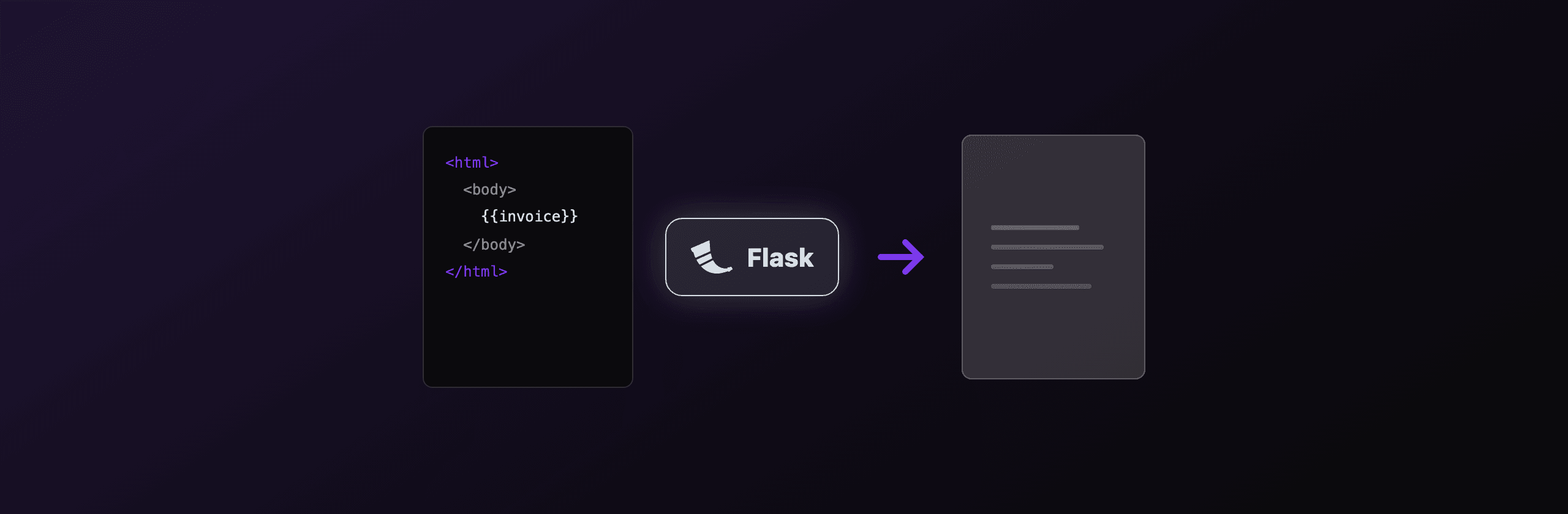
Generate a PDF in Flask by rendering a Jinja2 template to an HTML string, then passing that string to a renderer. For document-style output (invoices, reports, certificates) WeasyPrint is the best default because it implements the CSS Paged Media spec, so page size, margins, and repeating headers work without a browser. If you cannot install native libraries, use the pure-Python xhtml2pdf or a hosted API like PDF4.dev. ReportLab is the right tool only when you draw layouts in code instead of HTML.
This guide compares the five realistic options, with a working Flask route for each that returns application/pdf with the correct Content-Disposition header.
Which PDF library should you use in Flask?
The decision comes down to four things: how much CSS you need, whether your template runs JavaScript, how heavy the server infrastructure can be, and how fast each render is. The table below maps the five common options against those criteria.
| Option | Input | CSS support | JavaScript | Infra weight | Typical speed |
|---|---|---|---|---|---|
| WeasyPrint | HTML + CSS | High (Paged Media spec) | No | Medium (Pango, Cairo system libs) | 100 to 400 ms |
| xhtml2pdf | HTML + CSS | Low (subset) | No | Low (pure Python) | 50 to 200 ms |
| ReportLab | Python drawing code | None (no HTML) | No | Low (pure Python) | 20 to 150 ms |
| Playwright | HTML + CSS | Full (Chromium) | Yes | High (Chromium binary) | 300 ms to 1.5 s |
| PDF4.dev API | HTML + CSS | Full (Chromium) | Yes | None (hosted) | 300 to 600 ms |
Read it like this: pick WeasyPrint for clean HTML-and-CSS documents, ReportLab when there is no HTML at all, Playwright when you need a real browser and own the infrastructure, and the PDF4.dev API when you want Chromium fidelity with zero rendering dependencies in your Flask deploy.
All HTML-based options share the same first step in Flask: render_template("invoice.html", **context) turns your Jinja2 template into an HTML string. Only the renderer that consumes that string changes.
How do you generate a PDF from HTML in Flask with WeasyPrint?
WeasyPrint is the recommended default for Flask document generation. It renders HTML and CSS to PDF with no browser, and it implements the CSS Paged Media module, so @page rules control page size, margins, and page numbers. It does not run JavaScript.
Install the Python package and the native libraries it depends on. On Debian or Ubuntu:
apt-get install -y libpango-1.0-0 libpangocairo-1.0-0 libgdk-pixbuf-2.0-0
pip install weasyprint Flask
The Flask route renders a Jinja2 template to HTML, converts it with WeasyPrint, and streams the bytes back with send_file:
import io
from flask import Flask, render_template, send_file
from weasyprint import HTML

app = Flask(__name__)


@app.route("/invoice/<int:invoice_id>.pdf")
def invoice_pdf(invoice_id: int):
    context = {
        "invoice_number": f"INV-{invoice_id:04d}",
        "company": "Acme Corp",
        "total": "1,500.00",
        "currency": "EUR",
    }
    # 1. Jinja2 template to HTML string
    html_string = render_template("invoice.html", **context)

    # 2. HTML string to PDF bytes (base_url lets WeasyPrint resolve /static assets)
    pdf_bytes = HTML(
        string=html_string,
        base_url="http://localhost:5000/",
    ).write_pdf()

    # 3. Return as a downloadable PDF
    return send_file(
        io.BytesIO(pdf_bytes),
        mimetype="application/pdf",
        as_attachment=True,
        download_name=f"invoice-{invoice_id}.pdf",
    )
The base_url argument matters: without it, relative paths like /static/logo.png will not resolve and images go missing. Set it to your app origin so WeasyPrint can fetch local assets.
The most common WeasyPrint failure is an install error on a fresh server. It needs Pango, Cairo, and GDK-PixBuf at the system level, which pip install does not provide. On serverless platforms where you cannot run apt-get, WeasyPrint is usually not an option.
When should you use xhtml2pdf instead?
Use xhtml2pdf when you need an HTML-to-PDF renderer with zero native dependencies, for example on a serverless host where you cannot install Pango or Cairo. It is pure Python (built on ReportLab under the hood), so pip install xhtml2pdf is the entire setup. The tradeoff is a limited CSS subset: no flexbox, no grid, and weak support for modern layout.
xhtml2pdf is a fit for simple, table-based documents with inline styles. It struggles with anything that relies on flex or grid positioning.
import io
from flask import Flask, render_template, send_file
from xhtml2pdf import pisa

app = Flask(__name__)


@app.route("/report.pdf")
def report_pdf():
    html_string = render_template("report.html", title="Monthly report")

    buffer = io.BytesIO()
    # pisa writes PDF bytes into the buffer; err is truthy on failure
    err = pisa.CreatePDF(src=html_string, dest=buffer)
    if err.err:
        return "PDF generation failed", 500

    buffer.seek(0)
    return send_file(
        buffer,
        mimetype="application/pdf",
        as_attachment=True,
        download_name="report.pdf",
    )
Keep the template HTML conservative: simple tables, inline or <style> block CSS, absolute units. If your design depends on flexbox or grid, xhtml2pdf will silently mislay elements and WeasyPrint is the better call.
How do you build a PDF in Flask with ReportLab?
Use ReportLab when there is no HTML involved and you draw the document in Python. ReportLab is a pure-Python canvas library: you place text, lines, and shapes at explicit coordinates. There is no HTML or CSS step, so it sidesteps the rendering-engine question entirely, at the cost of writing layout by hand.
ReportLab suits programmatic output like labels, tickets, or bank-statement rows generated in a loop, where a coordinate model is simpler than templating HTML.
import io
from flask import Flask, send_file
from reportlab.lib.pagesizes import A4
from reportlab.lib.units import mm
from reportlab.pdfgen import canvas

app = Flask(__name__)


@app.route("/certificate.pdf")
def certificate_pdf():
    buffer = io.BytesIO()
    pdf = canvas.Canvas(buffer, pagesize=A4)
    width, height = A4

    pdf.setFont("Helvetica-Bold", 28)
    pdf.drawCentredString(width / 2, height - 60 * mm, "Certificate of completion")

    pdf.setFont("Helvetica", 14)
    pdf.drawCentredString(width / 2, height - 90 * mm, "Awarded to Jane Doe")

    pdf.showPage()   # finish the current page
    pdf.save()       # write the PDF into the buffer

    buffer.seek(0)
    return send_file(
        buffer,
        mimetype="application/pdf",
        as_attachment=True,
        download_name="certificate.pdf",
    )
The drawCentredString(x, y, text) calls use a coordinate system where y grows upward from the bottom-left corner, which trips up developers used to top-left web layout. ReportLab gives precise control but every position is manual, so it is a poor fit for content-heavy documents that change often.
How do you get full Chromium fidelity in Flask with Playwright?
Use Playwright when your template needs a real browser: JavaScript-rendered charts, web fonts loaded at runtime, flexbox and grid, or pixel-exact parity with what you see in Chrome. Playwright drives headless Chromium, so anything a browser can render, it can print. The cost is the heaviest infrastructure of the five options.
Install the package and download the Chromium binary it controls:
pip install playwright Flask
playwright install chromium
Render the Jinja2 HTML, load it into a Chromium page with set_content, then call page.pdf():
import io
from flask import Flask, render_template, send_file
from playwright.sync_api import sync_playwright

app = Flask(__name__)


@app.route("/dashboard.pdf")
def dashboard_pdf():
    html_string = render_template("dashboard.html", revenue="42,500")

    with sync_playwright() as p:
        browser = p.chromium.launch()
        page = browser.new_page()
        # wait until network is idle so client-side charts finish drawing
        page.set_content(html_string, wait_until="networkidle")
        pdf_bytes = page.pdf(format="A4", print_background=True)
        browser.close()

    return send_file(
        io.BytesIO(pdf_bytes),
        mimetype="application/pdf",
        as_attachment=True,
        download_name="dashboard.pdf",
    )
Two warnings before you ship this. First, launching a fresh browser per request adds 300 ms to over 1 second of overhead, so keep a long-lived browser instance instead of relaunching. Second, the Chromium binary is roughly 150 MB and needs system libraries; on serverless platforms with a 50 MB function size cap or no shell access, bundling it is awkward. Playwright is the strongest local option, but the operational weight is real.
The sync_playwright() context shown above blocks the Flask worker for the full render. Under any concurrency, move browser rendering into a Celery task or a dedicated worker process so one slow report does not stall every other request.
How do you generate a PDF in Flask without managing any rendering engine?
Send your HTML to PDF4.dev and get a PDF back, with no WeasyPrint system libraries, no Chromium binary, and no serverless cold-start to fight. PDF4.dev is a hosted REST API that renders HTML to PDF with headless Chromium on its servers, so your Flask app ships zero native rendering dependencies. You POST HTML (or a saved template id plus data) to POST https://pdf4.dev/api/v1/render and receive either the PDF bytes or a signed URL.
This is the "no infrastructure" option in the decision table. You keep Jinja2 for templating and drop the renderer entirely.
import requests
from flask import Flask, render_template, Response

app = Flask(__name__)
PDF4_KEY = "p4_live_xxx"  # store in an environment variable


@app.route("/invoice/<int:invoice_id>.pdf")
def invoice_pdf(invoice_id: int):
    html_string = render_template(
        "invoice.html",
        invoice_number=f"INV-{invoice_id:04d}",
        total="1,500.00",
    )

    resp = requests.post(
        "https://pdf4.dev/api/v1/render",
        headers={"Authorization": f"Bearer {PDF4_KEY}"},
        json={"html": html_string, "data": {}},
        timeout=30,
    )
    resp.raise_for_status()

    return Response(
        resp.content,
        mimetype="application/pdf",
        headers={
            "Content-Disposition": f'attachment; filename="invoice-{invoice_id}.pdf"',
        },
    )
For large PDFs, set "delivery": "url" and the response is JSON with a signed URL that stays valid for 24 hours, instead of a multi-megabyte binary body. The tradeoff against the self-hosted options is honest: rendering happens over the network on a third-party service, so it adds an HTTPS round trip and your HTML leaves your server. In exchange your Flask deploy carries no rendering engine at all, which is the whole point when you run on a platform where installing Pango or Chromium is painful.
You can also test the same Chromium engine in the browser with the free HTML to PDF toolTry it free before wiring up the API.
Which option should you choose?
Pick by your constraints, not by popularity. The short version: WeasyPrint for HTML documents you control the CSS for, ReportLab for code-drawn layouts, Playwright when you need a real browser and own the servers, and PDF4.dev when you want browser fidelity with no rendering dependencies in your Flask app.
| Your situation | Best choice |
|---|---|
| Invoices, reports, certificates from HTML and CSS | WeasyPrint |
| Serverless host, cannot install system libraries | xhtml2pdf or PDF4.dev |
| Labels, tickets, statements drawn in code | ReportLab |
| Template uses JavaScript charts or web fonts, you own the infra | Playwright |
| Want Chromium fidelity with zero rendering deps | PDF4.dev API |
A practical default for a typical Flask app: start with WeasyPrint. It gives you real CSS page control, installs in one apt-get plus one pip install, and renders a normal invoice in well under half a second. Move to a hosted API the moment your deploy target makes native libraries or a Chromium binary a problem, or the moment a template starts needing JavaScript that only a browser can run.
Whichever renderer you use, the Flask side stays the same: render a Jinja2 template to a string, produce PDF bytes, and return them with mimetype="application/pdf" plus a Content-Disposition header so the browser downloads a named file.
Related reading
- PDF generation in FastAPI: the same comparison for an async Python stack.
- Generate PDF from HTML in Python: a deeper look at the Python HTML-to-PDF libraries on their own.
- How to convert HTML to PDF: the complete guide: engine choices, CSS gotchas, and fonts across languages.
Free tools mentioned:
Frequently asked questions
- What is the best library to generate PDFs in Flask?
- WeasyPrint is the best choice for most Flask apps that produce documents from HTML and CSS, because it implements the CSS Paged Media spec for page sizes, margins, headers, and footers. Use ReportLab when you draw layouts programmatically without HTML, and use a hosted API like PDF4.dev when you cannot install system libraries such as Pango and Cairo.
- How do you return a PDF from a Flask route?
- Build the PDF as a bytes buffer, wrap it in an io.BytesIO, and return it with send_file(buffer, mimetype='application/pdf', as_attachment=True, download_name='document.pdf'). Flask sets the Content-Type and Content-Disposition headers so the browser downloads the file instead of rendering it inline.
- Does WeasyPrint run JavaScript?
- No. WeasyPrint renders HTML and CSS only and never executes JavaScript. If your template depends on client-side charts, dynamic DOM updates, or web fonts loaded by script, render with a real browser engine such as Playwright (Chromium) or send the HTML to a hosted Chromium API like PDF4.dev instead.
- Can I use a Jinja2 template to build the PDF HTML?
- Yes. Call render_template('invoice.html', **context) to produce an HTML string from your Jinja2 template, then pass that string to WeasyPrint, xhtml2pdf, or a hosted API. This reuses the same templating engine Flask already uses for web pages.
- Why does WeasyPrint fail to install on my server?
- WeasyPrint depends on the native libraries Pango, Cairo, and GDK-PixBuf. On Debian or Ubuntu install them with apt before pip: libpango-1.0-0, libpangocairo-1.0-0, and libgdk-pixbuf-2.0-0. On serverless platforms where you cannot install system packages, use a pure-Python option like xhtml2pdf or a hosted API instead.
- How do I generate a PDF from HTML in Flask without installing a browser?
- Use WeasyPrint or xhtml2pdf, which render HTML to PDF with no browser, or call a hosted API such as PDF4.dev that runs headless Chromium on its servers. With the API you POST your HTML over HTTPS and receive a PDF, so your Flask app ships no native rendering dependencies.
- How big can a Flask PDF route get before it times out?
- WeasyPrint renders a typical 1 to 5 page invoice in roughly 100 to 400 ms, fast enough for a synchronous request. For multi-hundred-page reports or high concurrency, move rendering to a Celery task or a background worker so a single request does not block a web worker for seconds.
Start generating PDFs
Build PDF templates with a visual editor. Render them via API from any language in ~300ms.