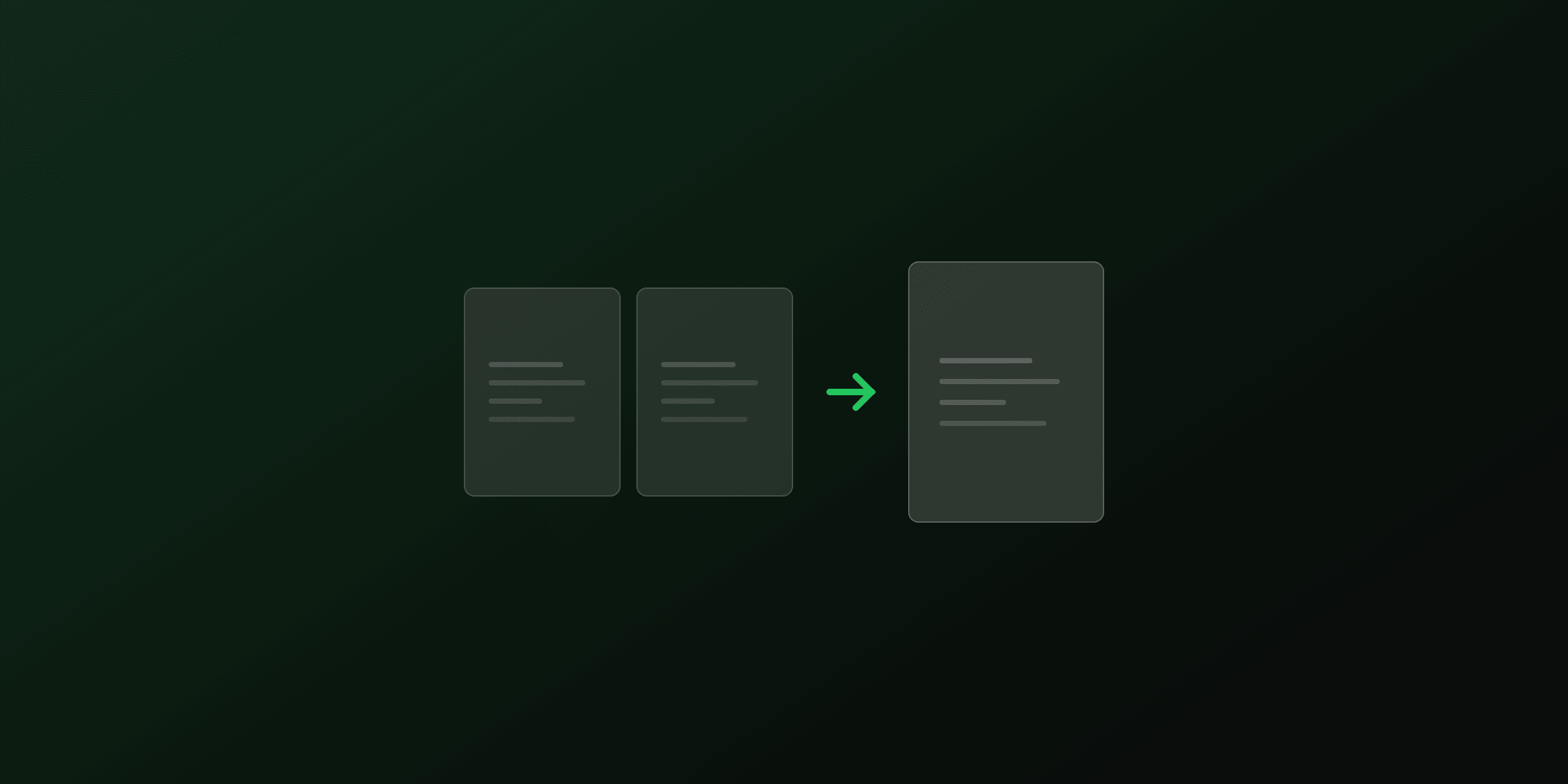
Inserting a page into a PDF means placing new content at a chosen position without rebuilding the file. You can add a blank page, or copy pages from another PDF and drop them in at any index. For a one-off, PDF4.dev's Merge tool plus the Reorder tool handle it in your browser. For repeatable workflows, Python (pypdf), Node.js (pdf-lib), and command-line tools (pdftk, qpdf) insert pages at an exact position in a few lines.
When you need to insert pages into a PDF
Inserting differs from merging: merging appends whole files end to end, while inserting places pages at a specific index in the middle of a document. Common cases:
- Adding a signed signature page back into the middle of a contract
- Dropping a cover sheet or fax cover in front of a scanned batch
- Inserting a blank page so a double-sided print starts each chapter on the right
- Placing an addendum between two existing sections of a report
- Interleaving a corrected page in place of a removed one
The right method depends on frequency. A single insertion is fastest in a browser tool. Recurring insertions inside an application belong in code, where you control the exact index every time.
Insert pages in your browser (no upload, free)
There is no single "insert" button in most PDF tools, because inserting is merging plus ordering. PDF4.dev splits it into two browser steps that both run locally with pdf-lib, so no file leaves your device.
- Open the Merge tool and upload the base PDF and the file you want to insert.
- Drag the file blocks so the inserted file sits near the correct position, then merge.
- Open the Reorder tool, upload the merged PDF, and drag individual page thumbnails until the inserted pages are exactly where you want them.
- Download the result.
What this handles:
- Inserting one or many pages from another PDF
- Non-technical users (drag and drop, visual thumbnails)
- Sensitive files (nothing is uploaded)
What it does not handle:
- Inserting a truly blank page (the browser tools work with existing pages; for blank pages, use the code methods below)
- Repairing bookmarks after the page order changes
For programmatic insertion at an exact index, use a script.
Insert pages into a PDF on macOS with Preview
Preview, the built-in macOS PDF viewer, inserts pages without any third-party software.
- Open the target PDF in Preview
- Show the sidebar with View > Thumbnails (or ⌘ + ⌥ + 2)
- Click the thumbnail after which you want the new pages to appear
- To insert from a file: drag another PDF (or specific thumbnails from a second Preview window) into the sidebar at the drop point
- To insert a blank page: go to Edit > Insert > Blank Page
- Save with ⌘ + S
Preview inserts pages exactly at the drop location, so ordering is visual. For large files, Preview can re-embed fonts inefficiently on save, which increases file size. Use a script or the browser tools if size matters.
Insert pages into a PDF on Windows
Windows has no built-in PDF page editor. Your free and paid options:
| Method | Cost | Requires install |
|---|---|---|
| PDF4.dev Merge + Reorder tools | Free | No |
| pdftk command-line | Free | Yes |
| qpdf command-line | Free | Yes |
| Adobe Acrobat | $19.99/mo | Yes |
The browser tools are the fastest free path on Windows because they need no installation and keep the file on your machine. For automation, pdftk and qpdf (covered below) run in PowerShell or a batch script.
Insert pages into a PDF with Python
Use the pypdf library. It inserts pages at an index without any system dependencies.
pip install pypdfInsert a page from another PDF at a specific position:
from pypdf import PdfReader, PdfWriter

def insert_page(
    base_path: str,
    insert_path: str,
    output_path: str,
    at_index: int,          # 0-based position in the base PDF
    insert_page_index: int = 0,
) -> None:
    """Insert one page from insert_path into base_path at at_index."""
    base = PdfReader(base_path)
    source = PdfReader(insert_path)

    writer = PdfWriter()
    writer.append(base)  # copy all base pages first

    # insert_page places the page at the given index and shifts the rest down
    writer.insert_page(source.pages[insert_page_index], at_index)

    with open(output_path, "wb") as f:
        writer.write(f)

# Insert the first page of cover.pdf before page 3 (index 2) of report.pdf
insert_page("report.pdf", "cover.pdf", "output.pdf", at_index=2)
Insert a whole file into another at a position:
from pypdf import PdfWriter

def insert_pdf(base_path: str, insert_path: str, output_path: str, at_page: int) -> None:
    """Insert every page of insert_path into base_path starting at at_page (0-based)."""
    writer = PdfWriter()
    writer.append(base_path)
    # merge() splices the second file in at the given output position
    writer.merge(at_page, insert_path)

    with open(output_path, "wb") as f:
        writer.write(f)

insert_pdf("report.pdf", "addendum.pdf", "output.pdf", at_page=5)
Insert a blank page:
from pypdf import PdfReader, PdfWriter

reader = PdfReader("report.pdf")
writer = PdfWriter()
writer.append(reader)

# Match the size of the first page, insert a blank page at index 1
width = reader.pages[0].mediabox.width
height = reader.pages[0].mediabox.height
writer.insert_blank_page(width=width, height=height, index=1)

with open("output.pdf", "wb") as f:
    writer.write(f)
Insert pages into a PDF with Node.js
Use pdf-lib, a pure JavaScript library with no native dependencies, safe in serverless environments.
npm install pdf-libInsert pages copied from another PDF:
import { PDFDocument } from "pdf-lib";
import { readFileSync, writeFileSync } from "fs";

async function insertPages(
  basePath: string,
  insertPath: string,
  outputPath: string,
  atIndex: number,          // 0-based position in the base PDF
  sourceIndices: number[],  // which pages of insertPath to copy
): Promise<void> {
  const target = await PDFDocument.load(readFileSync(basePath));
  const source = await PDFDocument.load(readFileSync(insertPath));

  const copied = await target.copyPages(source, sourceIndices);

  // Insert copied pages one by one, keeping their relative order
  copied.forEach((page, offset) => {
    target.insertPage(atIndex + offset, page);
  });

  writeFileSync(outputPath, await target.save());
}

// Insert page 0 of cover.pdf before page 3 (index 2) of report.pdf
await insertPages("report.pdf", "cover.pdf", "output.pdf", 2, [0]);
Insert a blank page:
import { PDFDocument } from "pdf-lib";
import { readFileSync, writeFileSync } from "fs";

const doc = await PDFDocument.load(readFileSync("report.pdf"));

// insertPage(index) with no page argument inserts an empty page.
// Match an existing page size so the blank matches the layout.
const { width, height } = doc.getPage(0).getSize();
doc.insertPage(1, [width, height]);

writeFileSync("output.pdf", await doc.save());
As an Express API endpoint:
import express from "express";
import multer from "multer";
import { PDFDocument } from "pdf-lib";

const upload = multer({ storage: multer.memoryStorage() });
const app = express();

app.post(
  "/insert-pages",
  upload.fields([{ name: "base" }, { name: "insert" }]),
  async (req, res) => {
    const files = req.files as Record<string, Express.Multer.File[]>;
    const atIndex = Number(req.body.atIndex ?? 0);

    const target = await PDFDocument.load(files.base[0].buffer);
    const source = await PDFDocument.load(files.insert[0].buffer);

    const indices = source.getPageIndices(); // all pages of the insert file
    const copied = await target.copyPages(source, indices);
    copied.forEach((page, offset) => target.insertPage(atIndex + offset, page));

    const pdfBytes = await target.save();
    res.setHeader("Content-Type", "application/pdf");
    res.send(Buffer.from(pdfBytes));
  },
);
The order of operations matters. When you insert several pages at the same base index, add an incrementing offset (atIndex + offset) so each page lands after the previous one instead of all pushing to the same spot.
Insert pages into a PDF on the command line
For scripting, pdftk and qpdf insert pages by rebuilding the page sequence.
pdftk
pdftk assigns each input a handle, then you list page ranges in the output order. To insert b.pdf after page 3 of a.pdf:
# a.pdf pages 1-3, then all of b.pdf, then a.pdf pages 4 to end
pdftk A=a.pdf B=b.pdf cat A1-3 B A4-end output result.pdf
To insert a single page (page 1 of b.pdf) before page 5 of a.pdf:
pdftk A=a.pdf B=b.pdf cat A1-4 B1 A5-end output result.pdfqpdf
qpdf uses the --pages selector with the same rebuild logic:
# Insert all of b.pdf after page 3 of a.pdf
qpdf a.pdf --pages a.pdf 1-3 b.pdf 1-z a.pdf 4-z -- result.pdf
Both tools keep fonts and images intact because they copy page objects rather than re-rendering.
Comparison table: which method to use
| Method | Best for | Skill level | Inserts blank page | Server required |
|---|---|---|---|---|
| PDF4.dev browser tools | One-off inserts, sensitive files | None | No | No |
| macOS Preview | Quick desktop edits | Basic | Yes | No |
| pypdf (Python) | Scripts, batch processing | Intermediate | Yes | No |
| pdf-lib (Node.js) | Web apps, APIs | Intermediate | Yes | No |
| pdftk / qpdf | CLI automation, shell scripts | Basic CLI | No | No |
| Adobe Acrobat | Complex edits, form fields | Basic | Yes | No |
Automate inserts across an entire folder
When many PDFs each need the same page inserted (a common report-assembly pattern), a Python loop is the most efficient approach.
from pathlib import Path
from pypdf import PdfReader, PdfWriter

def batch_insert_cover(input_dir: str, cover_path: str, output_dir: str) -> dict[str, str]:
    """Insert cover_path as the first page of every PDF in input_dir."""
    results: dict[str, str] = {}
    Path(output_dir).mkdir(parents=True, exist_ok=True)
    cover = PdfReader(cover_path)

    for pdf_path in Path(input_dir).glob("*.pdf"):
        try:
            writer = PdfWriter()
            writer.append(str(pdf_path))
            writer.insert_page(cover.pages[0], 0)  # insert at the front

            with open(Path(output_dir) / pdf_path.name, "wb") as f:
                writer.write(f)
            results[pdf_path.name] = "ok"
        except Exception as e:  # noqa: BLE001
            results[pdf_path.name] = str(e)

    return results

results = batch_insert_cover("/reports", "cover.pdf", "/reports/with_cover")
for name, status in results.items():
    print(f"{name}: {status}")
Common mistakes when inserting PDF pages
Forgetting 0-indexing in code. PDF viewers show the first page as page 1, but pypdf and pdf-lib use 0-based indices. To insert before viewer page 5, use index 4.
Inserting multiple pages at the same index. If you insert three pages all at index 2, each call pushes the earlier ones down and the order can reverse. Add an incrementing offset, or insert in reverse order, so the sequence stays correct.
Confusing insert with append. Merging always adds to the end. If mid-document placement matters, use an insert method that takes an index, or reorder after merging.
Assuming bookmarks and links follow. Inserting a page shifts later pages, but bookmarks (outlines) and internal links keep pointing at their old destinations unless the library updates them. Verify navigation after inserting into a bookmarked document.
Mismatched page sizes. A blank page inserted at the default Letter size looks wrong inside an A4 document. Read an existing page's size first and match it, as the examples above do.
Related tools for page-level PDF work
Inserting pages is one step in a larger set of page operations:
- Merge PDFs: combine whole files back to back, the first half of any insert workflow
- Reorder pages: drag pages into the exact position after a merge
- Delete pages from a PDF: the inverse operation, for removing pages you no longer need
- Extract pages from a PDF: pull out specific pages to insert elsewhere
See the complete guide to PDF manipulation for a broader overview, or the merge PDF guide and reorder pages guide for the two operations that together handle most insertions.
Generate PDFs with the right pages from the start
If you regularly export a PDF and then insert a cover, an addendum, or a signature page by hand, the template is the real problem. With PDF4.dev's HTML-to-PDF API, you decide which sections render for each request, so the extra page is part of the document from the start.
// Render a report with the cover and addendum included in one pass
const response = await fetch("https://pdf4.dev/api/v1/render", {
  method: "POST",
  headers: {
    "Content-Type": "application/json",
    Authorization: `Bearer ${process.env.PDF4_API_KEY}`,
  },
  body: JSON.stringify({
    template_id: "quarterly-report",
    data: {
      showCover: true,
      showAddendum: true,
      report: {
        /* ... */
      },
    },
  }),
});

const pdfBuffer = await response.arrayBuffer();
Conditional Handlebars blocks turn sections on or off per request, so the PDF arrives with every page already in place, no post-processing insert step required.
Free tools mentioned:
Frequently asked questions
- How do I insert a page into a PDF for free?
- Use PDF4.dev's free Merge tool at pdf4.dev/tools/merge-pdf to place the pages you want to insert, then use the Reorder tool at pdf4.dev/tools/reorder-pdf to move them into the right position. Both run in your browser with no account and no file upload to a server.
- How do I insert a blank page into a PDF?
- In code, both pypdf and pdf-lib add a blank page at a chosen index. With pypdf, call writer.insert_blank_page(width, height, index). With pdf-lib, call doc.insertPage(index) with no page argument, which inserts an empty page. On macOS, Preview can insert a blank page from the Edit menu.
- How do I insert one PDF into another PDF?
- Copy the pages from the source PDF and insert them at the target index. In Node.js, use pdf-lib's copyPages() to bring the pages over, then insertPage() for each one. In Python, use pypdf's writer.append() with a pages range and an insertion position. On the command line, pdftk interleaves files with the cat operator.
- Can I insert pages into a PDF without Adobe Acrobat?
- Yes. PDF4.dev's browser tools, the pypdf Python library, the pdf-lib Node.js package, and the pdftk and qpdf command-line tools all insert pages without Acrobat. On macOS, Preview inserts pages by dragging thumbnails into the sidebar.
- How do I insert a page into a PDF in Python?
- Use pypdf. Load the source and the page to insert, create a PdfWriter, append the original pages, then call writer.insert_page(page, index) to place the new page at the target position. Save the writer to a new file.
- How do I insert a page into a PDF in Node.js?
- Use pdf-lib. Load both PDFs with PDFDocument.load(), call target.copyPages(source, [pageIndex]) to copy the page, then target.insertPage(index, copiedPage) to place it. Call target.save() and write the bytes to disk.
- Does inserting a page renumber the rest of the PDF?
- Inserting a page shifts every page after the insertion point down by one position. Physical page order updates automatically. Logical page labels (like i, ii, iii or A-1) and bookmarks that pointed to later pages are not renumbered automatically and may need manual cleanup.
- Can I insert a page at a specific position instead of at the end?
- Yes. Every method here takes an index. pypdf's insert_page(page, index) and pdf-lib's insertPage(index, page) place the page exactly where you want. Merging alone always appends to the end, so use an insert method or reorder afterward for mid-document placement.
- Is it safe to insert pages into a PDF online?
- With PDF4.dev, the file is processed entirely in your browser using pdf-lib. Nothing is uploaded to a server. For sensitive documents this is safer than services that require server-side processing.
Start generating PDFs
Build PDF templates with a visual editor. Render them via API from any language in ~300ms.