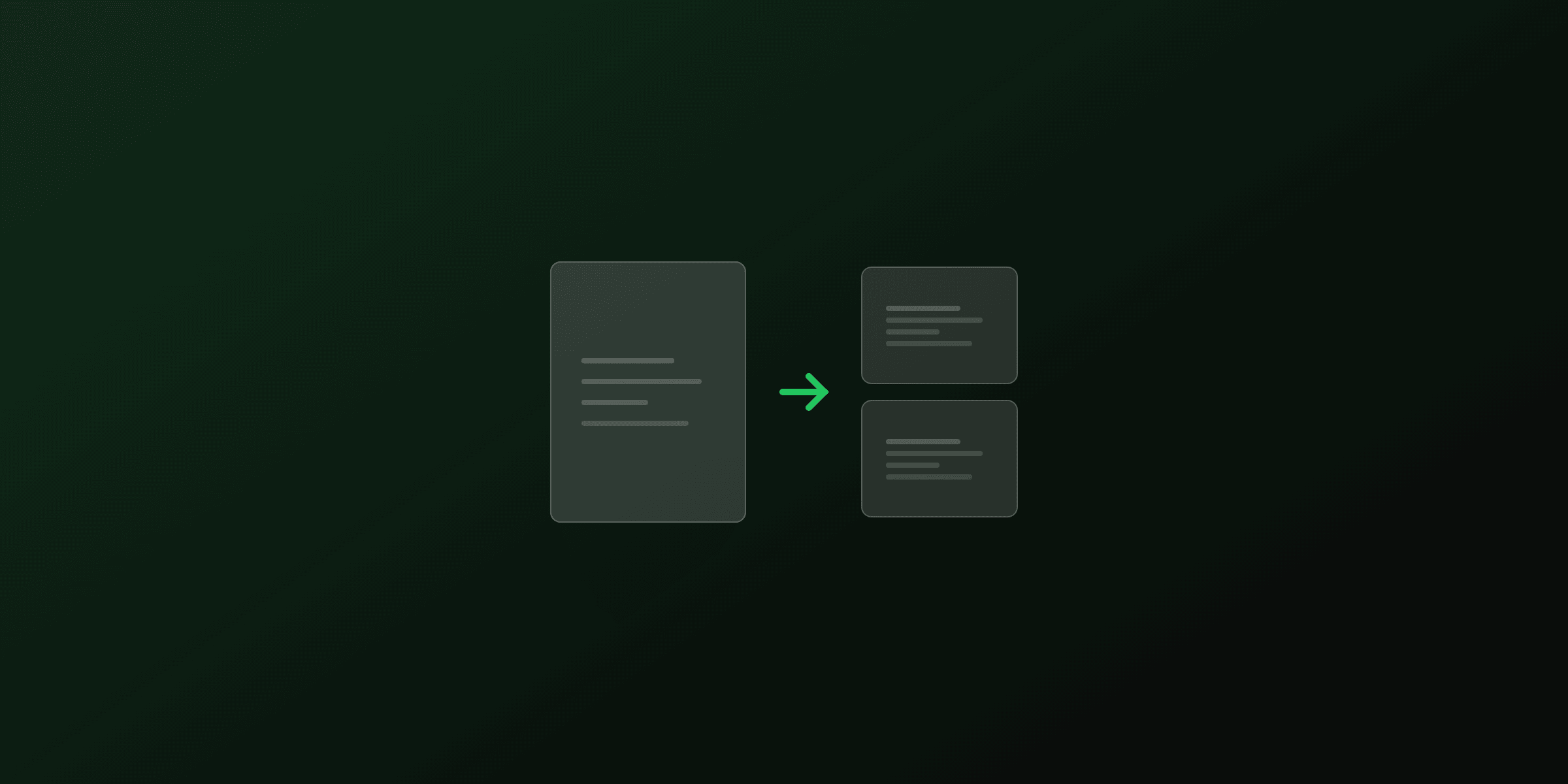
Deleting pages from a PDF takes under a minute with the right tool. PDF4.dev's Delete Pages tool handles it in your browser without uploading the file anywhere. For automated workflows, Python (pypdf), Node.js (pdf-lib), and command-line tools (pdftk, qpdf) all work well.
Why you need to delete PDF pages
PDF files accumulate unwanted pages in predictable ways. A scanned document includes a blank reverse side. An exported report has a cover page you don't need. A contract has a signature page that belongs in a separate file. A 200-page manual has appendices irrelevant to your use case.
Removing those pages before sending a PDF:
- Reduces file size (fewer pages, fewer resources to embed)
- Protects information (removes pages containing sensitive data before sharing)
- Improves readability (recipients read what's relevant, nothing else)
- Meets attachment limits (email providers reject files above 10-25 MB)
The method you choose depends on volume: a one-off deletion is fastest in a browser tool, while recurring deletions in an application belong in code.
Delete PDF pages in your browser (no upload, free)
The PDF4.dev Delete Pages tool processes files locally in your browser using the pdf-lib JavaScript library. No file leaves your device.
What it handles:
- PDFs up to several hundred MB
- Scanned PDFs (each page is an image, deletion works the same way)
- Password-protected PDFs (you need the password to open them first)
- Non-contiguous page selection (remove pages 1, 5, 8, and 11-14 in one step)
What it does not handle:
- Repairing bookmarks that pointed to deleted pages
- Re-numbering logical page labels after deletion
For those edge cases, split the PDF into sections and merge the parts you want to keep.
Delete PDF pages on macOS with Preview
Preview, the macOS built-in PDF viewer, can delete pages without any third-party software.
- Open the PDF in Preview
- Go to View > Thumbnails (or press ⌘ + ⌥ + 2)
- Select the thumbnail(s) to remove (hold ⌘ for multiple, Shift for ranges)
- Press Delete or go to Edit > Delete
- Save with ⌘ + S
Preview modifies the file in place. Duplicate the original first if you want to keep a backup.
Limitation: Preview sometimes re-embeds fonts inefficiently when saving, which can increase file size. For large files, use the browser tool or a script instead.
Delete PDF pages on Windows
Windows has no built-in PDF editing tool. Your options:
| Method | Cost | Requires install |
|---|---|---|
| PDF4.dev Delete Pages tool | Free | No |
| Microsoft Edge browser (print to PDF workaround) | Free | No (pre-installed) |
| Adobe Acrobat | $19.99/mo | Yes |
| pdftk command-line | Free | Yes |
The Edge workaround: open the PDF in Edge, use Ctrl+P to print, choose Microsoft Print to PDF, and select the page range to keep. This is a print operation: it flattens the PDF, losing interactive elements.
For a clean deletion without side effects, the browser tool is the better free option on Windows.
Delete PDF pages with Python
Use the pypdf library (formerly PyPDF2). It handles deletion without requiring any system dependencies.
pip install pypdffrom pypdf import PdfReader, PdfWriter
def delete_pages(input_path: str, output_path: str, pages_to_delete: list[int]) -> None:
"""
Delete specified pages from a PDF.
Args:
input_path: Path to the source PDF
output_path: Path for the output PDF
pages_to_delete: 0-indexed list of page numbers to remove
"""
reader = PdfReader(input_path)
writer = PdfWriter()
pages_to_delete_set = set(pages_to_delete)
for i, page in enumerate(reader.pages):
if i not in pages_to_delete_set:
writer.add_page(page)
with open(output_path, "wb") as f:
writer.write(f)
# Remove pages 0 (first), 4, and 7 (0-indexed)
delete_pages("input.pdf", "output.pdf", [0, 4, 7])To remove pages by 1-based page number (as displayed in PDF viewers), subtract 1 from each number: page 5 in the viewer is index 4 in the code.
Remove blank pages automatically:
from pypdf import PdfReader, PdfWriter

def remove_blank_pages(input_path: str, output_path: str, threshold: int = 100) -> int:
    """
    Remove pages with very little content (likely blank).

    Returns the number of pages removed.
    """
    reader = PdfReader(input_path)
    writer = PdfWriter()
    removed = 0

    for page in reader.pages:
        text = page.extract_text() or ""
        # Count images on this page
        image_count = len(page.images)

        if len(text.strip()) > threshold or image_count > 0:
            writer.add_page(page)
        else:
            removed += 1

    with open(output_path, "wb") as f:
        writer.write(f)

    return removed

count = remove_blank_pages("report.pdf", "report_clean.pdf")
print(f"Removed {count} blank pages")
Delete PDF pages with Node.js
Use pdf-lib, a pure JavaScript library with no native dependencies, safe to use in serverless environments.
npm install pdf-libimport { PDFDocument } from "pdf-lib";
import { readFileSync, writeFileSync } from "fs";
async function deletePages(
inputPath: string,
outputPath: string,
pagesToDelete: number[] // 0-indexed
): Promise<void> {
const pdfBytes = readFileSync(inputPath);
const doc = await PDFDocument.load(pdfBytes);
// Remove pages from highest index to lowest
// to avoid index shift as pages are deleted
const sortedDesc = [...pagesToDelete].sort((a, b) => b - a);
for (const pageIndex of sortedDesc) {
doc.removePage(pageIndex);
}
const outputBytes = await doc.save();
writeFileSync(outputPath, outputBytes);
}
// Remove pages 0 (first), 4, and 7 (0-indexed)
await deletePages("input.pdf", "output.pdf", [0, 4, 7]);The order of deletion matters: always remove pages from highest index to lowest. If you remove index 3 before index 7, all pages after index 3 shift down by one, and your next deletion targets the wrong page.
As an Express API endpoint:
import express from "express";
import { PDFDocument } from "pdf-lib";
import multer from "multer";

const upload = multer({ storage: multer.memoryStorage() });
const app = express();

app.post(
  "/delete-pages",
  upload.single("pdf"),
  async (req, res) => {
    const pagesParam = req.body.pages as string; // e.g. "0,3,5-7"
    const pageIndices = parsePageRanges(pagesParam);

    const doc = await PDFDocument.load(req.file!.buffer);
    const sorted = [...pageIndices].sort((a, b) => b - a);

    for (const idx of sorted) {
      if (idx < doc.getPageCount()) {
        doc.removePage(idx);
      }
    }

    const pdfBytes = await doc.save();
    res.setHeader("Content-Type", "application/pdf");
    res.send(Buffer.from(pdfBytes));
  }
);

function parsePageRanges(input: string): number[] {
  const indices: number[] = [];
  for (const part of input.split(",")) {
    const trimmed = part.trim();
    if (trimmed.includes("-")) {
      const [start, end] = trimmed.split("-").map(Number);
      for (let i = start; i <= end; i++) indices.push(i);
    } else {
      indices.push(Number(trimmed));
    }
  }
  return indices;
}
Delete PDF pages on the command line
For scripting and automation, pdftk and qpdf are reliable open-source tools.
pdftk
pdftk uses a keep-pages syntax: you specify which pages to keep, not which to delete.
# Keep pages 2-10 (removes page 1 from an 10-page PDF)
pdftk input.pdf cat 2-10 output result.pdf

# Keep pages 1-3 and 7-end (removes pages 4-6)
pdftk input.pdf cat 1-3 7-end output result.pdf
qpdf
qpdf uses similar keep-pages syntax with slightly different flags:
# Keep pages 2 through end (removes page 1)
qpdf input.pdf --pages input.pdf 2-z -- output.pdf

# Keep pages 1-4 and 8-end (removes pages 5-7)
qpdf input.pdf --pages input.pdf 1-4,8-z -- output.pdf
Comparison table: which method to use
| Method | Best for | Skill level | Keeps fonts/images | Server required |
|---|---|---|---|---|
| PDF4.dev browser tool | One-off deletions, sensitive files | None | Yes | No |
| macOS Preview | Quick desktop edits | Basic | Usually | No |
| pypdf (Python) | Scripts, batch processing | Intermediate | Yes | No |
| pdf-lib (Node.js) | Web apps, APIs | Intermediate | Yes | No |
| pdftk / qpdf | CLI automation, shell scripts | Basic CLI | Yes | No |
| Adobe Acrobat | Complex edits, form fields | Basic | Yes | No |
Automate page deletion for entire folders
When you have hundreds of PDFs that all need the same pages removed (a common report-generation pattern), scripting with Python is the most efficient approach.
import os
from pathlib import Path
from pypdf import PdfReader, PdfWriter

def batch_delete_pages(
    input_dir: str,
    output_dir: str,
    pages_to_delete: list[int]
) -> dict[str, str]:
    """
    Delete specified pages from all PDFs in a directory.

    Returns a dict mapping filename to "ok" or error message.
    """
    results = {}
    Path(output_dir).mkdir(parents=True, exist_ok=True)
    pages_set = set(pages_to_delete)

    for pdf_path in Path(input_dir).glob("*.pdf"):
        try:
            reader = PdfReader(str(pdf_path))
            writer = PdfWriter()

            for i, page in enumerate(reader.pages):
                if i not in pages_set:
                    writer.add_page(page)

            output_path = Path(output_dir) / pdf_path.name
            with open(output_path, "wb") as f:
                writer.write(f)

            results[pdf_path.name] = "ok"
        except Exception as e:
            results[pdf_path.name] = str(e)

    return results

# Remove the last page (index -1 doesn't work in sets, use the count)
# Example: remove page 0 (cover) from all PDFs in /reports
results = batch_delete_pages("/reports", "/reports/clean", [0])
for name, status in results.items():
    print(f"{name}: {status}")
Common mistakes when deleting PDF pages
Forgetting 0-indexing in code. PDF viewers display page 1 as the first page. Python and JavaScript libraries use 0-based indexing. Page 1 in the viewer is index 0 in code. Off-by-one errors here are frequent.
Deleting in ascending order without compensating for index shifts. When you remove page index 3, the old page index 4 becomes index 3. If you then delete "index 4", you skip a page. Always sort deletions in descending order.
Not keeping the original. Deletion is destructive. Write to a new output path. Never overwrite the source file in a script without a backup.
Assuming file size drops proportionally. A 10-page PDF with 9 pages containing images and 1 page of text will not shrink by 10% when you remove the text page. Image data dominates the file size. Check the output file size and compress it if needed.
Ignoring form fields that reference deleted pages. PDFs with AcroForm fields or annotations sometimes have cross-page references. Deleting the referenced page can corrupt the form. Test the output before distributing.
Related tools for page-level PDF work
Once you've removed the unwanted pages, you may also need to:
- Split a PDF into individual pages: useful when you want to isolate specific pages rather than delete everything else
- Merge PDFs: combine the cleaned sections with other documents
- Extract pages from a PDF: the inverse of deletion: keep specific pages and discard the rest
- Compress the result: after deletion, compression often reduces file size further since shared resources are no longer needed
For generating PDFs programmatically from scratch (without editing existing files), see the HTML-to-PDF API and the guide on generating PDFs from HTML in Node.js.
Generate PDFs with the right structure from the start
If you regularly export PDFs from your app and then strip pages manually, the root issue is your template. With PDF4.dev's HTML-to-PDF API, you control exactly which pages render for each request. Pass a pages parameter or use conditional Handlebars blocks to exclude sections before the PDF is generated.
This eliminates the post-processing step entirely: the PDF arrives with the right pages, ready to send.
// Generate a PDF with only the invoice section (no cover, no appendix)
const response = await fetch("https://pdf4.dev/api/v1/render", {
  method: "POST",
  headers: {
    "Content-Type": "application/json",
    "Authorization": `Bearer ${process.env.PDF4_API_KEY}`,
  },
  body: JSON.stringify({
    templateId: "invoice-template",
    data: {
      showCover: false,
      showAppendix: false,
      invoice: { /* ... */ },
    },
  }),
});

const pdfBuffer = await response.arrayBuffer();
See the complete guide to PDF manipulation for a broader overview of page operations, or the how to split a PDF guide for related workflows.
Frequently asked questions
- How do I delete pages from a PDF for free?
- Use PDF4.dev's free Delete Pages tool at pdf4.dev/tools/delete-pdf-pages. Select your PDF, pick the pages to remove, and download the result. No account needed, no file upload to a server: the tool runs in your browser.
- Can I delete pages from a PDF without Adobe Acrobat?
- Yes. PDF4.dev's browser-based tool removes pages without any software installation. On macOS, you can also use Preview: open the PDF, show the thumbnail panel (View > Thumbnails), select pages, and press Delete.
- Does deleting PDF pages reduce file size?
- Usually yes, but not always proportionally. Page content (text, images, fonts) is removed, but shared resources like embedded fonts may still be present if referenced by remaining pages. Compressing the output PDF after deletion gives the best size reduction.
- How do I delete multiple pages from a PDF at once?
- PDF4.dev's Delete Pages tool lets you select any combination of pages using a range syntax (e.g., 1,3,5-8). You can remove non-contiguous pages in a single operation. Alternatively, use the Python pypdf library or the pdf-lib Node.js package for batch operations.
- Is it safe to delete pages from a PDF online?
- With PDF4.dev, the file is processed entirely in your browser using pdf-lib. Nothing is uploaded to a server. For sensitive documents, this is the safest option compared to services that require server-side processing.
- Can I undo a page deletion in a PDF?
- No. Once you save the modified PDF, the deleted pages are gone. Always keep the original file before removing pages. PDF4.dev lets you download the result without overwriting your original.
- How do I remove pages from a PDF in Python?
- Use the pypdf library. Install it with pip install pypdf, then load the file, use the del pdf.pages[index] pattern or write a loop to skip unwanted page indices, and save the result.
- How do I delete a PDF page in Node.js?
- Load the file with pdf-lib's PDFDocument.load(), call doc.removePage(index) for each page to remove (working from the highest index down to avoid index shifts), then call doc.save() and write the buffer to disk.
- Can I delete pages from a scanned PDF?
- Yes. Scanned PDFs are just image pages embedded in a PDF container. Deleting a page removes the image along with its container. The process is identical to deleting any other PDF page.
- What happens to bookmarks and links when I delete PDF pages?
- Bookmarks (outlines) that pointed to deleted pages become broken. Internal cross-reference links that target deleted pages also break. Most tools do not automatically repair these. Use Acrobat Pro or a script if you need to clean up navigation.
Start generating PDFs
Build PDF templates with a visual editor. Render them via API from any language in ~300ms.