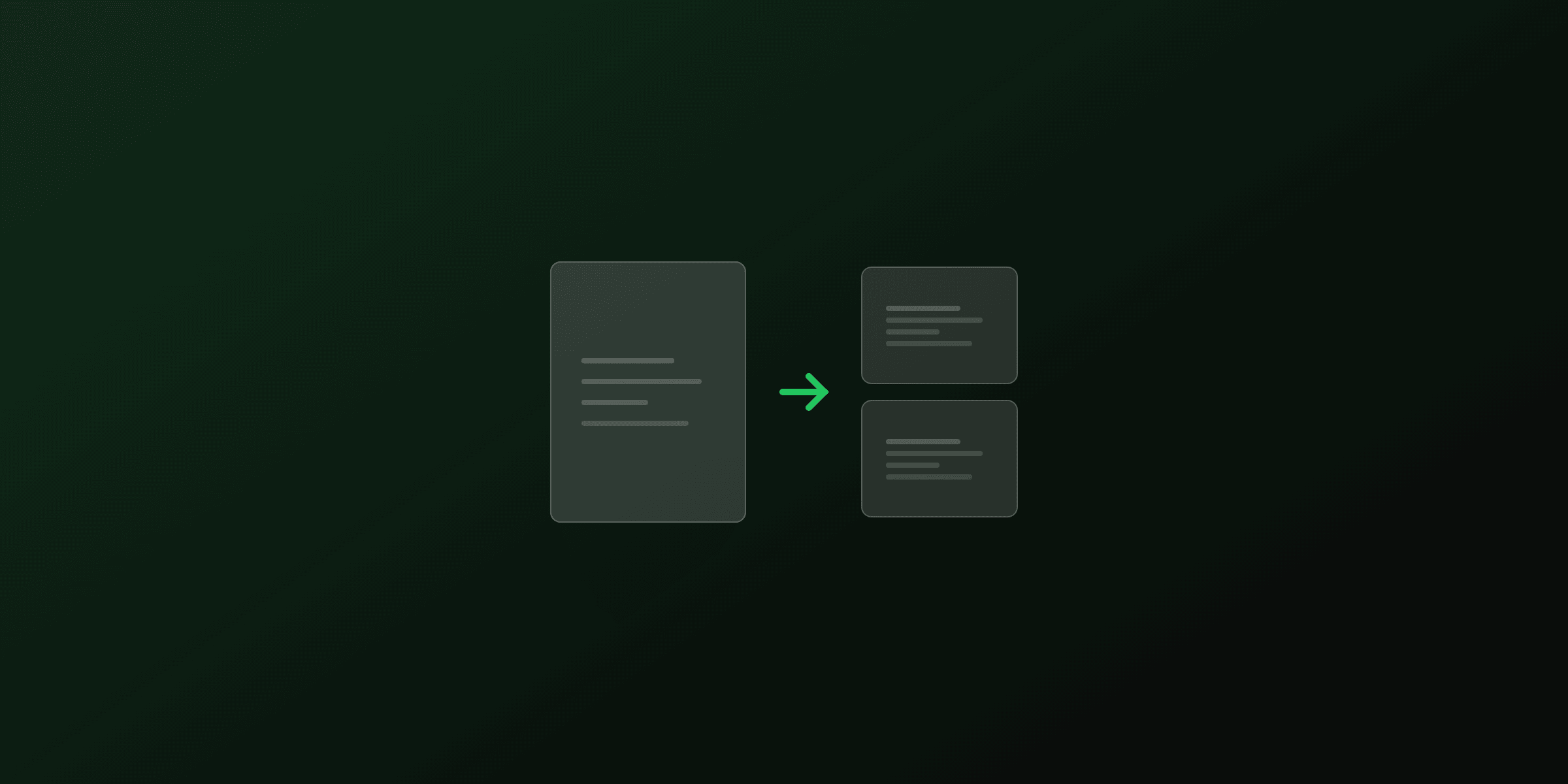
Extracting pages from a PDF means saving a subset of pages into a new file while leaving the original unchanged. PDF4.dev's Extract Pages tool does this in your browser without uploading anything. For scripted workflows, Python (pypdf), Node.js (pdf-lib), and command-line tools (pdftk, qpdf) all work well.
Why extract pages from a PDF
Page extraction has a few common uses:
- Share a section without context: send pages 10-15 of a 60-page report to a stakeholder who only needs that section.
- Archive specific records: pull individual invoice pages from a batch export into separate files.
- Reduce file size before sharing: a 40-page presentation where only 8 slides are relevant shrinks considerably when extracted.
- Prepare content for signing: many e-signature services have page limits; extract the pages that need signatures.
- Split a mixed document: a scanned file containing multiple distinct forms can be split by extracting each form's page range into its own file.
Extraction keeps the original intact. It creates a new document, unlike deletion, which modifies the source.
Extract PDF pages in your browser (no upload, free)
The PDF4.dev Extract Pages tool runs entirely in your browser using the pdf-lib JavaScript library. No file is sent to any server.
How it works:
- Go to pdf4.dev/tools/extract-pdf
- Drop your PDF onto the upload area
- Click the page thumbnails you want to keep
- Click Extract pages and download the result
Supported input:
- PDFs with text, images, or mixed content
- Scanned PDFs (image-only pages)
- Non-contiguous selections (pages 1, 5, 8-12 in one step)
- Files up to several hundred MB
What it does not handle:
- Automatic repair of bookmarks pointing to extracted pages
- Logical page number re-labeling after extraction
For those requirements, pair this tool with PDF metadata editing or use a scripted workflow.
Extract PDF pages on macOS with Preview
macOS Preview can extract pages natively, with no third-party software required.
Method 1: Export selection as PDF
- Open the PDF in Preview
- Show the thumbnail panel: View > Thumbnails (or ⌘ + ⌥ + 2)
- Select the pages to extract (hold ⌘ for individual pages, Shift for ranges)
- Go to File > Print, then click PDF > Save as PDF in the lower-left, and set the page range manually
Method 2: Drag thumbnails to desktop
- Open the PDF in Preview with thumbnails visible
- Select the target page thumbnails
- Drag them directly to the desktop
This creates a new PDF with only those pages. The original is unchanged.
Limitation: Preview occasionally re-encodes fonts during save, which can increase file size on font-heavy PDFs. For large files, the browser tool or a script produces cleaner output.
Extract PDF pages on Windows
Windows has no native PDF editing tool. The options are:
| Method | Cost | Install required |
|---|---|---|
| PDF4.dev Extract Pages | Free | No |
| Microsoft Edge print workaround | Free | No (pre-installed) |
| Adobe Acrobat | $19.99/mo | Yes |
| pdftk command-line | Free | Yes |
Edge workaround: open the PDF in Edge, press Ctrl+P, choose Microsoft Print to PDF, and set a specific page range. This is a print operation: it flattens the PDF and removes interactive elements. Use the browser tool for clean extraction.
Extract PDF pages with Python
The pypdf library handles page extraction with no native dependencies.
pip install pypdffrom pypdf import PdfReader, PdfWriter
def extract_pages(input_path: str, output_path: str, pages_to_keep: list[int]) -> None:
"""
Extract specific pages from a PDF into a new file.
Args:
input_path: Path to the source PDF
output_path: Path for the output PDF
pages_to_keep: 0-indexed list of page numbers to include
"""
reader = PdfReader(input_path)
writer = PdfWriter()
for i in pages_to_keep:
writer.add_page(reader.pages[i])
with open(output_path, "wb") as f:
writer.write(f)
# Extract pages 2, 4, 5, 6, and 9 (0-indexed)
extract_pages("report.pdf", "extract.pdf", [2, 4, 5, 6, 9])Pages are added to the output in the order you list them in pages_to_keep. To reverse the order or sort them differently, adjust the list before passing it.
Parse a human-readable page range string:
def parse_page_range(spec: str, total_pages: int) -> list[int]:
    """
    Convert a range string like "1,3-5,8" to a 0-indexed list.

    Input uses 1-based page numbers (as shown in PDF viewers).
    """
    indices = []
    for part in spec.split(","):
        part = part.strip()
        if "-" in part:
            start, end = part.split("-")
            indices.extend(range(int(start) - 1, int(end)))
        else:
            indices.append(int(part) - 1)
    return [i for i in indices if 0 <= i < total_pages]

# Extract pages "1,3-5,9" from a 20-page PDF
extract_pages("input.pdf", "output.pdf", parse_page_range("1,3-5,9", 20))
Extract every other page (odd or even):
from pypdf import PdfReader, PdfWriter

def extract_odd_pages(input_path: str, output_path: str) -> None:
    reader = PdfReader(input_path)
    writer = PdfWriter()

    for i in range(0, len(reader.pages), 2):
        writer.add_page(reader.pages[i])

    with open(output_path, "wb") as f:
        writer.write(f)
This pattern is useful when a scanner produces a double-sided PDF with alternating blank pages.
Extract PDF pages with Node.js
pdf-lib is a pure JavaScript library with no native dependencies, making it safe in serverless environments.
npm install pdf-libimport { PDFDocument } from "pdf-lib";
import { readFileSync, writeFileSync } from "fs";
async function extractPages(
inputPath: string,
outputPath: string,
pageIndices: number[] // 0-indexed
): Promise<void> {
const srcBytes = readFileSync(inputPath);
const srcDoc = await PDFDocument.load(srcBytes);
const outDoc = await PDFDocument.create();
const pages = await outDoc.copyPages(srcDoc, pageIndices);
for (const page of pages) {
outDoc.addPage(page);
}
const outBytes = await outDoc.save();
writeFileSync(outputPath, outBytes);
}
// Extract pages 0, 2, 3, 4, and 8 (0-indexed)
await extractPages("report.pdf", "extract.pdf", [0, 2, 3, 4, 8]);copyPages() copies page content along with all referenced resources (fonts, images, form fields). The output document is self-contained.
Parse a human-readable range string:
function parsePageRange(spec: string, totalPages: number): number[] {
  const indices: number[] = [];
  for (const part of spec.split(",")) {
    const trimmed = part.trim();
    if (trimmed.includes("-")) {
      const [start, end] = trimmed.split("-").map(Number);
      for (let i = start - 1; i < end; i++) {
        if (i >= 0 && i < totalPages) indices.push(i);
      }
    } else {
      const i = Number(trimmed) - 1;
      if (i >= 0 && i < totalPages) indices.push(i);
    }
  }
  return indices;
}

// Extract "1,3-5,9" from a document
const doc = await PDFDocument.load(readFileSync("input.pdf"));
const indices = parsePageRange("1,3-5,9", doc.getPageCount());
await extractPages("input.pdf", "output.pdf", indices);
As an Express API endpoint:
import express from "express";
import { PDFDocument } from "pdf-lib";
import multer from "multer";

const upload = multer({ storage: multer.memoryStorage() });
const app = express();

app.post("/extract-pages", upload.single("pdf"), async (req, res) => {
  const pagesSpec = req.body.pages as string; // e.g. "1,3-5,8"

  const srcDoc = await PDFDocument.load(req.file!.buffer);
  const total = srcDoc.getPageCount();
  const indices = parsePageRange(pagesSpec, total);

  const outDoc = await PDFDocument.create();
  const copied = await outDoc.copyPages(srcDoc, indices);
  for (const page of copied) outDoc.addPage(page);

  const outBytes = await outDoc.save();
  res.setHeader("Content-Type", "application/pdf");
  res.send(Buffer.from(outBytes));
});
Extract PDF pages on the command line
For shell scripting and automation, pdftk and qpdf are well-established open-source options.
pdftk
pdftk uses a keep-pages syntax. You specify the pages to keep, not the pages to discard.
# Extract pages 3, 5, and 7-10 into a new file
pdftk input.pdf cat 3 5 7-10 output extract.pdf

# Extract pages 1-4 and 8-end
pdftk input.pdf cat 1-4 8-end output extract.pdf
qpdf
qpdf follows a similar approach:
# Extract pages 3, 5, and 7-10
qpdf input.pdf --pages input.pdf 3,5,7-10 -- extract.pdf

# Extract the first 5 pages
qpdf input.pdf --pages input.pdf 1-5 -- extract.pdf
Both tools preserve embedded fonts, images, and metadata in the extracted pages.
Which method should you use
| Method | Best for | Skill level | No server | Handles scanned PDFs |
|---|---|---|---|---|
| PDF4.dev browser tool | One-off extractions, sensitive files | None | Yes | Yes |
| macOS Preview | Quick desktop extractions | Basic | Yes | Yes |
| pypdf (Python) | Scripts, batch processing | Intermediate | Yes | Yes |
| pdf-lib (Node.js) | Web apps, APIs | Intermediate | Yes | Yes |
| pdftk / qpdf | CLI automation, shell scripts | Basic CLI | Yes | Yes |
| Adobe Acrobat | Complex PDFs, form-heavy files | Basic | No | Yes |
The browser tool is the right choice for one-off extractions or when the file is sensitive. Scripted methods work best when you need to process multiple files or integrate into an application.
Batch extraction: process an entire folder
When you have dozens of PDFs that all need the same pages extracted, a Python script is faster than any GUI approach.
import os
from pathlib import Path
from pypdf import PdfReader, PdfWriter

def batch_extract(
    input_dir: str,
    output_dir: str,
    pages_to_keep: list[int]
) -> dict[str, str]:
    """
    Extract the same page subset from all PDFs in a directory.
    Returns a dict mapping filename to 'ok' or an error message.
    """
    results = {}
    Path(output_dir).mkdir(parents=True, exist_ok=True)
    pages_set = set(pages_to_keep)

    for pdf_path in Path(input_dir).glob("*.pdf"):
        try:
            reader = PdfReader(str(pdf_path))
            writer = PdfWriter()
            for i in sorted(pages_set):
                if i < len(reader.pages):
                    writer.add_page(reader.pages[i])
            out = Path(output_dir) / pdf_path.name
            with open(out, "wb") as f:
                writer.write(f)
            results[pdf_path.name] = "ok"
        except Exception as e:
            results[pdf_path.name] = str(e)

    return results

# Extract page 0 (cover) and page 1 (summary) from every PDF in /reports
results = batch_extract("/reports", "/reports/summaries", [0, 1])
for name, status in results.items():
    print(f"{name}: {status}")
Common mistakes when extracting PDF pages
Using 1-based page numbers in code. PDF viewers show page 1 as the first page. Python and JavaScript libraries use 0-based indexing. Page 1 in the viewer is index 0 in code. Add a clear comment in your code noting which convention you use.
Expecting bookmarks to transfer correctly. Outlines (the PDF bookmarks sidebar) reference page numbers in the original document. After extraction, those references point to the wrong pages or break entirely. Rebuild the outline manually if navigation matters in the output.
Extracting a single page and expecting the file to be tiny. A one-page extract from a PDF that embeds a large shared font still includes that font in the output. The extracted file can be almost as large as the original for font-heavy documents. Run compression on the result if size is a concern.
Processing a password-protected file without unlocking first. pdf-lib and pypdf both support opening encrypted PDFs with a password, but if you skip that step the load call throws an error. Unlock the PDF first when processing a batch.
Extraction vs. splitting: which to use
Extraction and splitting both produce smaller PDFs from a larger source, but they work differently:
| Goal | Use extraction | Use splitting |
|---|---|---|
| Keep pages 3, 7, and 12 in one file | Yes | No (split produces separate files per page) |
| Create one file per page | No | Yes |
| Divide a PDF at a chapter boundary | Either works | Split is more intuitive |
| Remove all but a few pages | Yes | Yes (extract remaining or split and merge) |
The Split PDF tool creates a separate output file for each page or range. The Extract Pages tool creates one output file with your selected pages. For a non-contiguous selection in a single output file, extraction is the right operation.
Generate PDFs with the right pages from the start
If you regularly export PDFs and then extract a subset manually, the extraction step can often be eliminated at the source. With PDF4.dev's HTML-to-PDF API, you control which sections render per request using Handlebars conditional blocks.
// Generate a report that includes only the executive summary section
const response = await fetch("https://pdf4.dev/api/v1/render", {
  method: "POST",
  headers: {
    "Content-Type": "application/json",
    Authorization: `Bearer ${process.env.PDF4_API_KEY}`,
  },
  body: JSON.stringify({
    template_id: "quarterly-report",
    data: {
      showExecutiveSummary: true,
      showFullData: false,
      showAppendix: false,
      quarter: "Q1 2026",
    },
  }),
});

const pdfBuffer = await response.arrayBuffer();
The template uses {{#if showExecutiveSummary}} blocks to conditionally include sections. The output arrives with exactly the pages you need, with no post-processing required.
See the complete guide to PDF manipulation for an overview of all page-level operations, or the guide on deleting pages from a PDF for the related workflow of removing unwanted pages.
Frequently asked questions
- How do I extract pages from a PDF for free?
- Use PDF4.dev's free Extract Pages tool at pdf4.dev/tools/extract-pdf. Select your PDF, choose the page numbers or ranges to keep, and download the result as a new PDF. No account needed. The tool runs entirely in your browser. Nothing is uploaded.
- What is the difference between extracting and splitting a PDF?
- Splitting divides a PDF into multiple output files (one per page, or by range). Extracting produces one output file containing only the pages you selected. Use extract when you want a specific subset in a single document; use split when you want every page or section as its own file.
- Can I extract non-contiguous pages from a PDF?
- Yes. PDF4.dev's Extract Pages tool accepts any combination: individual pages (1, 4, 7), ranges (3-8), and mixed input (1, 3-5, 9). The output file contains only those pages in the order you specified.
- Does extracting pages keep the original PDF intact?
- Yes. The extract operation creates a new output file. The original PDF on your device is untouched. PDF4.dev processes everything in your browser using pdf-lib, so no copy of your file is ever sent to a server.
- How do I extract pages from a PDF on a Mac?
- Open the PDF in Preview. Go to View > Thumbnails to show the page panel. Select the pages you want (hold Cmd for multiple, Shift for ranges). Then go to File > Export as PDF, or drag the selected thumbnails to the desktop to create a new file with just those pages.
- How do I extract pages from a PDF without Adobe Acrobat?
- Use PDF4.dev's browser-based Extract Pages tool, which requires no software installation. On macOS, Preview also works natively. For scripting, the Python pypdf library and the JavaScript pdf-lib package both handle page extraction without Adobe.
- Can I extract pages from a scanned PDF?
- Yes. A scanned PDF is a sequence of image pages wrapped in a PDF container. Extracting pages from it works identically to extracting from a text PDF. The raster image data for each selected page is preserved in the output.
- What happens to bookmarks and annotations when I extract pages?
- Bookmarks (outlines) that reference extracted pages are typically dropped or broken in the output. Inline annotations (highlights, comments) on extracted pages are usually preserved. Most tools, including pdf-lib, do not automatically repair navigation structures after extraction.
- How do I extract every other page from a PDF?
- In Python, loop over page indices with a step of 2: for i in range(0, total_pages, 2). In pdf-lib (Node.js), copyPages() accepts an array of indices, so pass Array.from({length: total}, (_, i) => i).filter(i => i % 2 === 0). There is no single-step option in browser tools for this pattern.
- Can I extract pages from a password-protected PDF?
- You need the password to open the file first. Once unlocked, extraction works normally. PDF4.dev's browser tool prompts for the password if the file is encrypted. Use the Unlock PDF tool first to remove the password permanently if you plan to process the file repeatedly.
Start generating PDFs
Build PDF templates with a visual editor. Render them via API from any language in ~300ms.