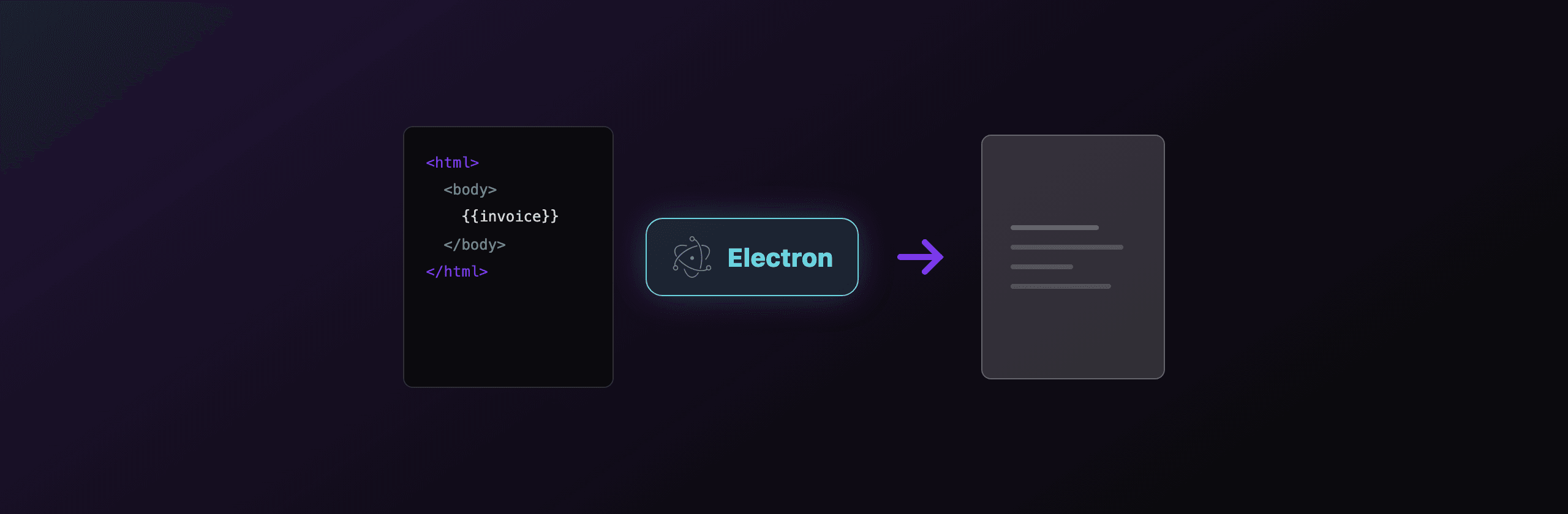
Electron generates PDFs with no extra dependency: the built-in webContents.printToPDF() method renders HTML to a PDF Buffer using the Chromium that Electron already bundles. For most desktop apps that is the right choice. Reach for a hosted API like PDF4.dev only when you need byte-identical output across every user's machine, and skip Puppeteer entirely since it would download a second Chromium you do not need.
This guide covers the offscreen BrowserWindow pattern, the real printToPDF options, headers and footers, the common color and font gotchas, and when to move rendering off the desktop and onto a server.
Which PDF approach should you use in Electron?
The decision comes down to one question: do you need the PDF to look the same on every machine, or just on the machine that generated it? printToPDF is local and free; a hosted API is consistent but network-bound. The table below maps each option to dependency cost, output fidelity, and where the code runs.
| Approach | Extra dependency | Where it runs | Output fidelity | Best for |
|---|---|---|---|---|
webContents.printToPDF() | None (built in) | Main process, offline | Depends on local fonts and OS | Most desktop PDF exports |
| Puppeteer | ~170 MB second Chromium | Node child process | Same engine, redundant in Electron | Apps already scripting a separate browser |
| jsPDF | ~350 KB JS | Renderer, offline | Manual drawing, no HTML reflow | Tiny receipts, programmatic layouts |
| PDF4.dev (hosted) | HTTP client only | Server (Chromium) | Identical on every machine | Shared output, invoices, audited documents |
If you only need to export what the user already sees, printToPDF is almost always the answer. The other options solve narrower problems: cross-machine consistency, or drawing without an HTML layout engine.
A short rule of thumb: stay built in until a real constraint forces you out. The most common constraint is "the PDF must match across customers," and that is a server-rendering problem, not an Electron one.
How do you generate a PDF with webContents.printToPDF?
webContents.printToPDF(options) runs in the main process, returns a Promise<Buffer>, and works on any BrowserWindow whose page has finished loading. The minimal flow is: create a hidden window, load HTML or a URL, wait for did-finish-load, call printToPDF, then write the Buffer to disk. No npm install, no bundled browser.
The example below renders a string of HTML to a file with the window never appearing on screen. It uses loadURL with a data: URL so there is no temp file to clean up, but win.loadFile('invoice.html') works the same way.
const { app, BrowserWindow } = require("electron");
const { writeFile } = require("node:fs/promises");

async function htmlToPdf(html, outputPath) {
  // show: false keeps the window off screen for the whole render
  const win = new BrowserWindow({
    show: false,
    webPreferences: { offscreen: true },
  });

  const dataUrl = "data:text/html;charset=utf-8," + encodeURIComponent(html);
  await win.loadURL(dataUrl);

  // printToPDF returns a Buffer of the PDF bytes
  const pdf = await win.webContents.printToPDF({
    pageSize: "A4",
    printBackground: true,
    margins: { top: 0.4, bottom: 0.4, left: 0.4, right: 0.4 }, // inches
  });

  await writeFile(outputPath, pdf);
  win.destroy();
  return outputPath;
}

app.whenReady().then(async () => {
  await htmlToPdf("<h1>Hello from Electron</h1>", "out.pdf");
  app.quit();
});
printToPDF always runs in the main process because webContents lives there. If a button click in your renderer should produce a PDF, send an IPC message to the main process and call printToPDF from the handler. The next section shows that wiring.
How do you trigger printToPDF from a renderer button?
Wire a renderer click to the main process through ipcRenderer.invoke and ipcMain.handle. The renderer cannot touch webContents.printToPDF directly because it has no access to the main process BrowserWindow. The pattern is: expose a safe function on the preload contextBridge, call it on click, and handle it in the main process.
const { contextBridge, ipcRenderer } = require("electron");

// Only expose a narrow, named channel to the renderer
contextBridge.exposeInMainWorld("pdf", {
  exportCurrent: () => ipcRenderer.invoke("pdf:export-current"),
});
Printing event.sender exports the exact page the user is looking at, including its current scroll-independent DOM state. If you instead want a clean, print-styled version, load that HTML into a separate hidden window like the first example and print that window's webContents.
What options does printToPDF accept?
printToPDF accepts an options object that controls page size, orientation, margins, backgrounds, scale, page ranges, and header/footer templates. All fields are optional; the defaults give you A4-ish output with no backgrounds. The table lists the options you will actually set.
| Option | Type | Default | What it does |
|---|---|---|---|
pageSize | string or { width, height } | "A4" | "A4", "Letter", "Legal", "Tabloid", or microns for custom |
landscape | boolean | false | Rotate the page to landscape |
printBackground | boolean | false | Keep CSS background colors and images |
margins | object | default margins | { top, bottom, left, right } in inches, or marginType |
scale | number | 1 | Scale factor for page content (0.1 to 2) |
pageRanges | string | all pages | e.g. "1-3, 5" to export specific pages |
displayHeaderFooter | boolean | false | Turn on headerTemplate / footerTemplate |
headerTemplate | string (HTML) | empty | Header HTML with placeholder classes |
footerTemplate | string (HTML) | empty | Footer HTML with placeholder classes |
preferCSSPageSize | boolean | false | Honor the CSS @page size over pageSize |
Margins in printToPDF are in inches, not millimeters. { top: 0.4 } is roughly 10 mm. Custom pageSize dimensions, when given as numbers, are in microns (1 mm is 1000 microns), which trips up a lot of first attempts.
For custom page sizes, pass an object: pageSize: { width: 210000, height: 297000 } is A4 in microns. For most apps the named string sizes are enough, and preferCSSPageSize: true lets your stylesheet drive the page geometry with a normal CSS @page rule instead.
How do you add page numbers, headers, and footers?
Set displayHeaderFooter: true and provide headerTemplate and footerTemplate as HTML strings, using Chromium's placeholder classes for dynamic values. The supported classes are pageNumber, totalPages, date, title, and url. The header and footer are invisible unless you also reserve space with non-zero top and bottom margins.
const pdf = await win.webContents.printToPDF({
  pageSize: "A4",
  printBackground: true,
  displayHeaderFooter: true,
  // Margins must leave room or the templates are clipped
  margins: { top: 0.8, bottom: 0.8, left: 0.4, right: 0.4 },
  headerTemplate: `
    <div style="font-size:9px; width:100%; text-align:center; color:#666;">
      <span class="title"></span>
    </div>`,
  footerTemplate: `
    <div style="font-size:9px; width:100%; text-align:center; color:#666;">
      Page <span class="pageNumber"></span> of <span class="totalPages"></span>
    </div>`,
});
Two details break headers more than anything else. First, the template font size defaults to a tiny value and inherits almost no page CSS, so set font-size inline as shown. Second, if your margins are zero the template renders off the page edge and looks missing, so always pair displayHeaderFooter with margins of at least 0.6 inches on the relevant sides.
When should you use Puppeteer instead of printToPDF?
Use Puppeteer in an Electron project only when you generate PDFs in a separate Node process that has no BrowserWindow, or when you need its page-scripting API for complex automation. Inside the Electron main process, Puppeteer is redundant: it downloads a second Chromium (around 170 MB) and reimplements work printToPDF already does with the bundled engine.
// Only worth it OUTSIDE Electron, e.g. a background worker process
const puppeteer = require("puppeteer");

async function renderWithPuppeteer(html) {
  const browser = await puppeteer.launch();
  const page = await browser.newPage();
  await page.setContent(html, { waitUntil: "networkidle0" });
  const pdf = await page.pdf({ format: "A4", printBackground: true });
  await browser.close();
  return pdf;
}
Puppeteer's page.pdf() and Electron's printToPDF() share the same Chromium print pipeline, so output is near identical. The honest tradeoff: Puppeteer buys you a richer scripting surface (waitUntil: "networkidle0", request interception, page.evaluate) at the cost of a much larger install. If you are already in Electron, you have all of that through webContents events and executeJavaScript, so the extra Chromium rarely pays off.
What about jsPDF for client-side drawing?
jsPDF builds a PDF by drawing primitives (text, lines, rectangles, images) directly in the renderer, with no HTML layout engine involved. It is a different tool from printToPDF: there is no reflow, no CSS, no flexbox. You position every element by coordinate. That makes it small (~350 KB) and fully offline, but tedious for anything resembling a styled document.
import { jsPDF } from "jspdf";

const doc = new jsPDF({ unit: "mm", format: "a4" });
doc.setFontSize(18);
doc.text("Receipt", 20, 20);
doc.setFontSize(11);
doc.text("Total: 42.00 EUR", 20, 32);
doc.save("receipt.pdf");
Pick jsPDF for fixed, simple, coordinate-driven output (a label, a short receipt, a generated chart exported with addImage). For an invoice or a multi-page report with real typography, printToPDF lets you write normal HTML and CSS instead of manually placing each line, which is far less code to maintain.
How do you render PDFs server-side and decouple them from the desktop?
Render PDFs on a server when the output must be identical for every user, regardless of their installed fonts, OS, or Chromium build. printToPDF uses the local machine's text rendering, so the same template can produce slightly different line breaks or fonts across Windows, macOS, and Linux. A hosted API renders once, in one controlled Chromium, and returns the same bytes to every client.
PDF4.dev is the hosted option in this list. You POST HTML (or a saved template id plus data) to one endpoint and get a PDF back, rendered with server-side Chromium and Handlebars {{variables}}. There is no browser to bundle, no offscreen window to manage, and the desktop app stays thin: it just makes an HTTP call.
curl -X POST https://pdf4.dev/api/v1/render \
  -H "Authorization: Bearer p4_live_xxx" \
  -H "Content-Type: application/json" \
  -d '{
    "html": "<h1>Invoice {{number}}</h1><p>Total: {{total}}</p>",
    "data": { "number": "INV-001", "total": "42.00 EUR" },
    "delivery": "url"
  }'
The delivery: "url" mode returns a signed link instead of a base64 blob, which keeps large PDFs out of your IPC payloads. For a desktop app that already talks to a backend, this also moves PDF generation behind your own auth and audit trail. You can try the same engine on the free HTML to PDFTry it free tool, or capture a live page with Webpage to PDFTry it free.
How do you fix blank backgrounds and missing fonts?
Two issues account for most "the PDF looks wrong" reports in Electron: dropped backgrounds and substituted fonts. Backgrounds disappear because Chromium omits them by default when printing. Fonts substitute because the rendering machine does not have the font you assumed, and falls back to a default.
For backgrounds, set both the option and the CSS:
await win.webContents.printToPDF({ printBackground: true });/* Keep colors when Chromium prints */
* {
-webkit-print-color-adjust: exact;
print-color-adjust: exact;
}For fonts, never rely on a font being installed on the user's OS. Bundle the font file with your app and declare it with @font-face using a local path or a data: URL, then wait for it to load before printing. The reliable wait is await win.webContents.executeJavaScript("document.fonts.ready") after did-finish-load, which resolves once all @font-face files are parsed.
Emoji rendering is the classic cross-platform trap. Color emoji depend on the OS emoji font, so the same template can show flat black glyphs on a server and color glyphs on a Mac. If emoji must look identical everywhere, render server-side with a controlled font stack.
This font-and-emoji variance is exactly why some teams move generation to a server: one machine, one font set, one predictable result for every customer.
Which option should you choose?
Choose webContents.printToPDF() by default. It is built into Electron, runs offline, produces selectable-text vector PDFs, and supports headers, footers, page ranges, and custom sizes. For the large majority of desktop apps exporting what the user sees, nothing else is needed.
- Exporting the current view or a print-styled HTML doc - use
printToPDF. Zero dependencies, full CSS, runs offline. - Tiny coordinate-driven output (labels, short receipts, exported charts) - use jsPDF in the renderer. No layout engine, but small and self-contained.
- You already run a separate Node worker process - Puppeteer is acceptable there; inside Electron it just duplicates Chromium.
- Output must be byte-identical across every customer's machine - render server-side with PDF4.dev, so fonts and emoji do not vary by OS.
- PDFs must live behind your own auth, audit log, or template management - a hosted API decouples generation from the desktop and centralizes the templates.
The practical path: start with printToPDF, ship, and only move to server rendering when cross-machine consistency or centralized templates become a real requirement. For a deeper look at the same Chromium pipeline outside the desktop, see generating PDFs from HTML in Node.js, PDF generation in Next.js, and the complete HTML to PDF guide.
Free tools mentioned:
Frequently asked questions
- Does Electron need a library to generate PDFs?
- No. Electron bundles Chromium, so webContents.printToPDF() generates a PDF with zero extra dependencies. You load HTML into a BrowserWindow and await printToPDF() in the main process, which returns a Buffer.
- What is webContents.printToPDF in Electron?
- webContents.printToPDF(options) is a built-in method that renders the page loaded in a BrowserWindow to a PDF and resolves with a Buffer of the PDF bytes. It supports pageSize, margins, landscape, printBackground, and pageRanges options.
- Should I use Puppeteer for PDFs in an Electron app?
- Usually not. Electron already ships Chromium, so adding Puppeteer downloads a second Chromium (around 170 MB) and duplicates work that printToPDF already does. Puppeteer makes sense only if you need its scripting API or you generate PDFs in a separate Node process.
- Why do my printToPDF backgrounds and colors come out white?
- By default Chromium drops background colors and images when printing. Set printBackground: true in the printToPDF options, and use the CSS property -webkit-print-color-adjust: exact (or print-color-adjust: exact) to keep colors.
- How do I generate a PDF in Electron without showing a window?
- Create the BrowserWindow with show: false and optionally offscreen rendering, load the HTML, wait for did-finish-load, call printToPDF, then destroy the window. The user never sees a flash.
- When should I render PDFs on a server instead of inside Electron?
- Render server-side when you need identical output across every user's machine. Local printToPDF depends on installed fonts and OS text rendering, so a hosted API like PDF4.dev produces one consistent PDF regardless of the desktop environment.
- Can printToPDF produce headers, footers, and page numbers?
- printToPDF supports headerTemplate and footerTemplate options with displayHeaderFooter, using the same placeholder classes as Chromium print (pageNumber, totalPages, date, title, url). You must set non-zero margins for the templates to be visible.
- Does printToPDF select text or only images?
- printToPDF produces vector PDFs with selectable, searchable text and embedded fonts, the same as printing to PDF from Chrome. It does not rasterize the page, so file sizes stay small and text stays sharp.
Start generating PDFs
Build PDF templates with a visual editor. Render them via API from any language in ~300ms.