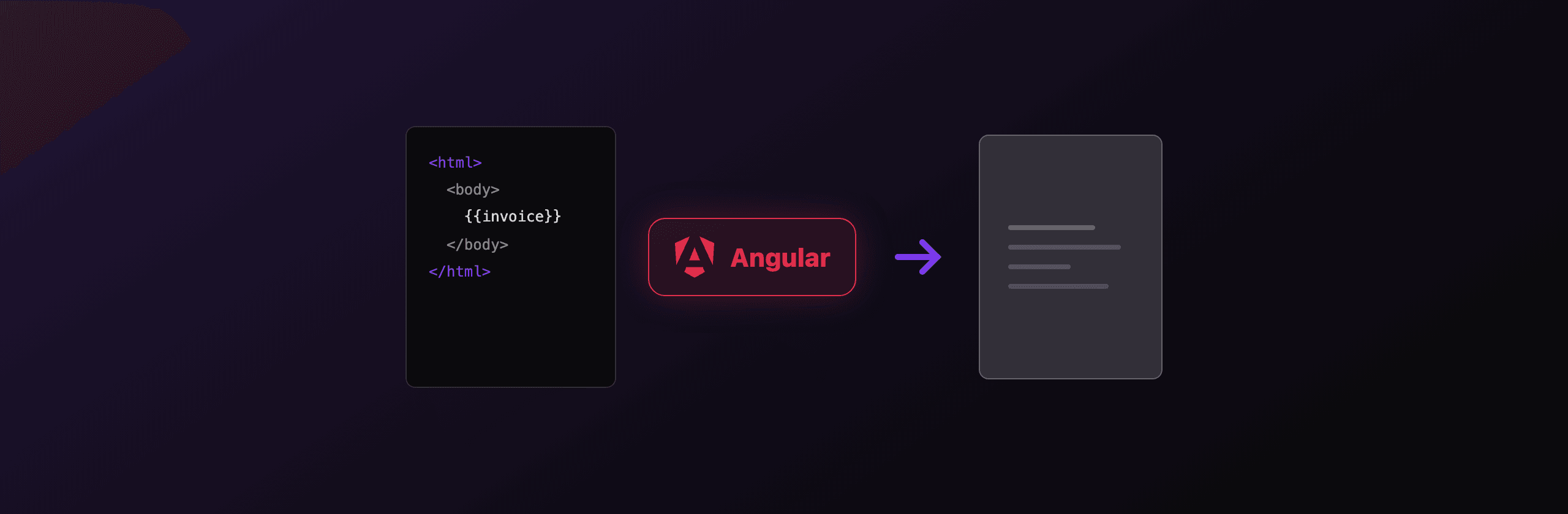
Angular generates PDFs four ways: jsPDF or pdfmake build the file in the browser, html2canvas screenshots a component into a PDF, a Node server endpoint renders HTML with Playwright, or a hosted API like PDF4.dev does the Chromium rendering for you. For a quick client-only export, pdfmake is the cleanest. For anything a customer downloads (invoices, contracts, reports), render the HTML server-side so fonts, pagination, and layout match what you see on screen.
This guide shows every option with real Angular code, plus the trade-off that decides which one you pick.
Which PDF option should you use in Angular?
The right choice depends on fidelity, where the work runs, and how much you ship to the browser. The table below compares the four working approaches against the criteria that matter in production.
| Approach | Runs where | Output fidelity | Bundle cost | Best for |
|---|---|---|---|---|
| jsPDF (+ jspdf-autotable) | Browser | Low, coordinate-drawn | ~250 KB | Receipts, labels, simple tables |
| pdfmake | Browser | Medium, vector text | ~1 MB (with fonts) | Data-driven docs, declarative tables |
| html2canvas + jsPDF | Browser | Low, raster bitmap | ~350 KB | One-off "export this view" buttons |
| Server endpoint (Playwright) | Your Node server | High, real Chromium | 0 KB in browser | Invoices, contracts, branded reports |
| PDF4.dev hosted API | External API | High, real Chromium | 0 KB in browser | Same, with no server to maintain |
Rule of thumb: if a human downloads the PDF and judges your brand by it, render the HTML server-side (your own Playwright endpoint or a hosted API). Keep client-side libraries for quick, internal, or offline exports.
The two client-side libraries (jsPDF, pdfmake) need no backend and work offline, which is their main appeal. The two server paths reuse the HTML and CSS you already write in Angular and produce print-accurate pages. The rest of this article walks each one with code you can paste into a component or service.
How do you generate a PDF with jsPDF in Angular?
jsPDF builds a PDF in the browser by drawing text and shapes at explicit coordinates. Install it, inject nothing special, and call its API from a component method. It is the smallest option and the most manual: you position every line yourself in millimeters or points.
Install the package and the table plugin:
npm install jspdf jspdf-autotableA component that draws a short document and a table:
import { Component } from "@angular/core";
import { jsPDF } from "jspdf";
import autoTable from "jspdf-autotable";

@Component({
  selector: "app-invoice-export",
  standalone: true,
  template: `<button (click)="download()">Download PDF</button>`,
})
export class InvoiceExportComponent {
  download(): void {
    const doc = new jsPDF({ unit: "mm", format: "a4" });

    doc.setFontSize(18);
    doc.text("Invoice INV-001", 20, 25);

    doc.setFontSize(11);
    doc.text("Acme Corp", 20, 35);

    autoTable(doc, {
      startY: 45,
      head: [["Item", "Qty", "Price"]],
      body: [
        ["Design work", "10", "1,000.00"],
        ["Hosting", "1", "120.00"],
      ],
    });

    doc.save("invoice-001.pdf");
  }
}
jsPDF works for receipts, shipping labels, and short tables. The caveats are real: you cannot reuse your Angular component's CSS, web fonts need manual embedding with doc.addFont, emoji and right-to-left scripts are painful, and multi-page flow is a startY bookkeeping exercise. Reach for it only when the document is simple and fixed.
How do you build a data-driven PDF with pdfmake?
pdfmake describes a PDF as a JavaScript object tree (a "document definition"), so you declare content instead of positioning it. It produces real vector text, supports tables, columns, lists, and explicit page breaks, and fits Angular better than raw jsPDF when the document is generated from data rather than screenshotted.
Install pdfmake and its bundled fonts:
npm install pdfmakeGenerate a document from a definition object:
import { Component } from "@angular/core";
import pdfMake from "pdfmake/build/pdfmake";
import pdfFonts from "pdfmake/build/vfs_fonts";

pdfMake.vfs = pdfFonts.vfs;

@Component({
  selector: "app-report-export",
  standalone: true,
  template: `<button (click)="download()">Download report</button>`,
})
export class ReportExportComponent {
  download(): void {
    const docDefinition = {
      content: [
        { text: "Quarterly report", style: "header" },
        { text: "Q2 2026", margin: [0, 0, 0, 12] },
        {
          table: {
            headerRows: 1,
            widths: ["*", "auto", "auto"],
            body: [
              ["Metric", "Q1", "Q2"],
              ["Revenue", "120k", "168k"],
              ["Churn", "3.1%", "2.4%"],
            ],
          },
        },
        { text: "", pageBreak: "after" },
        { text: "Appendix", style: "header" },
      ],
      styles: { header: { fontSize: 18, bold: true, margin: [0, 0, 0, 8] } },
    };

    pdfMake.createPdf(docDefinition).download("report-q2.pdf");
  }
}
pdfmake handles pagination and tables cleanly, and createPdf(...).download(...) does the file save for you. The cost is bundle size: the default font file (vfs_fonts) adds around 1 MB before gzip. Lazy-load the export component or load fonts on demand so the main route stays light. pdfmake still cannot render your existing HTML and CSS, you re-express the layout in its object model.
How do you export an Angular component to PDF with html2canvas?
html2canvas screenshots a DOM element into a bitmap, then you drop that image into a jsPDF page. This is the "export exactly what is on screen" path, and it reproduces your CSS because it photographs the rendered DOM. The trade-off is that text becomes pixels, not selectable glyphs, so the result is blurry when zoomed and larger on disk.
Install both libraries:
npm install html2canvas jspdfCapture a template element by reference and paginate it:
import { Component, ElementRef, ViewChild } from "@angular/core";
import html2canvas from "html2canvas";
import { jsPDF } from "jspdf";

@Component({
  selector: "app-view-export",
  standalone: true,
  template: `
    <div #capture class="invoice">
      <!-- your styled Angular markup here -->
    </div>
    <button (click)="exportPdf()">Export view</button>
  `,
})
export class ViewExportComponent {
  @ViewChild("capture") capture!: ElementRef<HTMLElement>;

  async exportPdf(): Promise<void> {
    // scale 2 trades file size for sharper text
    const canvas = await html2canvas(this.capture.nativeElement, { scale: 2 });
    const img = canvas.toDataURL("image/png");

    const pdf = new jsPDF({ unit: "mm", format: "a4" });
    const pageW = pdf.internal.pageSize.getWidth();
    const pageH = pdf.internal.pageSize.getHeight();
    const imgH = (canvas.height * pageW) / canvas.width;

    let heightLeft = imgH;
    let position = 0;

    pdf.addImage(img, "PNG", 0, position, pageW, imgH);
    heightLeft -= pageH;

    while (heightLeft > 0) {
      position -= pageH;
      pdf.addPage();
      pdf.addImage(img, "PNG", 0, position, pageW, imgH);
      heightLeft -= pageH;
    }

    pdf.save("view.pdf");
  }
}
html2canvas cuts pages mid-line because it has no concept of a print page, so a row or heading can split across the page boundary. It also misses some modern CSS (certain filter, box-shadow, and oklch() colors). Treat it as a fallback, not a production invoice engine.
For a quick browser-only conversion without wiring this yourself, our HTML to PDFTry it free tool runs the same idea server-side with real Chromium, so the text stays selectable.
How do you render PDFs server-side with Playwright?
Render the same HTML you already write in Angular through headless Chromium on a Node server, and the PDF matches the browser exactly: web fonts, CSS grid, page breaks, and @page margins all work. This is the highest-fidelity self-hosted option. You expose an endpoint, your Angular service POSTs HTML, the server returns PDF bytes.
A minimal Node endpoint (Express) using Playwright:
import express from "express";
import { chromium } from "playwright";

const app = express();
app.use(express.json({ limit: "2mb" }));

app.post("/api/pdf", async (req, res) => {
  const { html } = req.body as { html: string };

  const browser = await chromium.launch();
  const page = await browser.newPage();
  await page.setContent(html, { waitUntil: "networkidle" });

  const pdf = await page.pdf({
    format: "A4",
    printBackground: true,
    margin: { top: "20mm", bottom: "20mm", left: "15mm", right: "15mm" },
  });

  await browser.close();

  res.setHeader("Content-Type", "application/pdf");
  res.send(pdf);
});

app.listen(8080);
This is correct and accurate, but you now own the operational cost: a ~300 MB Chromium binary per server, memory spikes under concurrency, a browser pool to keep warm, and cold starts that can exceed 3 seconds on serverless platforms where Chromium barely fits. On Angular Universal (SSR), keep this rendering in a dedicated route or worker, never inline in component code. If you would rather not run Chromium at all, the next section calls a hosted version of exactly this pipeline.
How do you call a hosted PDF API from Angular?
Call a hosted HTML to PDF API from an Angular service so no Chromium, no canvas library, and no PDF code ships to the browser. PDF4.dev renders your HTML with server-side headless Chromium and returns the PDF bytes or a signed URL. You send HTML or a stored template_id plus a data object for {{variables}}, and get a print-accurate file back.
The raw HTTP call is a single POST:
curl -X POST https://pdf4.dev/api/v1/render \
  -H "Authorization: Bearer p4_live_xxx" \
  -H "Content-Type: application/json" \
  -d '{
    "html": "<h1>Invoice INV-001</h1><p>Acme Corp</p>",
    "data": {},
    "delivery": "url"
  }'
Wrapped in an Angular service with HttpClient, with a Blob download for the binary path:
import { HttpClient } from "@angular/common/http";
import { Injectable } from "@angular/core";

interface RenderBody {
  html?: string;
  template_id?: string;
  data?: Record<string, unknown>;
}

@Injectable({ providedIn: "root" })
export class PdfService {
  private readonly endpoint = "https://pdf4.dev/api/v1/render";

  constructor(private http: HttpClient) {}

  // Returns the raw PDF bytes as a Blob, then triggers a download.
  render(body: RenderBody, filename = "document.pdf"): void {
    this.http
      .post(this.endpoint, body, {
        headers: {
          Authorization: "Bearer p4_live_xxx",
          "Content-Type": "application/json",
        },
        responseType: "blob",
      })
      .subscribe((blob) => this.saveBlob(blob, filename));
  }

  private saveBlob(blob: Blob, filename: string): void {
    const url = URL.createObjectURL(blob);
    const a = document.createElement("a");
    a.href = url;
    a.download = filename;
    a.click();
    URL.revokeObjectURL(url);
  }
}
Keep the p4_live_ key on a server, not in your Angular bundle. Either proxy the call through a thin Node route, or use a render_only scoped key behind your own authenticated endpoint. The browser never needs to hold the secret.
For large documents, set delivery to url. The response is JSON with a signed link that expires after 24 hours, which keeps a multi-megabyte PDF out of memory and out of any agent context window. You get Chromium-grade output with zero browser binaries to operate.
Which option should you choose?
Pick by who reads the PDF and where it runs. The short version: client-side libraries for quick internal exports, server-side rendering for anything customer-facing.
- Receipts, labels, tiny tables, fully offline: jsPDF with jspdf-autotable. Smallest footprint, no backend, fully manual layout.
- Data-driven reports built from JSON, still client-side: pdfmake. Declarative tables and page breaks, vector text, at the cost of a ~1 MB font bundle to lazy-load.
- "Export this exact view" button, internal tooling: html2canvas plus jsPDF. Accept the raster blur and mid-line page cuts.
- Customer invoices, contracts, branded reports, you already run a Node backend: Playwright server endpoint. Highest fidelity, but you maintain Chromium, memory, and a browser pool.
- Same high-fidelity output with no infrastructure to run: PDF4.dev. POST HTML or a
template_id, get a print-accurate PDF back, nothing heavy ships to the browser.
A common production setup mixes two: pdfmake for a fast in-app preview or export, and a server render (your own Playwright endpoint or PDF4.dev) for the final downloadable document a customer keeps.
Related reading
- PDF generation in Next.js: the same decision applied to React and route handlers.
- PDF generation in Vue: client vs server options for the Vue ecosystem.
- Generate a PDF from HTML in Node.js: the server-side Playwright path in depth.
Need a quick conversion without writing code? Try the free Html To PdfTry it free and Webpage To PdfTry it free tools, both render with real Chromium server-side.
Free tools mentioned:
Frequently asked questions
- How do I generate a PDF in Angular?
- You have four working paths: jsPDF or pdfmake to build a PDF in the browser, html2canvas plus jsPDF to screenshot a component into a PDF, a server endpoint running Playwright for print-accurate HTML to PDF, or a hosted API like PDF4.dev that you call from an Angular HttpClient service. For pixel-accurate layouts, render the HTML server-side.
- Is jsPDF good enough for invoices in Angular?
- jsPDF works for simple documents, but you draw text and lines by coordinate. For a multi-page invoice with tables you add jspdf-autotable, and even then complex CSS layouts, web fonts, and emoji are hard to reproduce. For real invoices, render the same HTML you already style in Angular through a headless Chromium engine instead.
- Why is my html2canvas PDF blurry?
- html2canvas rasterizes the DOM into a bitmap, so text becomes pixels instead of selectable vector glyphs. Bump the scale option to 2 or 3 for sharper output, but the file grows and text stays non-selectable. To keep crisp, selectable text, render the HTML through Chromium server-side rather than screenshotting it.
- Should I generate PDFs on the client or the server in Angular?
- Client-side (jsPDF, pdfmake) keeps everything in the browser and needs no backend, which is fine for small documents and offline use. Server-side rendering with Chromium gives print-accurate output, real pagination, web fonts, and keeps heavy libraries out of your bundle. Use the server path for invoices, contracts, and anything a customer downloads.
- How do I download a PDF Blob in Angular?
- Request the endpoint with HttpClient using responseType set to 'blob', then create an object URL with URL.createObjectURL(blob), assign it to a hidden anchor with a download attribute, click it, and revoke the URL. This works for any endpoint that returns application/pdf bytes.
- Can I generate a PDF without shipping Chromium to the browser?
- Yes. Call a hosted HTML to PDF API such as PDF4.dev from an Angular service. You POST your HTML or a template id with data, the server renders it with headless Chromium, and you receive the PDF bytes or a signed URL. No browser binary or canvas library ships in your Angular bundle.
- Does pdfmake support tables and page breaks?
- Yes. pdfmake uses a declarative document definition object where you describe content as a tree, including tables, columns, lists, and explicit page breaks via pageBreak: 'before'. It produces vector text and is a better fit than raw jsPDF when your document is data-driven rather than a screenshot of a component.
Start generating PDFs
Build PDF templates with a visual editor. Render them via API from any language in ~300ms.