To mix portrait and landscape pages in one PDF, use CSS named pages in a single render, or render each orientation separately and merge the files. In a direct Playwright or Puppeteer render, define a named @page set to landscape, apply it to the wide section, and pass preferCSSPageSize: true. The most reliable method across any tool is to render each section to its own PDF and merge them with pdf-lib, because page orientation is stored per page.
This guide covers both methods with copy-paste code, the preferCSSPageSize gotcha that makes CSS orientation silently fail, a decision table for which approach to pick, and how to do it at scale with PDF4.dev.
What is the reliable way to mix portrait and landscape pages in one PDF?
The reliable way is either CSS named pages in one render or a render-then-merge step, depending on how much control you have over the renderer. Orientation in a PDF is a property of each individual page, not the whole document, so a single file can hold portrait and landscape pages side by side.
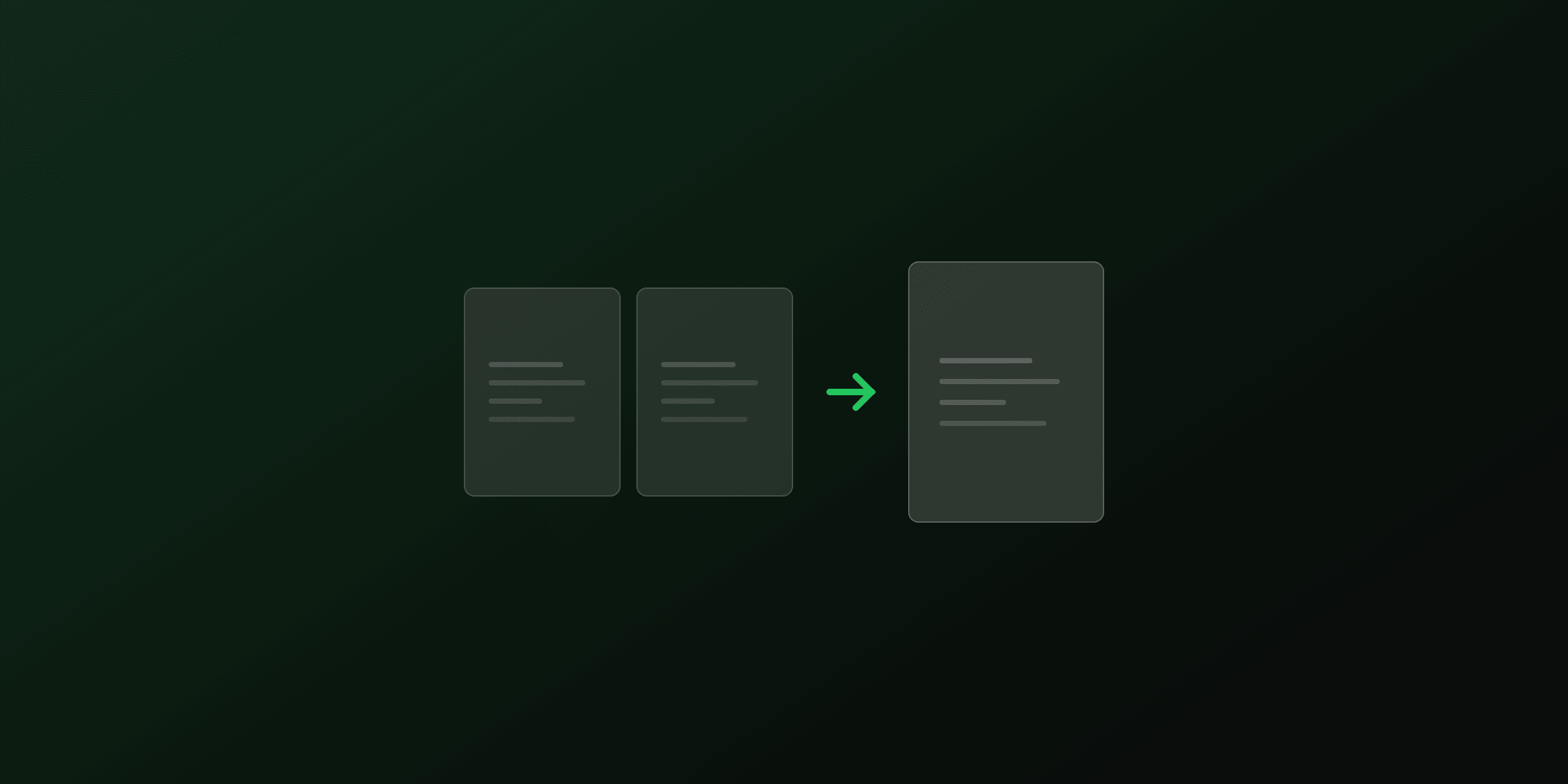
CSS named pages keep everything in one render pass, which suits a mostly-portrait report with a few wide tables. Render-then-merge builds the file from separate PDFs, which works with any renderer or hosted API, even one that forces a single page size.
| Approach | How it works | Renderer support | Best for |
|---|---|---|---|
| CSS named pages | Named @page rule plus the page property plus preferCSSPageSize: true | Modern Chromium via direct Playwright or Puppeteer | One render, a few wide pages in a portrait document |
| Render then merge | Separate PDFs joined with pdf-lib | Any renderer or API | Reliability, mixed sources, hosted HTML-to-PDF services |
| Rotate after export | Turn an existing page 90 degrees | Any tool via pdf-lib | Fixing a wide page saved in portrait |
The rest of this guide shows each method in code so you can pick the one that fits your stack.
Why is my CSS landscape page ignored in the generated PDF?
Because preferCSSPageSize defaults to false in Playwright and Puppeteer. When it is false, the renderer scales your content to fit the single paper size you passed through width, height, or format, and ignores every @page size rule in the HTML. This is the most common reason a landscape section renders as a squeezed portrait page.
The Playwright page.pdf documentation states that preferCSSPageSize gives any CSS @page size priority over the width and height options, and that it defaults to false. Puppeteer behaves the same way. So the fix is to set the flag to true.
const pdf = await page.pdf({
  printBackground: true,
  preferCSSPageSize: true, // default is false; without this, @page size is ignored
});
Once preferCSSPageSize is true, the sizes and orientations declared in your @page rules control the output, including any named pages. If you were also passing a format such as A4, you can drop it, because the CSS now owns the page geometry.
How do you mix orientations in a single render with CSS named pages?
Define a named @page rule set to landscape, apply it to the wide section with the CSS page property, add a page break, and render with preferCSSPageSize: true. A named page is an @page rule with a name that carries its own size and margins, and any element whose page property matches that name starts on a page with those settings.
The MDN documentation for the CSS page property and the size descriptor describe the syntax. Here is the stylesheet:
/* default: portrait for the whole document */
@page {
  size: A4 portrait;
  margin: 20mm;
}

/* a named page that is landscape */
@page wide {
  size: A4 landscape;
  margin: 15mm;
}

/* any element with page: wide starts a new landscape page */
.landscape-section {
  page: wide;
  break-before: page;
  break-after: page;
}
The break-before: page rule, documented on MDN, forces the wide section onto a fresh sheet so the orientation change lands cleanly. Now render it in Node.js or Python.
import { chromium } from 'playwright';

const browser = await chromium.launch();
const page = await browser.newPage();
await page.setContent(html, { waitUntil: 'load' });

const pdf = await page.pdf({
  path: 'report.pdf',
  printBackground: true,
  preferCSSPageSize: true, // required, default is false
});

await browser.close();
The result is one PDF where the section marked page: wide is landscape and every other page is portrait.
How do you merge a portrait PDF and a landscape PDF?
Load both PDFs with pdf-lib, create a new document, copy the pages from each source in order, and save. Because each page stores its own size, the merged file keeps the portrait pages portrait and the landscape pages landscape with no scaling. This method does not depend on any renderer flag, so it works even when a hosted API forces a single page size.
import { PDFDocument } from 'pdf-lib';
import { readFile, writeFile } from 'node:fs/promises';

const portrait = await PDFDocument.load(await readFile('cover.pdf'));   // A4 portrait
const landscape = await PDFDocument.load(await readFile('table.pdf'));  // A4 landscape

const merged = await PDFDocument.create();
for (const source of [portrait, landscape]) {
  const pages = await merged.copyPages(source, source.getPageIndices());
  pages.forEach((page) => merged.addPage(page));
}

await writeFile('report.pdf', await merged.save());
If you would rather not write code, drag both files into the free merge PDF tool. It runs in the browser, so the files never upload to a server, and it keeps each page at its original orientation. For the manual steps and the underlying pdf-lib API, see how to merge PDF files. To build each source PDF from HTML first, the HTML to PDF tool renders one section at a time.
Which method should you choose?
Choose CSS named pages when you control the renderer, and render-then-merge when you do not. The decision comes down to whether you can set preferCSSPageSize on the page.pdf call and whether all your pages come from the same HTML render.
| If you | Use |
|---|---|
| Call Playwright or Puppeteer directly | CSS named pages with preferCSSPageSize: true |
| Use an HTML-to-PDF API that forces one page size | Render each orientation, then merge |
| Already have two finished PDFs | Merge them with pdf-lib or the merge tool |
| Have a wide table saved as a portrait page | Rotate that page 90 degrees |
For the last case, orientation and rotation are different properties. A page can be portrait-sized but rotated, which is what you get when a scanner saves a wide document sideways. See how to rotate PDF pages to turn only the pages you select, or use the rotate PDF tool.
How do you produce mixed orientations at scale?
Render the portrait section with a portrait preset and the landscape section with a landscape preset, then merge the two PDFs. Running this yourself with Playwright means operating a headless browser: a Chromium install adds around 300 MB to your image, you need a warm browser pool so cold starts do not add seconds per document, and a spike in report generation can exhaust memory and crash the process.
None of that is impossible. The question is whether you want to run a browser fleet or call an endpoint. The rendering engine is the same Chromium either way. With a hosted API you render each section by preset and merge the results, and there is no browser to babysit.
With PDF4.dev you render the portrait part with the a4 preset and the landscape part with the a4-landscape preset, then merge them. No Chromium to install, no page pool to manage. Try the free HTML to PDF tool to lay out each section, then automate with the API.
Render two sections by preset with one request each:
async function renderSection(html, preset) {
  const res = await fetch('https://api.pdf4.dev/v1/render', {
    method: 'POST',
    headers: {
      Authorization: `Bearer ${process.env.PDF4_API_KEY}`,
      'Content-Type': 'application/json',
    },
    body: JSON.stringify({ html, format: { preset } }),
  });
  return Buffer.from(await res.arrayBuffer());
}

const cover = await renderSection(coverHtml, 'a4');
const table = await renderSection(tableHtml, 'a4-landscape');
// merge cover + table with pdf-lib as shown above
Common pitfalls with mixed orientations
Three problems account for most broken output: an ignored CSS size, a stray blank page, and doubled margins. Each has a direct fix.
An ignored CSS size means preferCSSPageSize is still false. Set it to true, and remove any format option that competes with the @page rule. A stray blank page usually comes from a page break on an empty wrapper or from stacking break-before and break-after on adjacent sections. Put the break on the section that actually changes orientation, not on a container around it.
Doubled margins happen when you set a margin in both the CSS @page rule and the page.pdf options. When preferCSSPageSize is true, keep margins in the CSS only. For a wider tour of print CSS, including page breaks, headers, and footers, read the CSS print styles guide and the PDF paper sizes guide.
Key takeaways
Mix portrait and landscape pages in one PDF with either CSS named pages or a render-then-merge step. For a single render, define a named @page set to landscape, apply it with the page property and a page break, and pass preferCSSPageSize: true, since the default of false is why CSS orientation is often ignored. For any renderer or hosted API, render each orientation to its own PDF and merge them with pdf-lib or the merge PDF tool, because orientation is stored per page. At volume, render each section by preset and merge with PDF4.dev instead of running your own browser fleet.
Free tools mentioned:
Frequently asked questions
- How do I put one landscape page inside a portrait PDF?
- Two reliable ways. In a single Chromium render, define a named page with an at-page rule set to landscape, apply it to the wide section with the CSS page property plus a page break, and pass preferCSSPageSize true to page.pdf. Or render the portrait section and the landscape section as separate PDFs and merge them with pdf-lib. The merge method works with any renderer or API.
- Why is my CSS landscape page ignored in the generated PDF?
- Because preferCSSPageSize defaults to false in Playwright and Puppeteer. When it is false the renderer scales content to the single paper size you passed in width, height, or format, and ignores every at-page size rule in your HTML. Set preferCSSPageSize to true so the CSS named pages control orientation.
- Do all browsers support mixed page orientation from CSS?
- Modern Chromium supports named pages and the CSS page property, so Playwright and Puppeteer can produce mixed orientations in one render. Support is less consistent in other engines, so if you need a guarantee across tools, render each orientation separately and merge the PDFs.
- Can I mix orientations without writing CSS?
- Yes. Render each part to its own PDF, then merge them. A portrait PDF and a landscape PDF combine into one file with pdf-lib in about ten lines, or with the free merge tool in the browser. This avoids the preferCSSPageSize gotcha entirely.
- How do I merge a portrait PDF and a landscape PDF into one file?
- Load both PDFs with pdf-lib, create a new document, copy the pages from each source in order, add them to the new document, and save. Page orientation is stored per page, so the merged file keeps each page at its own size. You can also drag both files into the merge PDF tool.
- My landscape table is stored as a portrait page. How do I fix it?
- Rotate that page 90 degrees. Rotation is a per-page property in the PDF, so you can turn a single page without touching the rest. Use pdf-lib to set the rotation, or drop the file into the rotate PDF tool and rotate only the pages you select.
- Why do I get a blank page between orientations?
- A blank page usually comes from stacking a page break on top of a page that is already full, or from an at-page margin that is larger than the content area. Use break-before page on the section that changes orientation, not on an empty wrapper, and check that your margins leave room for content.
- Does preferCSSPageSize change the margins too?
- It can. When preferCSSPageSize is true, the margin declared inside each at-page rule is applied. If you also pass a margin option to page.pdf, the CSS margin wins for pages that have an at-page rule. Set margins in one place, the CSS, to avoid surprises.
- Can PDF4.dev output mixed orientations?
- Yes, with the merge approach. Render the portrait section with the a4 preset and the landscape section with the a4-landscape preset, then merge the two PDFs. This keeps each page at the right size without depending on renderer-specific CSS flags.
- What is a named page in CSS?
- A named page is an at-page rule with a name, like at-page landscape, that defines a size and margins. Any element whose CSS page property matches that name starts a new page using those settings. Named pages are how you give one section a different orientation from the rest of the document.
Start generating PDFs
Build PDF templates with a visual editor. Render them via API from any language in ~300ms.