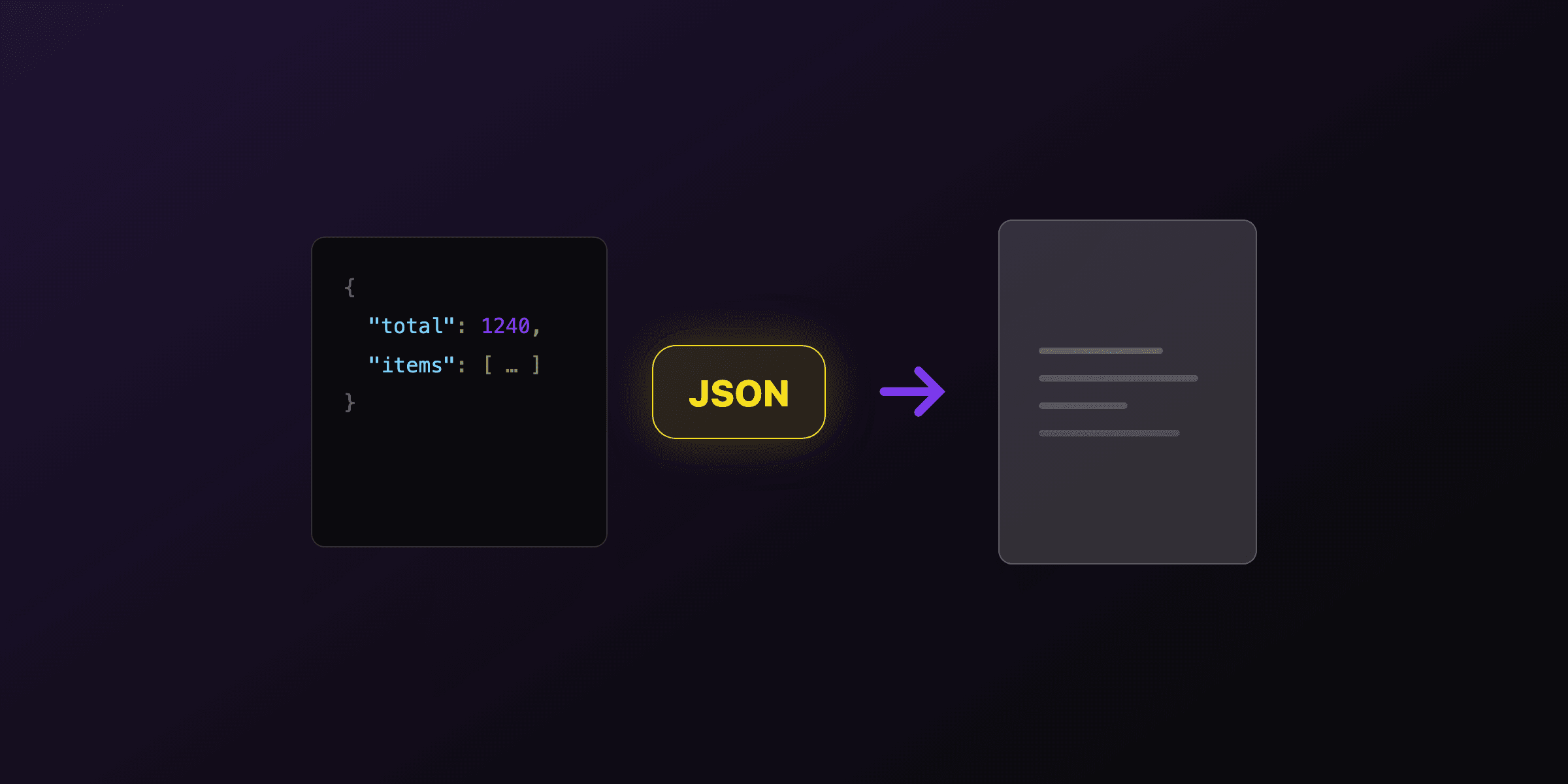
A purchase order PDF is generated by filling an HTML template with the order data (PO number, supplier, buyer, line items) and rendering that HTML to PDF with a browser engine or a hosted API. The template controls the layout and pagination, the data controls the values, and a single render turns them into a fixed document. This gives you full CSS control over the design while keeping the pipeline to one step per order.
Two paths produce the same result. Run a headless browser yourself, or call an API that runs one for you. The table below is the short version; the rest of this guide shows the code for both.
| Approach | Setup | Best for | Trade-off |
|---|---|---|---|
| HTML template + Playwright | Install Chromium, write render code | Full control, self-hosted | You operate the browser and its memory |
| HTML template + hosted API | One HTTP request | Bulk POs, serverless, no infra | Depends on an external service |
| PDF library (draw by hand) | Position text and lines in code | Fixed simple layouts | No CSS, tedious tables and wrapping |
What is a purchase order PDF?
A purchase order (PO) is a document a buyer sends to a supplier to request goods or services at agreed quantities and prices. A purchase order PDF is that document rendered as a fixed-layout file, so it looks identical on every screen, printer, and email client.
The PO is the buyer's commitment. It precedes the invoice: the buyer issues the PO, the supplier delivers, then the supplier sends an invoice that references the same PO number. That shared number lets accounting match three documents (order, delivery note, invoice) in a process called three-way matching. Generating the PO as a PDF, rather than a spreadsheet or an email, gives both sides a stable record that will not reflow when opened in a different app.
For a generated PO, the HTML-to-PDF approach fits well because a purchase order is mostly a header block plus a line-item table, which is exactly what HTML and CSS handle natively.
What information must a purchase order contain?
A purchase order needs a unique PO number, an issue date, buyer and supplier details, a line-item table, a grand total, and terms. The PO number is the field everything else keys off, so it must be unique and stable.
The fields below are the standard set. Regional or industry POs add more (tax IDs, incoterms, project codes), but this covers the core.
| Field | Purpose |
|---|---|
| PO number | Unique reference for matching the invoice and delivery |
| Issue date | When the buyer created the order |
| Buyer details | Company name, address, contact |
| Supplier details | Vendor name, address, contact |
| Line items | Description, quantity, unit price, line total |
| Subtotal, tax, total | The amounts the buyer commits to pay |
| Delivery terms | Ship-to address, requested delivery date |
| Payment terms | Net 30, Net 60, or similar |
Model this as one JSON object: the header fields at the top level and the line items as an array. That array is what the template loops over to build the table rows, so adding a line item never changes the layout code.
How do you build the purchase order template?
Build the template as plain HTML with Handlebars placeholders for the data and an each block for the line items. The header block holds buyer and supplier details, the table holds the line items, and a totals row closes it.
The key detail is the line-item table. Put the column titles inside a <thead> element so the header repeats at the top of every page when a PO runs long, which a browser engine does automatically under CSS paged-media rules.
<div class="header">
  <h1>Purchase order</h1>
  <div class="po-meta">
    <span>PO number: {{po_number}}</span>
    <span>Date: {{formatDate issue_date "dd MMM yyyy"}}</span>
  </div>
</div>

<div class="parties">
  <div><strong>Buyer</strong><br />{{buyer.name}}<br />{{buyer.address}}</div>
  <div><strong>Supplier</strong><br />{{supplier.name}}<br />{{supplier.address}}</div>
</div>

<table>
  <thead>
    <tr><th>Description</th><th>Qty</th><th>Unit price</th><th>Total</th></tr>
  </thead>
  <tbody>
    {{#each line_items}}
    <tr>
      <td>{{this.description}}</td>
      <td>{{this.quantity}}</td>
      <td>{{formatCurrency this.unit_price "USD"}}</td>
      <td>{{formatCurrency (math this.quantity "*" this.unit_price) "USD"}}</td>
    </tr>
    {{/each}}
  </tbody>
</table>

<p class="total">Total: {{formatCurrency total "USD"}}</p>
The math and formatCurrency calls are built-in Handlebars helpers, so the line total is computed and formatted during rendering. You do not have to precompute quantity * unit_price for every row before sending the data.
How do you render the purchase order to PDF?
Render the filled HTML with a headless browser: compile the template with the PO data, load the HTML into Chromium, and call the PDF export. The example below uses Playwright, which drives Chromium and exposes page.pdf().
import Handlebars from "handlebars";
import { chromium } from "playwright";
import { readFileSync } from "node:fs";

const template = Handlebars.compile(readFileSync("po.html", "utf8"));
const html = template({
  po_number: "PO-2026-0042",
  issue_date: "2026-08-05",
  buyer: { name: "Acme Corp", address: "1 Market St" },
  supplier: { name: "Bolt Supplies", address: "9 Depot Rd" },
  line_items: [
    { description: "M6 bolts (box of 100)", quantity: 20, unit_price: 4.5 },
    { description: "Steel brackets", quantity: 50, unit_price: 2.2 },
  ],
  total: 200,
});

const browser = await chromium.launch();
const page = await browser.newPage();
await page.setContent(html, { waitUntil: "load" });
await page.pdf({ path: "po.pdf", format: "A4", printBackground: true });
await browser.close();
This works, and for a handful of purchase orders it is all you need. If you want to test the rendering without writing code, paste the template into the HTML to PDF tool and download the result.
When does the DIY approach get expensive?
The self-hosted browser approach holds until you run it at scale, in a container, or on serverless. Then the operational cost shows up, and it has little to do with the purchase order itself.
Chromium adds roughly 300 MB to a Docker image and needs system libraries that are not in slim base images, so builds get heavier. Each render holds a browser page in memory, and a burst of PO generation at month-end can exhaust RAM if requests are not queued. On serverless platforms, the read-only file system and cold-start limits make bundling a browser awkward, and long renders can hit execution timeouts. When Chromium crashes under load, someone gets paged.
None of that is about the document. It is the price of operating a browser as infrastructure. The question becomes whether generating purchase orders is worth running a browser fleet, or whether that belongs to someone else.
How do you generate a purchase order PDF with an API?
Send the template and the PO data to a rendering API in one HTTP request and get back a PDF. The API runs headless Chromium server-side, so you skip the browser install, the memory tuning, and the on-call rotation.
Store the template once in PDF4.dev, then reference it by ID and pass only the PO data on each call. New line items never touch your code.
curl -X POST https://pdf4.dev/api/v1/render \
  -H "Authorization: Bearer p4_live_xxx" \
  -H "Content-Type: application/json" \
  -d '{
    "template_id": "purchase-order",
    "data": {
      "po_number": "PO-2026-0042",
      "issue_date": "2026-08-05",
      "line_items": [
        { "description": "M6 bolts", "quantity": 20, "unit_price": 4.5 }
      ],
      "total": 90
    }
  }' --output po.pdf
For bulk runs, send one request per PO and name each file by its PO number. A single render takes about 200-400ms with a warm browser pool, so a few hundred purchase orders finish in under a minute when you parallelize the requests. This is the same batch pattern used for invoices and any PDF generated from JSON.
DIY browser vs hosted API: which should you pick?
Pick the self-hosted browser if you already run one and want no external dependency. Pick a hosted API if you want to skip the infrastructure and generate POs from any runtime, including serverless. Both use the same Chromium engine, so the output is identical; the difference is who operates the browser.
| Factor | Self-hosted Playwright | Hosted API |
|---|---|---|
| Docker image size | +300 MB for Chromium | No browser to bundle |
| Serverless support | Awkward, timeout-prone | Works from any function |
| Memory management | You queue and cap renders | Handled server-side |
| Render engine | Chromium | Chromium (same output) |
| On-call for crashes | Yours | Not yours |
| Best fit | Existing browser fleet | Bulk POs, no infra |
Render times vary with template complexity and network conditions. The 200-400ms figure assumes a warm browser pool and a typical single-page purchase order.
Common purchase order PDF issues
Most problems trace back to the line-item table or the totals, not the rendering engine. The fixes below cover the ones that show up first.
If a long PO cuts the header on later pages, move the column titles into <thead>; the browser repeats it per page. If columns overflow the right edge, set table-layout: fixed and shrink the font, or switch the page to landscape. If a total looks wrong, compute it from the same line-item array the table uses, not from a separate field that can drift. If the logo is missing in production, embed it as a base64 data URI so the render needs no outbound request.
To stop recipients from altering the line items after you send the PO, password protect the PDF with an owner password and disable editing permissions. The recipient can still open and print it, but the numbers stay fixed.
Summary
Generating a purchase order PDF comes down to one HTML template with a line-item loop plus a rendering step. Model the PO as a JSON object with a line-items array, build the table with a repeating <thead>, compute totals with template helpers, and render with either a self-hosted headless browser or a hosted API. Both produce the same document, so choose based on whether you want to operate the browser. Start from the invoice generation guide if you also send invoices, since a PO and its invoice share the same template structure and PO number.
Free tools mentioned:
Frequently asked questions
- What is the best way to generate a purchase order PDF?
- Put the purchase order layout in an HTML template with Handlebars variables for the buyer, supplier, PO number, and line items, then render that HTML to PDF with a headless browser like Chromium or a hosted API. The template owns the design and pagination, and your data owns the values, so every PO comes out with the same layout regardless of how many line items it has.
- What information must a purchase order contain?
- A purchase order needs a unique PO number, issue date, buyer and supplier details, a line-item table with description, quantity, unit price and line total, a grand total, and payment or delivery terms. The PO number is the key field: it is the reference both parties use to match the later invoice and delivery against the order.
- How do I generate a purchase order PDF in Node.js?
- Compile an HTML template with Handlebars, inject the PO data, then render the result with Playwright using `page.pdf()`. Handlebars fills the line-item rows with an `each` block, and Playwright's Chromium engine paginates the table and returns a PDF buffer you can save or stream.
- How do I generate a purchase order PDF in Python?
- Render the HTML template with Jinja2 or a hosted API, then convert it to PDF with WeasyPrint or a headless browser through Playwright. Jinja2 loops over the line items to build the table rows, and the renderer handles the page layout and page breaks.
- How do I calculate line totals and the grand total in the PDF?
- Compute quantity times unit price per line and sum the lines for the grand total before rendering, or use a template helper that multiplies and adds during rendering. PDF4.dev templates include `math` and `formatCurrency` helpers, so you can write the multiplication and currency formatting directly in the template instead of precomputing every field.
- Can I generate purchase orders in bulk?
- Yes. With an API, you send one request per purchase order, and a typical render takes 200-400ms, so a few hundred POs finish in under a minute when parallelized. Store each returned PDF by its PO number so the file name matches the reference on the document.
- How do I add a company logo to a purchase order PDF?
- Embed the logo as a base64 data URI in the HTML template. This avoids an external network request during rendering and makes the logo appear reliably in every PO, including in serverless or offline environments where outbound requests may be blocked.
- How do I stop a purchase order PDF from being edited?
- Flatten the document and set an owner password with permission flags that disable editing. You can password protect the PDF after generation so recipients can open and print it but cannot change the line items or totals.
- What is the difference between a purchase order and an invoice?
- A purchase order is issued by the buyer to request goods or services and states what they agree to buy. An invoice is issued by the supplier to request payment for what was delivered. The two documents share a PO number so accounting can match the invoice to the original order.
- Can I generate a purchase order PDF from JSON?
- Yes. JSON is the natural input: one object holds the header fields and an array holds the line items. You pass that JSON as the template data, and the template maps the array to table rows. This is the same pattern as generating any PDF from JSON.
- Do I need Adobe or Word to create purchase order PDFs?
- No. A purchase order PDF is generated from an HTML template and a rendering engine, so no desktop office software is involved. You can produce POs from a script, a backend service, or a hosted API without opening a document editor.
Start generating PDFs
Build PDF templates with a visual editor. Render them via API from any language in ~300ms.