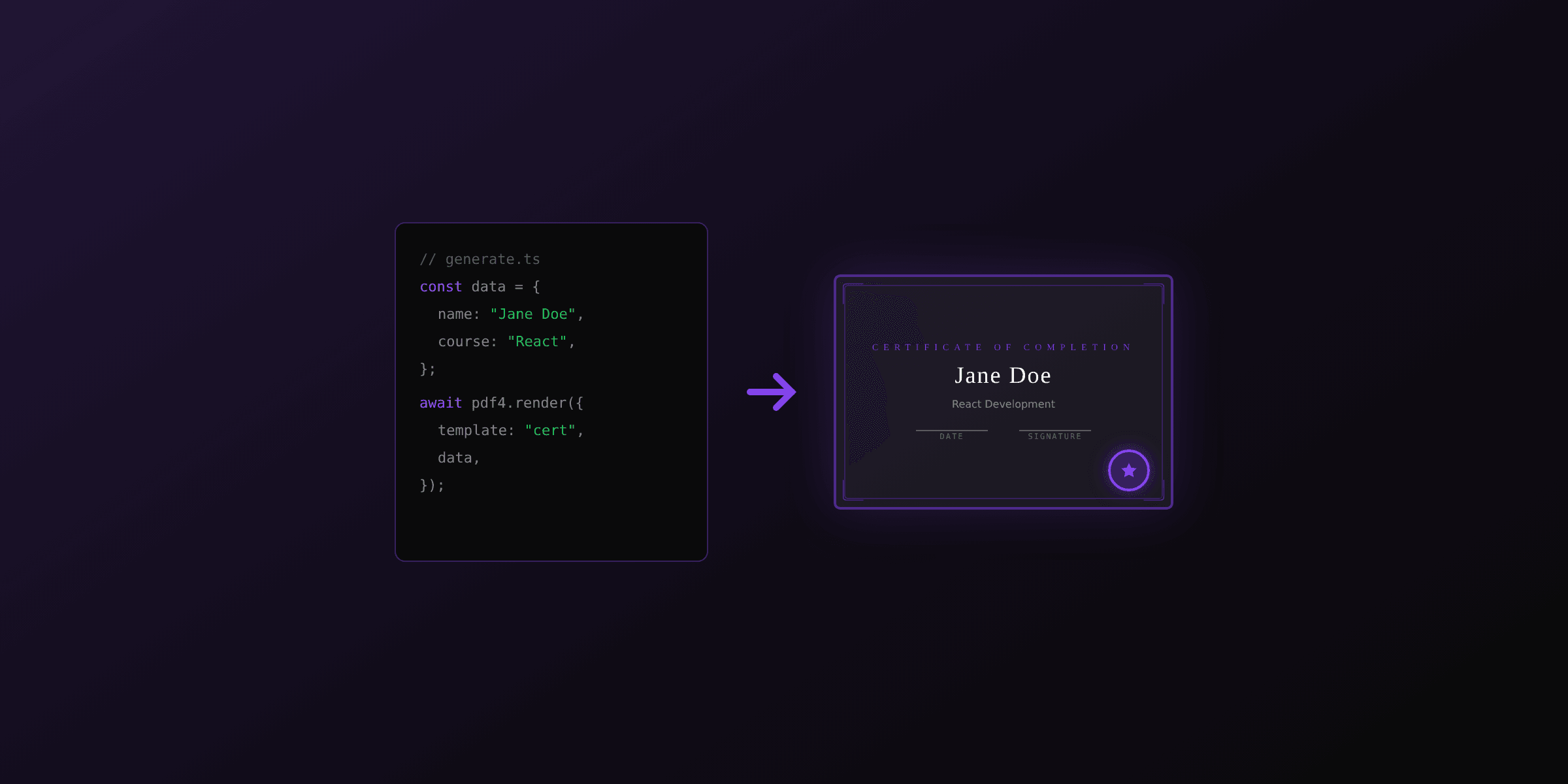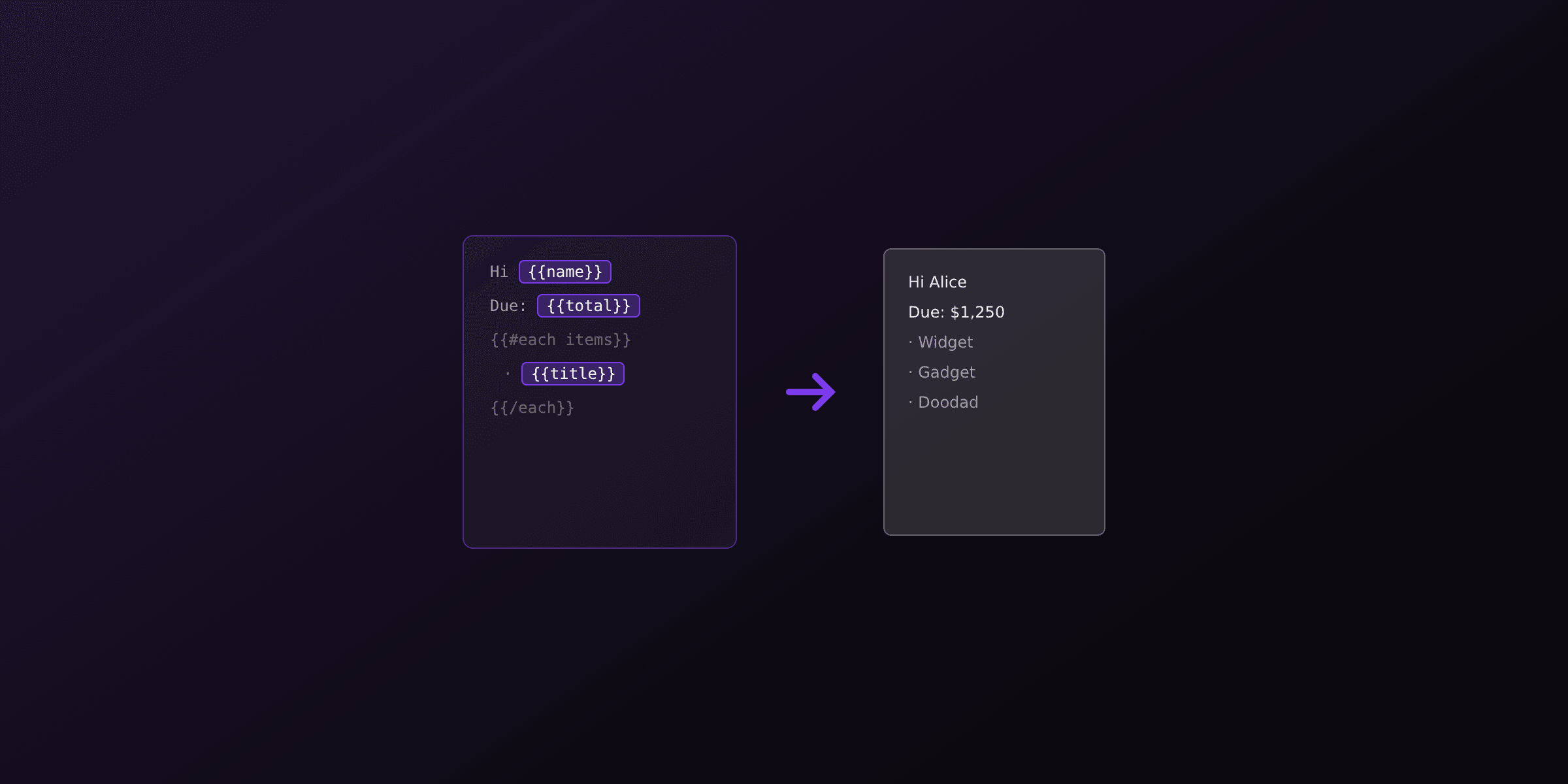
A PDF certificate is a single-page document that records an achievement: course completion, event attendance, accreditation, or award. You design it once as an HTML template with placeholders for the recipient name, date, course title, and a verification QR code, then render it on demand with a headless browser or a PDF API. The same template serves one recipient or ten thousand.
This guide walks through the design, the template, batch rendering from a CSV, verification, and localization for right-to-left scripts. For the developer-focused deep dive into building a certificate microservice (queue, webhooks, cache), see the companion article building-certificate-generator.
| Use case | Volume | Orientation | Typical fields |
|---|---|---|---|
| Online course completion | 100 to 100,000 per cohort | Landscape | Name, course, date, instructor, QR |
| Event attendance | 50 to 5,000 per event | Landscape | Name, event, date, organizer signature |
| HR training record | 10 to 500 per year | Portrait or landscape | Name, program, hours, compliance code |
| Professional accreditation | 1 to 10,000 per cycle | Portrait | Name, credential, valid from/to, seal |
What goes on a certificate?
A certificate needs five elements: the recipient name, what they accomplished, when, who issued it, and proof it is real. Everything else is decoration. The recipient name is the visual anchor and should be the largest element on the page, usually 48 to 72 px in a serif or calligraphic font. Everything else supports that name.
The minimum checklist:
- Recipient name, spelled exactly as the recipient provided it.
- Achievement, written as a complete phrase: "has successfully completed the course Advanced Node.js" not just "Advanced Node.js".
- Issue date, in a format that matches the recipient locale (14 May 2026, May 14 2026, or 2026-05-14).
- Issuer signature, either a scanned handwritten signature as an image, a typed name above a signature line, or both.
- Verification token, typically a QR code pointing at a unique URL plus a human-readable serial number.
Optional elements that add polish without clutter: a seal or medallion in a corner, a subtle border in the brand color, a watermark of the issuer logo at 5 to 10 percent opacity behind the content, and page-specific metadata (issuer address, website) in a small footer line.
Portrait or landscape?
Landscape is the default for 90 percent of certificates. The wider aspect ratio leaves more horizontal breathing room around the name, which is the reason most certificates exist. Use portrait only when the certificate carries dense text such as credential details, continuing education hours, or regulatory disclosures that need to fit above the signature block.
A4 landscape measures 297 x 210 mm. US Letter landscape measures 279 x 216 mm. If your audience spans both regions, either pick one and accept a small margin difference or render two versions per recipient and let them choose. A4 is slightly taller in landscape mode, which gives a touch more vertical space for multi-line achievement text.
A complete HTML certificate template
The template below is production-ready. It uses Google Fonts for the serif display face, a flexbox layout for vertical centering, a CSS seal built from a radial gradient, and Handlebars placeholders for the dynamic fields. Drop it into PDF4.dev or any Chromium-based renderer and it prints at A4 landscape.
<!DOCTYPE html>
<html lang="en">
<head>
<meta charset="UTF-8" />
<link href="https://fonts.googleapis.com/css2?family=Playfair+Display:wght@400;700&family=Inter:wght@400;500;600&display=swap" rel="stylesheet" />
<style>
  @page { size: A4 landscape; margin: 0; }
  * { box-sizing: border-box; margin: 0; padding: 0; }
  html, body { height: 100%; width: 100%; font-family: 'Inter', sans-serif; color: #1a1a1a; }
  .page {
    position: relative;
    height: 100%;
    width: 100%;
    padding: 40mm 30mm;
    background: #fffef9;
    border: 2mm solid #7c3aed;
    display: flex;
    flex-direction: column;
    align-items: center;
    justify-content: space-between;
  }
  .page::before {
    content: '';
    position: absolute;
    inset: 6mm;
    border: 0.5mm solid #d4af37;
    pointer-events: none;
  }
  .header { text-align: center; }
  .eyebrow { font-size: 14px; letter-spacing: 6px; color: #7c3aed; text-transform: uppercase; }
  .title { font-family: 'Playfair Display', serif; font-size: 36px; font-weight: 700; margin-top: 12px; }
  .body { text-align: center; }
  .recipient {
    font-family: 'Playfair Display', serif;
    font-size: 64px;
    font-weight: 400;
    margin: 20px 0;
    border-bottom: 0.3mm solid #1a1a1a;
    padding-bottom: 8px;
  }
  .achievement { font-size: 18px; line-height: 1.5; max-width: 180mm; margin: 0 auto; color: #444; }
  .footer {
    display: flex;
    justify-content: space-between;
    align-items: flex-end;
    width: 100%;
    padding: 0 20mm;
  }
  .signature { text-align: center; min-width: 60mm; }
  .signature-line { border-top: 0.3mm solid #1a1a1a; padding-top: 6px; font-size: 12px; }
  .signature-name { font-family: 'Playfair Display', serif; font-size: 18px; margin-bottom: 4px; }
  .seal {
    width: 32mm;
    height: 32mm;
    border-radius: 50%;
    background: radial-gradient(circle at center, #d4af37 0%, #b8860b 100%);
    color: #fffef9;
    display: flex;
    align-items: center;
    justify-content: center;
    font-size: 10px;
    text-align: center;
    font-weight: 600;
    letter-spacing: 1px;
  }
  .verify {
    position: absolute;
    bottom: 10mm;
    right: 12mm;
    display: flex;
    align-items: center;
    gap: 8px;
    font-size: 9px;
    color: #666;
  }
  .verify img { width: 18mm; height: 18mm; }
</style>
</head>
<body>
  <div class="page">
    <div class="header">
      <div class="eyebrow">Certificate of completion</div>
      <div class="title">{{course_name}}</div>
    </div>

    <div class="body">
      <div style="font-size: 14px; color: #666;">This is to certify that</div>
      <div class="recipient">{{recipient_name}}</div>
      <div class="achievement">
        has successfully completed the {{course_name}} program on
        {{formatDate issue_date "dd MMM yyyy"}}, representing
        {{course_hours}} hours of coursework.
      </div>
    </div>

    <div class="footer">
      <div class="signature">
        <div class="signature-name">{{instructor_name}}</div>
        <div class="signature-line">Instructor</div>
      </div>
      <div class="seal">OFFICIAL<br/>SEAL</div>
      <div class="signature">
        <div class="signature-name">{{director_name}}</div>
        <div class="signature-line">Program Director</div>
      </div>
    </div>

    <div class="verify">
      <img src="{{qr_data_uri}}" alt="Verify" />
      <div>
        Serial {{serial}}<br/>
        Verify at {{verify_url}}
      </div>
    </div>
  </div>
</body>
</html>
Three details from this template matter in production. First, the @page { size: A4 landscape; margin: 0 } rule sets the paper size at the CSS level so the PDF engine does not add its own margins. Second, the ::before pseudo-element draws a thin gold inner border without needing a second DOM element. Third, the QR code is passed in as a data URI rather than a URL, which means no network call at render time and zero flakiness.
How to render 500 certificates from a CSV
Most teams already have the recipient list in a spreadsheet. The workflow is to export the sheet as CSV, parse each row in your script, render one PDF per row, and write the output to disk or upload it to storage. Below is the full Node.js script using the PDF4.dev API.
import fs from 'node:fs/promises';
import path from 'node:path';
import { parse } from 'csv-parse/sync';
import QRCode from 'qrcode';

const API_KEY = process.env.PDF4_API_KEY!;
const TEMPLATE_ID = 'tmpl_certificate';

async function renderOne(row: Record<string, string>) {
  const serial = `CERT-${row.id.padStart(6, '0')}`;
  const verify_url = `https://yoursite.com/verify/${serial}`;
  const qr_data_uri = await QRCode.toDataURL(verify_url, { margin: 0, width: 300 });

  const response = await fetch('https://pdf4.dev/api/v1/render', {
    method: 'POST',
    headers: {
      Authorization: `Bearer ${API_KEY}`,
      'Content-Type': 'application/json',
    },
    body: JSON.stringify({
      template_id: TEMPLATE_ID,
      data: {
        recipient_name: row.name,
        course_name: row.course,
        course_hours: row.hours,
        issue_date: row.issue_date,
        instructor_name: row.instructor,
        director_name: 'Dr. Jane Park',
        serial,
        verify_url,
        qr_data_uri,
      },
      delivery: 'url',
    }),
  });

  const { url } = await response.json();
  const pdf = await fetch(url).then((r) => r.arrayBuffer());
  await fs.writeFile(path.join('out', `${serial}.pdf`), Buffer.from(pdf));
}

const csv = await fs.readFile('recipients.csv', 'utf8');
const rows = parse(csv, { columns: true });
await fs.mkdir('out', { recursive: true });

// Parallelism of 5: balance throughput against rate limits
const batchSize = 5;
for (let i = 0; i < rows.length; i += batchSize) {
  await Promise.all(rows.slice(i, i + batchSize).map(renderOne));
  console.log(`Rendered ${Math.min(i + batchSize, rows.length)} / ${rows.length}`);
}
The script uses delivery: "url" rather than base64, which keeps the response small and lets you download the rendered file in a second step. For 500 certificates at a parallelism of five, total runtime is roughly two minutes on a typical laptop.
Cap parallelism based on your API rate limit. Sending 500 concurrent requests will get you rate-limited on most PDF APIs. Five to ten parallel workers is the sweet spot for batch jobs that need to stay polite.
How to add verification that actually works
A verification URL is only useful if the issuer runs a public endpoint that confirms the certificate. The pattern is simple: generate a unique serial per certificate, store a row in your database at render time, expose a public GET endpoint that looks up the serial, and encode the URL as a QR code on the certificate.
The database row should contain the serial, recipient name, course name, issue date, and any revocation metadata. When someone scans the QR code, the verification page reads those fields and renders a small confirmation panel. If the serial is not found, or if revoked_at is set, the page returns a 404 or a "revoked" state.
// Minimal verification endpoint (Next.js route handler)
export async function GET(
  req: Request,
  { params }: { params: { serial: string } }
) {
  const cert = await db
    .select()
    .from(certificates)
    .where(eq(certificates.serial, params.serial))
    .limit(1);

  if (!cert.length) {
    return new Response('Certificate not found', { status: 404 });
  }
  if (cert[0].revoked_at) {
    return new Response('Certificate revoked', { status: 410 });
  }
  return Response.json({
    valid: true,
    recipient: cert[0].recipient_name,
    course: cert[0].course_name,
    issued_at: cert[0].issue_date,
  });
}
Three rules keep the verification flow trustworthy. Serials must be unguessable (use a UUID v4 or a hashed sequence, never a plain incrementing integer). The verification page should not require a login (recipients share certificates with people who have no account). The response must include the exact recipient name so a viewer can compare it against the PDF.
Localization for right-to-left scripts
Certificates issued to recipients with Arabic, Hebrew, Persian, or Urdu names need two changes: set the dir attribute on the recipient element and load a font that covers the script. Chromium handles bidirectional layout automatically once dir="rtl" is set, so a mixed-script achievement line like "has completed the course تطوير الويب" flows correctly without manual Unicode directional marks.
<link href="https://fonts.googleapis.com/css2?family=Noto+Sans+Arabic:wght@400;700&display=swap" rel="stylesheet" />
<style>
  .recipient[dir="rtl"] {
    font-family: 'Noto Sans Arabic', 'Playfair Display', serif;
    direction: rtl;
  }
</style>

<div class="recipient" dir="{{name_dir}}">{{recipient_name}}</div>
In your data preparation step, detect the script of the recipient name and set name_dir to rtl for Arabic and Hebrew, ltr otherwise. A simple regex covers most cases: /[\u0590-\u07FF]/.test(name) is true for Hebrew, Arabic, and related scripts.
Always test localized certificates with real recipient names, not "Test User". Display fonts like Playfair Display only contain Latin glyphs, so mixing them with Arabic text creates a font fallback chain that can break visual harmony. Noto Sans Arabic is the safest default because Google publishes matching weights across almost every script.
Common mistakes
These five mistakes show up in production certificate generators again and again.
- Auto-capitalizing the recipient name. CSS
text-transform: uppercasebreaks non-Latin scripts and creates weird outputs like "MCDONALD" instead of "McDonald". Use the exact spelling from enrollment. - Loading fonts from a CDN without preconnect. Google Fonts adds 200 to 400 ms to the render if the DNS lookup is cold. Use
<link rel="preconnect">or embed the font file as base64 in the template for maximum speed. - Storing the PDF instead of the data. Keep the recipient row in your database and re-render the PDF on demand. Storing millions of tiny PDFs in S3 costs more than rendering them and makes reissuing a corrected certificate harder.
- Using a low-resolution signature image. Scanned signatures should be at least 600 DPI. Anything lower looks pixelated in the printed PDF even though it looks fine on screen.
- Forgetting to flatten form fields. If your template uses any
<input>or<form>elements, they render as editable fields in the PDF. Replace them with plain text or setreadonlyandappearance: none.
FAQ
What size should a PDF certificate be?
A4 landscape (297 x 210 mm) and US Letter landscape (279 x 216 mm) are the two standard sizes. Landscape orientation gives wider margins around the recipient name, which is the visual centerpiece. Portrait is only used for very text-heavy certificates like professional accreditations.
How do I add a verification QR code to a certificate?
Generate a unique URL per certificate (for example, https://yoursite.com/verify/abc123), encode it as a QR code using a library like qrcode.js or an API that returns a data URI, then embed the data URI as an img tag in the HTML template. The URL should resolve to a public verification page that displays the certificate status.
Can I generate certificates in bulk from a CSV?
Yes. Parse the CSV into rows, loop over each row, and call the PDF rendering API once per recipient with the row data. One render takes 200 to 400 ms, so 500 certificates finish in roughly two to three minutes sequentially. Parallelize for higher throughput.
What fonts work best on certificates?
Pair a serif or calligraphic display font (Playfair Display, Great Vibes, Cormorant Garamond) for the recipient name with a clean sans serif (Inter, Roboto) for body text. Load both via Google Fonts in the template so the PDF renderer can embed them.
How do I handle Arabic or Hebrew names on a certificate?
Set dir="rtl" on the element containing the name and load a font that supports the script (Noto Sans Arabic, Noto Sans Hebrew). Chromium handles bidirectional layout automatically when the direction attribute is set. Test with real names because some display fonts lack non-Latin glyphs.
Should certificates be password protected?
Not for the recipient copy. A password breaks the "send and forget" flow. Instead, make tampering detectable with a verification QR code that links to a canonical record in your database. Flatten form fields so the PDF cannot be edited in Acrobat.
How do I prevent forged certificates?
Combine three signals: a unique verification URL encoded in a QR code, a serial number printed on the certificate, and a public lookup page that shows the recipient name, issue date, and course. If any of the three do not match, the certificate is invalid.
What format should the recipient name use?
Store the exact spelling the recipient gave at enrollment. Do not auto-capitalize or transliterate. A certificate with a misspelled name is worthless, and name capitalization conventions vary widely across cultures.
Start generating certificates
PDF4.dev renders certificates from an HTML template in 200 to 400 ms per call, with batch support via the same API and the delivery: "url" option so responses stay small. The free tier covers enough volume for a small cohort, and the API works from Node, Python, Go, PHP, Rust, and curl.
Free tools mentioned:
Frequently asked questions
- What size should a PDF certificate be?
- A4 landscape (297 x 210 mm) and US Letter landscape (279 x 216 mm) are the two standard sizes. Landscape orientation gives wider margins around the recipient name, which is the visual centerpiece. Portrait is only used for very text-heavy certificates like professional accreditations.
- How do I add a verification QR code to a certificate?
- Generate a unique URL per certificate (for example, https://yoursite.com/verify/abc123), encode it as a QR code using a library like qrcode.js or an API that returns a data URI, then embed the data URI as an img tag in the HTML template. The URL should resolve to a public verification page that displays the certificate status.
- Can I generate certificates in bulk from a CSV?
- Yes. Parse the CSV into rows, loop over each row, and call the PDF rendering API once per recipient with the row data. One render takes 200-400 ms, so 500 certificates finish in roughly two to three minutes sequentially. Parallelize for higher throughput.
- What fonts work best on certificates?
- Pair a serif or calligraphic display font (Playfair Display, Great Vibes, Cormorant Garamond) for the recipient name with a clean sans serif (Inter, Roboto) for body text. Load both via Google Fonts in the template so the PDF renderer can embed them.
- How do I handle Arabic or Hebrew names on a certificate?
- Set dir="rtl" on the element containing the name and load a font that supports the script (Noto Sans Arabic, Noto Sans Hebrew). Chromium handles bidirectional layout automatically when the direction attribute is set. Test with real names because some display fonts lack non-Latin glyphs.
- Should certificates be password protected?
- Not for the recipient copy. A password breaks the "send and forget" flow. Instead, make tampering detectable with a verification QR code that links to a canonical record in your database. Flatten form fields so the PDF cannot be edited in Acrobat.
- How do I prevent forged certificates?
- Combine three signals: a unique verification URL encoded in a QR code, a serial number printed on the certificate, and a public lookup page that shows the recipient name, issue date, and course. If any of the three do not match, the certificate is invalid.
- What format should the recipient name use?
- Store the exact spelling the recipient gave at enrollment. Do not auto-capitalize or transliterate. A certificate with a misspelled name is worthless, and name capitalization conventions vary widely across cultures.
Start generating PDFs
Build PDF templates with a visual editor. Render them via API from any language in ~300ms.