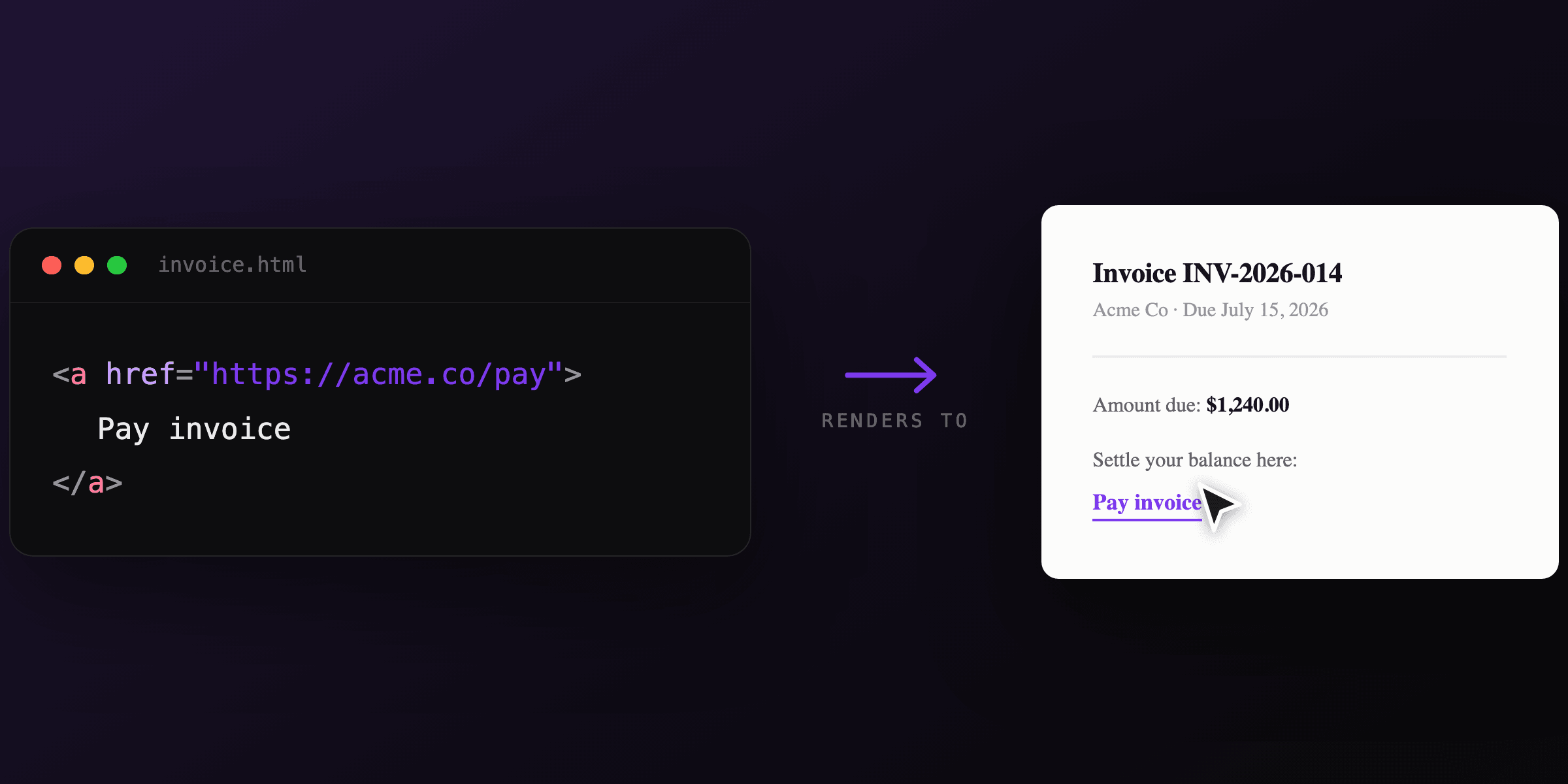
A PDF table of contents has two independent layers, and most developers conflate them. The visible contents page (a list of clickable section titles) comes from HTML anchor links and is created automatically when you convert HTML to PDF with Chromium. The sidebar navigation tree (PDF bookmarks, also called the outline) is a separate PDF feature that Chromium does not generate, so you add it afterward with a library like pdf-lib. If you only need clickable in-document jumps, the HTML approach with PDF4.dev or any Chromium-based renderer is the fastest path and needs zero post-processing.
This guide covers both layers: building the visible TOC from HTML anchors, styling page numbers with CSS, rendering with PDF4.dev, and writing outline bookmarks into an existing PDF.
Table of contents vs PDF bookmarks: which one do you need?
A table of contents is on-page content; PDF bookmarks are reader chrome. The table below maps each navigation type to how it is created and which tool produces it.
| Feature | What it is | Where it appears | How it is created | Generated by Chromium? |
|---|---|---|---|---|
| Clickable TOC | List of links to sections | A content page in the PDF | HTML anchor links (href="#id") | Yes, automatically |
| Page numbers in TOC | "Section 3 ..... 12" | Next to each TOC entry | CSS target-counter | Partial (engine dependent) |
| PDF bookmarks (outline) | Sidebar navigation tree | Reader's outline panel | PDF outline objects | No, add afterward |
| Cross-references | "see page 8" inline | Anywhere in body text | CSS target-counter | Partial (engine dependent) |
The short decision: if your readers open the PDF and click links inside a contents page, you need the HTML TOC and nothing else. If they navigate via the reader's sidebar (common for long reports and ebooks), you also need outline bookmarks added as a post-processing step.
"Outline" and "bookmarks" are the same thing in the PDF specification. The ISO 32000 standard calls it the document outline; Acrobat and most readers label it Bookmarks in the UI.
How do you build a clickable table of contents in HTML?
Give every section a unique id, then create a list of links whose href points to those ids with hash syntax. When a Chromium-based renderer converts the HTML to PDF, each internal anchor link becomes a clickable in-document jump. This is the entire mechanism, no plugin or PDF library involved.
The pattern is two halves that must match exactly: the link target and the element id.
<nav class="toc">
  <h2>Contents</h2>
  <ol>
    <li><a href="#intro">Introduction</a></li>
    <li><a href="#setup">Setup</a></li>
    <li><a href="#api">API reference</a></li>
    <li><a href="#billing">Billing</a></li>
  </ol>
</nav>

<section id="intro">
  <h2>Introduction</h2>
  <p>...</p>
</section>

<section id="setup">
  <h2>Setup</h2>
  <p>...</p>
</section>

<section id="api">
  <h2>API reference</h2>
  <p>...</p>
</section>

<section id="billing">
  <h2>Billing</h2>
  <p>...</p>
</section>
The two halves that must match are href="#api" and id="api". A single typo, or an id that does not survive template rendering, leaves the link inert. If you generate sections from data, generate the ids and the links from the same source so they cannot drift.
Use a slug helper to derive ids from titles deterministically. If "API reference" becomes id="api-reference", the TOC link must be href="#api-reference". Generating both from one slug function removes the entire class of typo bugs.
How do you add page numbers to a table of contents?
Use the CSS target-counter() function inside a print stylesheet. It reads the page number where a target anchor lands at print time and prints it in the TOC, so you do not hardcode page numbers that go stale the moment content shifts. Support is engine dependent, and this is the one place where the rendering engine choice matters.
/* Print the target page number after each TOC link */
.toc a::after {
  content: target-counter(attr(href), page);
}

/* Optional: a dotted leader between title and page number */
.toc a::after {
  content: leader('.') target-counter(attr(href), page);
}
The catch: target-counter is part of the CSS Generated Content for Paged Media module, which print-focused engines (Prince, WeasyPrint) implement, but Chromium's support is limited. If you render with headless Chromium (the engine behind Playwright, Puppeteer, and PDF4.dev), do not rely on target-counter for automatic page numbers.
Three practical options when your engine lacks target-counter:
- Skip page numbers entirely. Clickable links make page numbers redundant for on-screen reading, which is how most PDFs are consumed.
- Compute page numbers in a print-CSS engine (WeasyPrint, Prince) if a printed paper TOC with accurate page numbers is a hard requirement.
- Add a sidebar outline instead. Reader bookmarks give navigation without any page-number arithmetic.
Do not hardcode page numbers in a TOC for dynamic content. Any change to upstream sections shifts every later page, and a manually typed "page 12" becomes wrong silently. Either use target-counter in a supporting engine or omit the number.
How do you render the HTML to PDF with PDF4.dev?
Send your HTML (with the matching ids and anchor links) to the PDF4.dev render endpoint. It renders with headless Chromium server-side, so internal anchor links become clickable in-document jumps automatically, with no Chromium to install and no serverless cold start to fight. The clickable TOC works out of the box; you only add a sidebar outline if you also need reader bookmarks.
A minimal request with raw HTML:
curl -X POST https://pdf4.dev/api/v1/render \
  -H "Authorization: Bearer p4_live_xxx" \
  -H "Content-Type: application/json" \
  -d '{
    "html": "<nav class=\"toc\"><a href=\"#intro\">Introduction</a></nav><section id=\"intro\"><h2>Introduction</h2><p>Hello</p></section>",
    "data": {},
    "delivery": "url"
  }'
In production you usually keep the document in a Handlebars template and pass section data, so the ids and the links are generated from the same array.
const sections = [
  { id: "intro", title: "Introduction", body: "..." },
  { id: "setup", title: "Setup", body: "..." },
  { id: "api", title: "API reference", body: "..." },
];

const res = await fetch("https://pdf4.dev/api/v1/render", {
  method: "POST",
  headers: {
    Authorization: `Bearer ${process.env.PDF4_API_KEY}`,
    "Content-Type": "application/json",
  },
  body: JSON.stringify({
    template_id: "report-with-toc",
    data: { sections },
    delivery: "url",
  }),
});

const { url } = await res.json();
console.log("PDF ready at", url);
The Handlebars template builds the TOC and the bodies from the same sections array, so each href always matches an existing id:
<nav class="toc">
  <h2>Contents</h2>
  <ol>
    {{#each sections}}
      <li><a href="#{{this.id}}">{{this.title}}</a></li>
    {{/each}}
  </ol>
</nav>

{{#each sections}}
  <section id="{{this.id}}">
    <h2>{{this.title}}</h2>
    <p>{{this.body}}</p>
  </section>
{{/each}}
Prefer to try it without writing code first? The free Html To PdfTry it free tool renders pasted HTML with the same Chromium engine, so you can confirm your anchor links jump before wiring up the API.
How do you add PDF bookmarks (an outline) to an existing PDF?
PDF bookmarks are written into the PDF structure after rendering, because Chromium does not produce them. In Node.js you open the finished PDF with pdf-lib, create outline dictionary objects that point at page references, and link them into the document catalog. There is no HTML equivalent; the outline is pure PDF object plumbing.
pdf-lib does not ship a one-call addBookmark() helper, so you write the low-level objects. The shape is: an outline root, one outline item per entry, and a /Dest on each item pointing at a page.
import { PDFDocument, PDFName, PDFArray, PDFNumber } from "pdf-lib";
import { readFile, writeFile } from "node:fs/promises";

const bytes = await readFile("report.pdf");
const doc = await PDFDocument.load(bytes);
const pages = doc.getPages();
const context = doc.context;

// One bookmark per (title, pageIndex) pair
const entries = [
  { title: "Introduction", pageIndex: 0 },
  { title: "Setup", pageIndex: 2 },
  { title: "API reference", pageIndex: 5 },
];

const outlineRef = context.nextRef();
const itemRefs = entries.map(() => context.nextRef());

entries.forEach((entry, i) => {
  const page = pages[entry.pageIndex];
  const dest = PDFArray.withContext(context);
  dest.push(page.ref);
  dest.push(PDFName.of("XYZ"));
  dest.push(PDFName.of("null")); // left
  dest.push(PDFName.of("null")); // top
  dest.push(PDFNumber.of(0)); // zoom

  const item = context.obj({
    Title: entry.title,
    Parent: outlineRef,
    Dest: dest,
  });
  if (i > 0) item.set(PDFName.of("Prev"), itemRefs[i - 1]);
  if (i < entries.length - 1) item.set(PDFName.of("Next"), itemRefs[i + 1]);
  context.assign(itemRefs[i], item);
});

const outline = context.obj({
  Type: "Outlines",
  First: itemRefs[0],
  Last: itemRefs[itemRefs.length - 1],
  Count: entries.length,
});
context.assign(outlineRef, outline);

doc.catalog.set(PDFName.of("Outlines"), outlineRef);

const out = await doc.save();
await writeFile("report-with-bookmarks.pdf", out);
This is verbose because the PDF outline is a doubly linked list of dictionaries, each pointing at Prev, Next, and a destination page. For nested bookmarks you add First, Last, and Parent references to build the tree. If you need this often, wrap it in a helper that takes a flat list of { title, pageIndex, level } and builds the linkage.
The page index you pass to the outline must match the page where the section actually lands in the rendered PDF. If you do not know that index ahead of time, render once, parse the PDF to find the page of each anchor, then write the outline. This is the main reason sidebar bookmarks are harder than HTML anchor links.
If you want both a visible contents page and a sidebar outline, render the body with PDF4.dev (HTML TOC included), then run the pdf-lib outline pass on the returned PDF. You can also Merge PdfTry it free a separately rendered cover or contents page in front of the body if you build the TOC page on its own.
How do you keep TOC links from breaking?
The single most common failure is a mismatch between the link href and the element id, usually introduced by template rendering or manual editing. Generate ids and links from one source, and verify the targets exist in the final HTML, not the source template.
A short checklist that catches the majority of broken-TOC bugs:
- Every
href="#x"has a matchingid="x"in the rendered output, not just the template. - Ids are unique. Two elements sharing an id make the jump land on whichever the renderer sees first.
- Ids survive slugification. "Q&A" and "Q and A" can slugify differently in TOC vs heading.
- Sections are not removed by conditional logic while their TOC entry stays. An empty
{{#if}}block can drop a section but keep its link. - The id is on a block-level element that has a real position. An id on an inline
<span>inside a floated element can land oddly.
For a deep dive on how anchor links and external URLs both turn into clickable PDF annotations, see clickable links in PDF from HTML. For the page-break and print-layout rules that decide where each section lands, see the CSS print styles guide.
Which option should you choose?
Match the navigation type to how your readers actually move through the document. The recommendation depends on whether they read on screen, print on paper, or scan long reports via a sidebar.
| Scenario | Recommended approach | Why |
|---|---|---|
| On-screen reading, short to medium docs | HTML anchor TOC only | Clickable links cover navigation; zero post-processing |
| Long reports, ebooks, manuals | HTML TOC plus pdf-lib outline | Readers expect the sidebar tree for fast jumping |
| Printed paper with accurate page numbers | Print-CSS engine (WeasyPrint, Prince) | These support target-counter for real page numbers |
| Adding navigation to an existing PDF | pdf-lib outline | No HTML to re-render; edit the PDF structure directly |
| No infrastructure to maintain | PDF4.dev render API | Hosted Chromium, clickable TOC works out of the box |
The default for most web and SaaS use cases: render HTML to PDF with a Chromium engine and rely on anchor links. It is the simplest path, needs no PDF library, and the TOC is clickable the moment the document opens. Reach for pdf-lib outline writing only when readers need the sidebar tree, and reach for a print-CSS engine only when a printed paper TOC with computed page numbers is a hard requirement.
If you want the clickable TOC without running and patching a headless browser yourself, PDF4.dev renders the HTML server-side and returns a PDF whose anchor links already jump. You keep full control of the HTML and CSS; the hosting and Chromium upkeep are not your problem.
Free tools mentioned:
Frequently asked questions
- What is the difference between a PDF table of contents and PDF bookmarks?
- A table of contents is visible content on a page: a list of section titles with clickable links. PDF bookmarks (the outline) are a separate structure shown in the reader's sidebar navigation tree. A PDF can have one, both, or neither, and they are created by different mechanisms.
- Does Chromium generate PDF bookmarks from HTML headings automatically?
- No. Headless Chromium and Playwright make internal anchor links clickable, so an HTML table of contents works out of the box, but they do not write outline bookmarks from h1/h2 headings. You add the outline to the finished PDF afterward with a library like pdf-lib.
- How do I make table of contents links clickable when converting HTML to PDF?
- Give each section an id, then point a link at that id with href hash syntax. When Chromium renders the HTML to PDF, internal anchor links pointing to an existing id become clickable in-document jumps. No extra configuration is needed.
- How can I show page numbers in an HTML table of contents?
- Use the CSS target-counter function in a print stylesheet. It reads the page number of the target anchor at print time. Support is engine dependent: print-focused engines like Prince and WeasyPrint support it, while Chromium support for target-counter is limited.
- Can I add a table of contents to an existing PDF file?
- Yes. You cannot inject HTML into a finished PDF, but you can add outline bookmarks by editing the PDF structure with pdf-lib in Node.js. For a visible contents page you would prepend a rendered page and merge it with the original document.
- Why are my table of contents links not jumping in the PDF?
- The most common cause is a mismatch between the link target and the element id, or an id that does not exist in the rendered output. Check that href hash value exactly matches an existing id, and that the target element is present on the page after Handlebars or template rendering.
- Does PDF4.dev support clickable table of contents links?
- Yes. PDF4.dev renders HTML to PDF with headless Chromium, so internal anchor links in your HTML become clickable in-document jumps automatically. You send HTML with id attributes and matching links, and the rendered PDF keeps the navigation.
Start generating PDFs
Build PDF templates with a visual editor. Render them via API from any language in ~300ms.