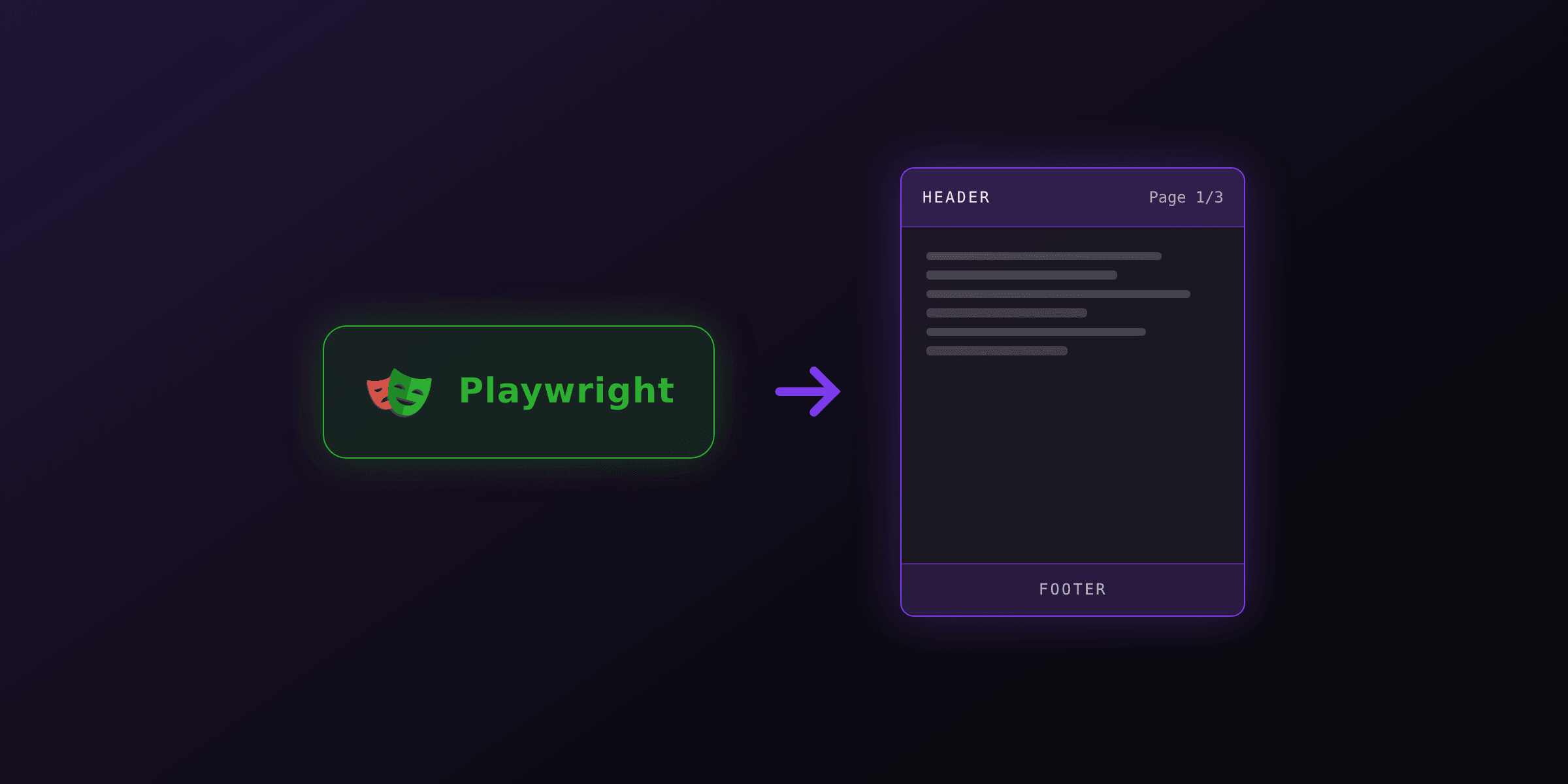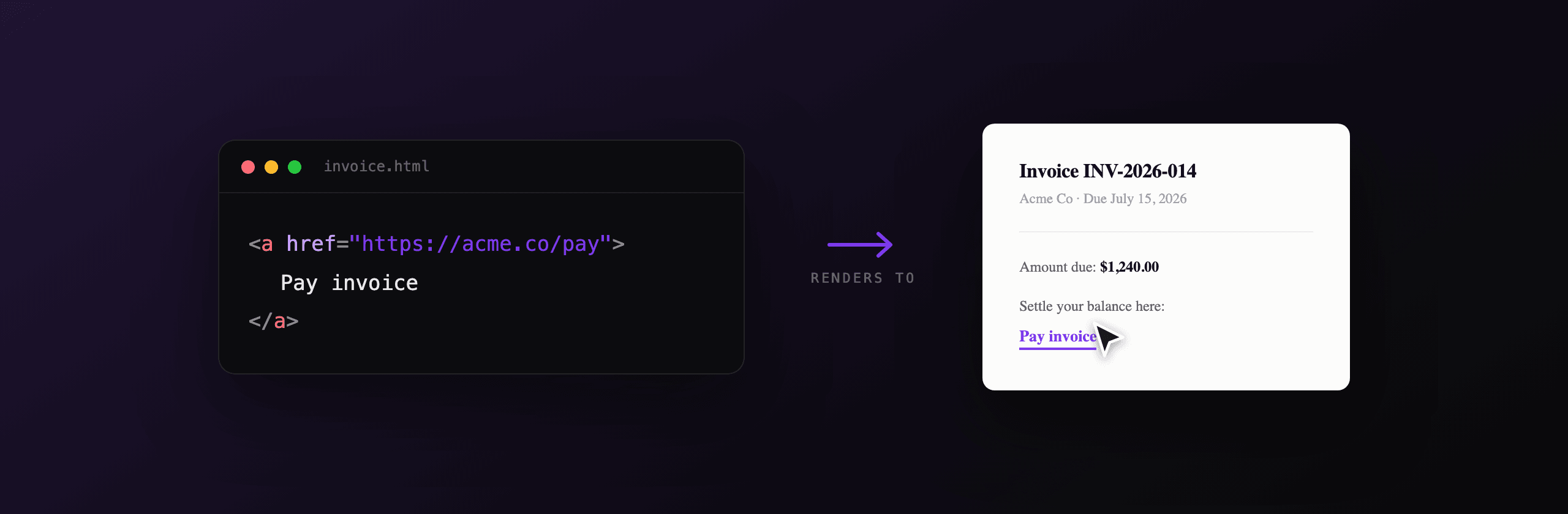
Clickable links work automatically when you convert HTML to PDF with a browser engine. Any <a href> in your HTML becomes a real link annotation in the PDF: external URLs open in a browser, and internal anchor links jump to a page inside the same document. The one thing headless Chromium does not do through the standard API is build the sidebar outline (the bookmark tree); you add that in a quick post-processing step. If your links come out dead, the cause is almost always an image-based converter that screenshots the page instead of rendering it.
This guide covers external links, internal anchor links, a clickable table of contents, the bookmark outline, and why links break in some tools. You can test any HTML right now with the free Html To PdfTry it free tool, which renders with the same engine described below.
Which HTML-to-PDF engines keep links clickable?
Browser engines keep links clickable; image-based converters do not. A link in a PDF is a vector annotation tied to a rectangle on the page, not a colored pixel. Engines that render the real DOM (Chromium, WeasyPrint, wkhtmltopdf) write those annotations. Converters that rasterize the page to an image (html2pdf.js, and any "screenshot to PDF" approach) produce a flat picture where nothing is clickable.
| Engine | External links | Internal anchor links | Sidebar bookmarks (outline) |
|---|---|---|---|
| Headless Chromium (Playwright / Puppeteer) | Yes, automatic | Yes, automatic | No through standard API, post-process |
| PDF4.dev API (Chromium) | Yes, automatic | Yes, automatic | Post-process |
| WeasyPrint | Yes, automatic | Yes, automatic | Yes, from headings via CSS |
| wkhtmltopdf (deprecated) | Yes, automatic | Yes, with a flag | Yes, built-in outline |
| html2pdf.js (rasterizer) | No, image only | No, image only | No |
| jsPDF | Manual via doc.link() | Manual only | Manual only |
Internal anchor support in wkhtmltopdf depends on the
--enable-internal-linksflag. wkhtmltopdf is no longer maintained, so treat it as a legacy option. See why we wrote off wkhtmltopdf.
The takeaway: pick a browser-based engine if links matter. The rest of this guide uses headless Chromium, the engine behind Playwright, Puppeteer, and PDF4.dev.
How do I add an external web link to a PDF?
Write a standard anchor with an absolute URL, then render the HTML with a browser engine. The engine converts the anchor into a clickable link annotation pointing at that URL.
<p>
  Questions? Email us or read the
  <a href="https://yourdomain.com/docs">documentation</a>.
</p>
Use absolute URLs (starting with https://) for every external link. A PDF has no base URL, so a relative href like /docs has nothing to resolve against once the document is standalone, and the link will not open. This is the single most common reason an external link "renders but does nothing" in a generated PDF.
If your template builds links from data, make the value absolute before it reaches the HTML. In a Handlebars template that means passing a full URL in the data object, for example {{invoice_url}} set to https://yourdomain.com/i/INV-001, not a path fragment.
How do I create internal links inside the same PDF?
Give the target element an id, then link to it with a hash. Headless Chromium converts a same-document hash link into an internal GoTo annotation that jumps to the target's page when the reader clicks it.
<a href="#terms">Jump to terms</a>

<!-- ...many pages later... -->

<section id="terms">
  <h2>Terms and conditions</h2>
</section>
This is the mechanism behind cross-references in long documents: "see appendix B", "back to top", footnote markers, and contents entries. The id must be unique on the page and the href must match it exactly, including case. No CSS or JavaScript is required; the link is resolved at render time from the document structure.
Internal links survive merging if you combine PDFs carefully, but only within each source document. If you merge two PDFs with the free Merge PdfTry it free tool, a link in document A still points inside document A's pages, not into document B.
How do I build a clickable table of contents?
Add an id to every heading, then list those headings as anchor links pointing at the ids. Each entry becomes an internal jump, so the reader taps a line in the contents and lands on the section. This is the same internal-link mechanism applied to a list.
<nav class="toc">
  <a href="#summary">1. Summary</a>
  <a href="#findings">2. Findings</a>
  <a href="#appendix">3. Appendix</a>
</nav>

<h2 id="summary">1. Summary</h2>
<!-- ... -->
<h2 id="findings">2. Findings</h2>
<!-- ... -->
<h2 id="appendix">3. Appendix</h2>
If you generate the heading ids dynamically, slugify the heading text so the id is stable and URL-safe. The contents links and the heading ids must use the same slug. For control over where sections start on a fresh page, pair this with break-before: page in your print CSS, covered in the CSS print styles guide.
A clickable table of contents is page-content navigation. It is separate from the PDF outline (the viewer's sidebar), which is the next section.
Why are my PDF links not clickable?
The usual culprit is an image-based renderer. Run through these causes in order, most common first.
| Symptom | Cause | Fix |
|---|---|---|
| No link is clickable anywhere | Renderer rasterizes the page (html2pdf.js, screenshot tools) | Switch to a browser engine (Playwright, Puppeteer, PDF4.dev) |
| External links do nothing | Relative href like /page instead of an absolute URL | Use https://... absolute URLs |
| Internal links do nothing | href hash does not match any element id | Make the id and the href match exactly |
| Links missing only in print output | A @media print rule hides or restyles the anchor | Check your print CSS and display rules |
| Link area is offset from the text | Custom transforms or absolute positioning move the box | Avoid transforms on the anchor itself |
Image-based conversion is the dominant cause. html2pdf.js wraps html2canvas, which paints the DOM onto a canvas and exports an image; the PDF is then a wrapper around that image, so there is no anchor to click. If you need clickable links, an image pipeline is the wrong tool.
How do I add the PDF outline (sidebar bookmarks)?
The PDF outline is the navigation tree a PDF viewer shows in its sidebar, and headless Chromium does not generate it through the standard Playwright or Puppeteer API. Chromium can emit an outline through the DevTools Page.printToPDF parameter generateDocumentOutline (Chrome 110 and later), but page.pdf() in Playwright and Puppeteer does not pass it through. So a clickable table of contents on the page works automatically, while the sidebar outline needs one extra step.
Two reliable approaches:
First, post-process the finished PDF. Open it with pdf-lib in Node.js or PyMuPDF in Python and attach outline entries to the pages where each heading starts. This works regardless of which engine produced the PDF, and it is the route to take when you only have the finished file.
Second, render with an engine that builds the outline for you. WeasyPrint generates bookmarks from your headings automatically and lets you tune them with the CSS bookmark-level property, documented in the WeasyPrint bookmarks reference. The trade-off is WeasyPrint's weaker support for modern CSS layout compared with Chromium, compared in Playwright vs WeasyPrint.
Generate a PDF with clickable links
The same HTML produces clickable links across Node.js, Python, and the PDF4.dev API, because all three drive headless Chromium. The anchors need no special markup.
import { chromium } from "playwright";

const html = `
  <a href="#section-2">Go to section 2</a>
  <a href="https://pdf4.dev">External link</a>
  <h2 id="section-2">Section 2</h2>
`;

const browser = await chromium.launch();
const page = await browser.newPage();
await page.setContent(html, { waitUntil: "load" });
// Both the internal anchor and the external URL are clickable
await page.pdf({ path: "out.pdf", printBackground: true });
await browser.close();
To add a bookmark outline after rendering, attach outline entries to the finished PDF with pdf-lib:
import { PDFDocument, PDFName, PDFArray } from "pdf-lib";
import { readFile, writeFile } from "node:fs/promises";

// pdf-lib has no high-level outline API, so you build the outline
// dictionary by hand and link each entry to a page reference.
const pdf = await PDFDocument.load(await readFile("out.pdf"));
const pages = pdf.getPages();
// Map heading -> page index, then create /Outlines entries pointing at
// each page. Many teams keep this in a small helper module.
// See the pdf-lib issues for full outline examples.
await writeFile("out-with-outline.pdf", await pdf.save());
DIY rendering works, until production load
A single Playwright script that keeps links clickable is straightforward. The cost shows up at scale, and it is operational, not about capability. Headless Chromium adds roughly 280MB to a Docker image, a cold browser launch adds hundreds of milliseconds per render unless you pool warm instances, and concurrent renders compete for memory in ways that crash workers under spikes. Serverless runtimes cap binary size and execution time, which forces awkward workarounds for the Chromium binary.
PDF4.dev runs that Chromium pipeline as an API, so your <a> tags stay clickable without you operating the browser fleet. The same HTML you tested in the Html To PdfTry it free tool renders through POST /api/v1/render, links and all.
Internal anchor links and external URLs in your PDF4.dev templates are clickable in the output with no extra flags. Build a template, add <a href="#section"> links, and start generating PDFs free.
The decision is not "which engine is technically better" since Playwright, Puppeteer, and PDF4.dev share the same Chromium engine. The question is whether you want to run and patch that engine yourself. For more on that trade-off, read the complete HTML to PDF guide and the Node.js generation walkthrough.
Free tools mentioned:
Frequently asked questions
- Do HTML links stay clickable when you convert HTML to PDF?
- Yes, if you render with a browser engine. Headless Chromium (Playwright or Puppeteer) turns every `<a href>` in your HTML into a clickable link annotation in the PDF. External URLs open in a browser, and internal anchor links jump to the target page inside the same PDF. Image-based converters that screenshot the page, such as html2pdf.js, produce a picture with no clickable areas.
- Why are the links in my generated PDF not clickable?
- The most common cause is an image-based renderer. Libraries like html2pdf.js rasterize the page with html2canvas, so the result is a flat image and no link is clickable. Switch to a browser-based engine (Chromium via Playwright or Puppeteer, or the PDF4.dev API) where `<a>` tags become real PDF link annotations.
- How do I add an external web link to a PDF from HTML?
- Write a normal anchor with an absolute URL, for example `<a href="https://example.com">Visit</a>`, then render the HTML with a browser engine. Use absolute URLs (with https) rather than relative paths, because a relative path has no base to resolve against once the document is a standalone PDF.
- How do I create an internal link that jumps to another page in the PDF?
- Give the target element an id, then link to it with a hash. For example `<a href="#invoice-terms">See terms</a>` linking to `<section id="invoice-terms">`. Headless Chromium converts that hash link into an internal GoTo annotation that jumps to the section's page when clicked in the PDF.
- How do I build a clickable table of contents in a PDF?
- Add an id to every heading, then list them as anchor links pointing at those ids. Each entry becomes an internal jump in the PDF. This works in headless Chromium, WeasyPrint, and wkhtmltopdf. It does not work in image-based converters because the page is flattened to a picture.
- Do headless Chromium and Playwright generate PDF bookmarks (the sidebar outline)?
- Not through the standard Playwright or Puppeteer API. Chromium can emit a document outline through the DevTools `Page.printToPDF` `generateDocumentOutline` flag (Chrome 110 and later), but `page.pdf()` does not expose it. Most pipelines add the outline afterward with pdf-lib or qpdf. WeasyPrint and wkhtmltopdf build the outline from headings on their own.
- What is the difference between a clickable link and a PDF bookmark?
- A clickable link is an annotation on the page that the reader taps. A bookmark (also called an outline entry) appears in the PDF viewer's sidebar and lets the reader navigate the whole document. A link lives in the content, a bookmark lives in the navigation pane. Many documents use both.
- Why should I use absolute URLs for links in a generated PDF?
- A PDF has no base URL, so a relative href like `/pricing` cannot be resolved by a PDF viewer and will not open. Always use absolute links such as `https://yoursite.com/pricing` for any external destination you want clickable in the finished PDF.
- Can I add clickable links to an existing PDF without re-rendering it?
- Yes. Use pdf-lib in Node.js or PyMuPDF in Python to draw a link annotation over a rectangle on a page. This is the right approach when you only have the finished PDF, not the source HTML, or when you add a navigation outline after rendering.
- Does PDF4.dev keep links clickable in generated PDFs?
- Yes. PDF4.dev renders templates with headless Chromium, so any `<a href>` in your template, including internal anchor links for a table of contents, becomes a clickable annotation in the output PDF with no extra configuration.
Start generating PDFs
Build PDF templates with a visual editor. Render them via API from any language in ~300ms.