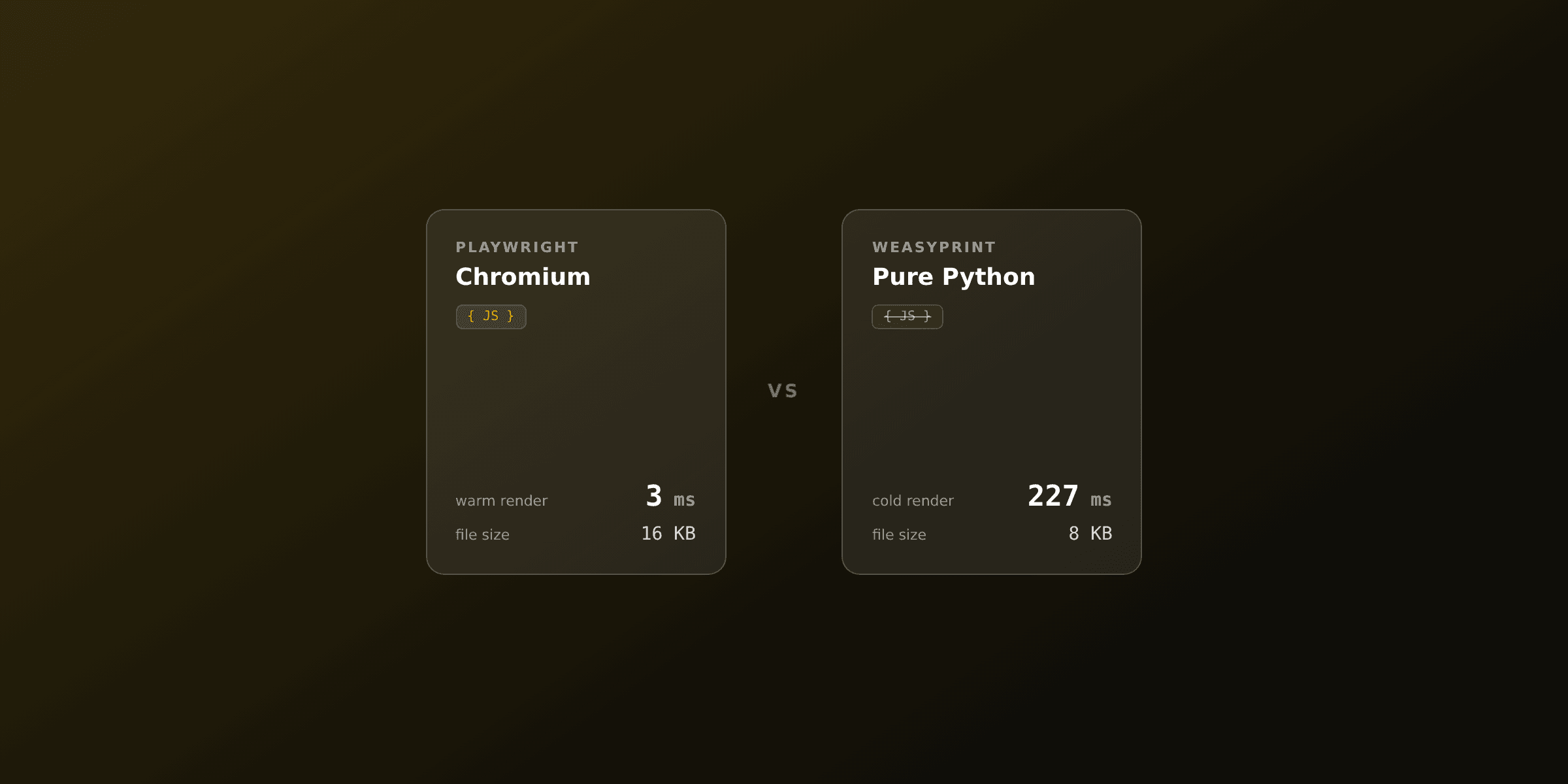
For Django, the right answer for most apps is: render a Django template to HTML with render_to_string, then convert it with WeasyPrint, a pure-Python library that reads your templates directly and needs no browser. Reach for Playwright only when you need JavaScript or charts, and call a PDF API when you do not want a renderer on your web dynos.
This guide shows each Django approach honestly, with complete view code, and a comparison table so you can pick fast.
Which PDF approach should you pick for Django?
The table below compares the realistic options for generating PDFs in a Django project. The common pattern across all of them is the same: render a Django template to an HTML string first, then hand that string to a converter.
| Approach | Type | JavaScript / charts | System deps | Hosting on web dynos | Best for |
|---|---|---|---|---|---|
| WeasyPrint | Pure-Python library | No | Pango, Cairo | Yes | Most Django apps, invoices, reports |
| Playwright (Python) | Headless Chromium | Yes | Chromium binary (~300MB) | Heavy | JS-driven pages, complex CSS, charts |
| xhtml2pdf | Pure-Python library | No | None | Yes | Simple docs, locked-down environments |
| django-wkhtmltopdf | wkhtmltopdf wrapper | Partial | wkhtmltopdf binary | Yes | Legacy only, avoid for new projects |
| PDF API (PDF4.dev) | Managed HTTP API | Yes (hosted Chromium) | None | No renderer to host | Production, serverless, small images |
Note: django-wkhtmltopdf and similar wrappers depend on wkhtmltopdf, whose upstream archived the repository and stopped active development in 2023. Do not start a new project on it.
How do you return a PDF from a Django view?
A Django view returns a PDF by building the PDF bytes and wrapping them in an HttpResponse with content_type="application/pdf" and a Content-Disposition header. The header decides whether the browser shows the file inline or downloads it.
This shape is identical no matter which renderer produces the bytes:
from django.http import HttpResponse

def serve_pdf(request):
    pdf_bytes = build_pdf_somehow()  # WeasyPrint, Playwright, or an API

    response = HttpResponse(pdf_bytes, content_type="application/pdf")
    # "inline" shows it in the browser; use "attachment" to force a download
    response["Content-Disposition"] = 'inline; filename="invoice.pdf"'
    return response
Everything else in this article is about how to produce pdf_bytes. The two-step idea stays constant: render the template to HTML, then convert HTML to PDF.
How do you turn a Django template into HTML?
Use render_to_string from django.template.loader. It takes a template name and a context dictionary and returns a complete HTML string, the same HTML Django would have sent to a browser. You then pass that string to your converter instead of returning it.
Create a normal Django template, for example invoices/templates/invoices/invoice.html. Django template language tags such as {% for item in items %} and {{ invoice_number }} work exactly as on a web page. Keep the CSS inside a <style> block, because pure-Python converters do not fetch external stylesheets over the network the way a browser does.
{% load humanize %}
<!DOCTYPE html>
<html>
<head>
  <meta charset="utf-8" />
  <style>
    @page { size: A4; margin: 20mm 15mm; }
    body { font-family: "Helvetica", Arial, sans-serif; color: #333; }
    h1 { color: #111; font-size: 22px; }
    table { width: 100%; border-collapse: collapse; margin-top: 16px; }
    th, td { padding: 8px 10px; border-bottom: 1px solid #eee; text-align: left; }
    .total { font-weight: bold; font-size: 16px; }
  </style>
</head>
<body>
  <h1>Invoice {{ invoice_number }}</h1>
  <p>Client: {{ client_name }}</p>
  <table>
    <thead>
      <tr><th>Description</th><th>Qty</th><th>Unit price</th><th>Subtotal</th></tr>
    </thead>
    <tbody>
      {% for item in items %}
      <tr>
        <td>{{ item.description }}</td>
        <td>{{ item.qty }}</td>
        <td>${{ item.unit_price|floatformat:2 }}</td>
        <td>${{ item.subtotal|floatformat:2 }}</td>
      </tr>
      {% endfor %}
    </tbody>
    <tfoot>
      <tr class="total"><td colspan="3">Total</td><td>${{ total|floatformat:2 }}</td></tr>
    </tfoot>
  </table>
</body>
</html>
How do you generate a PDF in Django with WeasyPrint?
WeasyPrint is a pure-Python library that converts HTML and CSS to PDF using the Pango text layout engine and the Cairo graphics library. It reads the HTML string from render_to_string directly, supports CSS 2.1 plus most common CSS3, and needs no browser. See the official WeasyPrint documentation for the full CSS support matrix.
Install WeasyPrint
pip install weasyprintWeasyPrint needs the Pango and Cairo system libraries at runtime.
# Debian / Ubuntu
apt-get install libpango-1.0-0 libpangocairo-1.0-0 libcairo2 libgdk-pixbuf2.0-0

# macOS
brew install pango
A complete WeasyPrint Django view
This view renders the template, converts it to PDF bytes with WeasyPrint, and returns an HttpResponse. The base_url lets WeasyPrint resolve local images and @font-face files relative to your project root.
from django.conf import settings
from django.http import HttpResponse
from django.template.loader import render_to_string
from weasyprint import HTML


def invoice_pdf(request, invoice_id):
    # Replace this with a real DB query
    context = {
        "invoice_number": invoice_id,
        "client_name": "Acme Corp",
        "items": [
            {"description": "Consulting", "qty": 10, "unit_price": 150.0, "subtotal": 1500.0},
            {"description": "Setup fee", "qty": 1, "unit_price": 200.0, "subtotal": 200.0},
        ],
        "total": 1700.0,
    }

    html_string = render_to_string("invoices/invoice.html", context)
    pdf_bytes = HTML(string=html_string, base_url=str(settings.BASE_DIR)).write_pdf()

    response = HttpResponse(pdf_bytes, content_type="application/pdf")
    response["Content-Disposition"] = f'inline; filename="invoice-{invoice_id}.pdf"'
    return response
Wire it up in urls.py:
from django.urls import path
from . import views

urlpatterns = [
    path("invoices/<str:invoice_id>.pdf", views.invoice_pdf, name="invoice_pdf"),
]
Set Content-Disposition to attachment; filename="..." instead of inline if you want the browser to download the file rather than display it.
WeasyPrint trade-offs in Django
WeasyPrint runs synchronously in the request worker, so a large document can hold a Gunicorn or uWSGI worker for the full render. It has no JavaScript engine, partial CSS Grid, and depends on Pango and Cairo, which you must install in every image (Docker, CI, the host). For moderate volume, hundreds of PDFs per day, this is usually fine. Past that, move it to a background task or offload it. The deeper comparison lives in Playwright vs WeasyPrint.
When should you use Playwright in Django instead?
Use Playwright when your document needs a real browser: JavaScript-rendered content, client-side charts, or CSS features WeasyPrint does not cover (full Grid, modern Flexbox edge cases, web fonts loaded over the network). Playwright drives a headless Chromium, so rendering matches what you see in a browser.
The cost is operational. Chromium adds roughly 300MB to your image, every deploy target needs the browser binary plus its system libraries, and launching a browser per request is slow, so you must keep one warm. That is a lot of weight to carry on a Django web dyno.
pip install playwright
playwright install chromium
from django.http import HttpResponse
from django.template.loader import render_to_string
from playwright.sync_api import sync_playwright
def invoice_pdf_playwright(request, invoice_id):
context = {"invoice_number": invoice_id, "client_name": "Acme Corp"}
html_string = render_to_string("invoices/invoice.html", context)
with sync_playwright() as p:
browser = p.chromium.launch()
page = browser.new_page()
page.set_content(html_string, wait_until="networkidle")
pdf_bytes = page.pdf(
format="A4",
margin={"top": "20mm", "bottom": "20mm", "left": "15mm", "right": "15mm"},
print_background=True,
)
browser.close()
response = HttpResponse(pdf_bytes, content_type="application/pdf")
response["Content-Disposition"] = f'inline; filename="invoice-{invoice_id}.pdf"'
return responseThe example above launches a browser per request for clarity. In production, keep a single browser instance alive across requests and reuse pages, or push the render into a background worker so the browser never sits on your web dyno. The Python details are covered in our Python HTML-to-PDF guide.
What about xhtml2pdf and the wkhtmltopdf wrappers?
xhtml2pdf is a pure-Python library with no system libraries, which makes it attractive in locked-down environments. The trade-off is older, more limited CSS support: no Flexbox, no Grid, and quirky handling of modern layouts. It still works and is maintained, but for a new Django project WeasyPrint gives much better results for the same effort.
The django-wkhtmltopdf family wraps the wkhtmltopdf binary. The wkhtmltopdf project archived itself in 2023, so its bundled WebKit engine no longer receives security or rendering fixes. Treat these wrappers as legacy. If you inherit a project on them, plan a migration to WeasyPrint or a PDF API rather than building new features on a frozen engine.
How do you call a PDF API from a Django view?
Call a PDF API when you do not want any renderer on your web dynos. You POST your HTML and data over HTTP, the provider runs Chromium on its side, and you get PDF bytes back. Your Django image stays small, with no Pango, no Cairo, and no Chromium to install or keep warm.
PDF4.dev is an HTML-to-PDF REST API that fits this pattern. You still render the Django template to HTML the same way, then send the string to the /api/v1/render endpoint with an Authorization: Bearer header. The example uses the requests library.
import requests
from django.conf import settings
from django.http import HttpResponse
from django.template.loader import render_to_string


def invoice_pdf_api(request, invoice_id):
    context = {
        "invoice_number": invoice_id,
        "client_name": "Acme Corp",
        "total": "$1,700.00",
    }
    html_string = render_to_string("invoices/invoice.html", context)

    resp = requests.post(
        "https://pdf4.dev/api/v1/render",
        headers={"Authorization": f"Bearer {settings.PDF4_API_KEY}"},
        json={"html": html_string},
        timeout=30,
    )
    resp.raise_for_status()

    response = HttpResponse(resp.content, content_type="application/pdf")
    response["Content-Disposition"] = f'inline; filename="invoice-{invoice_id}.pdf"'
    return response
Keep the API key out of source control. Read it from an environment variable in settings.py:
# settings.py
import os

PDF4_API_KEY = os.environ["PDF4_API_KEY"]
Render Django context vs API variables
You have two clean options when calling the API. Render the whole document with Django first and send finished HTML (shown above), or keep a stored template in PDF4.dev and send only the data. Django interpolation uses {{ variable }}; PDF4.dev templates use Handlebars {{variable}} with built-in helpers for dates, numbers, and currency.
import requests
from django.conf import settings
from django.template.loader import render_to_string

html_string = render_to_string("invoices/invoice.html", context)

resp = requests.post(
    "https://pdf4.dev/api/v1/render",
    headers={"Authorization": f"Bearer {settings.PDF4_API_KEY}"},
    json={"html": html_string},
    timeout=30,
)
pdf_bytes = resp.content
The stored-template path lets non-developers edit the design in a dashboard while your Django view only sends data. Both calls return the same application/pdf bytes you wrap in an HttpResponse.
How do you avoid blocking Django workers during PDF generation?
Move slow renders off the request path. WeasyPrint and Playwright run synchronously, so a heavy document can occupy a worker for the whole render and block other requests on that process. Three patterns help.
| Pattern | What it does | When to use |
|---|---|---|
| Background task | Render in Celery or Django-Q, store the PDF, notify the user | Large or batched documents |
| PDF API | Provider renders; your worker only waits on a fast HTTP call | Keep dynos light, scale concurrency |
| Cache the result | Store generated PDFs in object storage, serve on re-download | Same document fetched repeatedly |
For a downloadable report a user requests once, a synchronous WeasyPrint view is fine. For bulk invoice runs or pages with charts, render in a background task or call an API so the web process stays responsive. If you only need a quick check of how a template converts, drop the HTML into our HTML to PDF converterTry it free before wiring up code.
Page size, margins, and fonts in Django PDFs
All three renderers support A4, Letter, and custom sizes. With pure-Python libraries you set the page in CSS; with the API you pass a format object.
| Setting | WeasyPrint / xhtml2pdf (CSS) | PDF4.dev (format) |
|---|---|---|
| A4 portrait | @page { size: A4; } | preset "a4" |
| A4 landscape | @page { size: A4 landscape; } | preset "a4-landscape" |
| Letter | @page { size: letter; } | preset "letter" |
| Custom margins | @page { margin: 20mm 15mm; } | margins in the format object |
For custom fonts in WeasyPrint, declare @font-face in your template CSS and make sure base_url points at a folder where the font files resolve. A browser-based renderer such as Playwright or the PDF4.dev API can also pull web fonts over the network, since a real Chromium loads them the same way a page would.
Summary: the pragmatic Django choice
For most Django apps, render the template with render_to_string and convert with WeasyPrint. It is pure Python, reads your templates directly, and returns bytes you wrap in an HttpResponse. It is the lowest-friction path for invoices, receipts, and reports.
Switch to Playwright when a document genuinely needs a browser (JavaScript, charts, full CSS), and accept the operational weight of Chromium. Skip xhtml2pdf unless you cannot install system libraries, and avoid wkhtmltopdf wrappers entirely on new projects.
When you would rather not host or warm a renderer at all, call a PDF API: render the Django template, POST the HTML, return the bytes. Your image stays small and concurrency is handled for you.
Test a template fast with the HTML to PDF tool, read the broader Python PDF generation guide, or compare engines in Playwright vs WeasyPrint. When you are ready for production, sign up at PDF4.dev for saved templates, Handlebars variables, and a visual editor.
Free tools mentioned:
Frequently asked questions
- What is the best way to generate a PDF in Django?
- Render a Django template to an HTML string with render_to_string, then convert it to PDF. For most projects, WeasyPrint is the best fit because it is pure Python and reads Django templates directly. When you need JavaScript or charts, use Playwright. To avoid hosting a renderer on your web dynos, call a PDF API like PDF4.dev from the view.
- How do I return a PDF from a Django view?
- Build the PDF bytes, then return an HttpResponse with content_type="application/pdf" and a Content-Disposition header. Use inline to show it in the browser or attachment; filename=... to force a download.
- Is WeasyPrint a good choice for Django?
- Yes. WeasyPrint is pure Python, installs with pip, and renders standard HTML and CSS without a browser. It pairs naturally with Django templates via render_to_string. Its limits are no JavaScript, partial CSS Grid, and the Pango and Cairo system libraries you must install in your image.
- How do I use a Django template to make a PDF?
- Write a normal Django template with Django template language tags like "{% for %}" and "{{ variable }}". Render it with render_to_string("name.html", context), then pass the resulting HTML string to WeasyPrint, Playwright, or a PDF API.
- Should I use xhtml2pdf or WeasyPrint in Django?
- Use WeasyPrint for new projects. xhtml2pdf still works and is fully Python with no system libraries, but its CSS support is older and more limited. WeasyPrint has far better CSS coverage and is actively maintained.
- Is django-wkhtmltopdf safe to use?
- No, avoid it for new projects. django-wkhtmltopdf and similar wrappers depend on wkhtmltopdf, whose upstream project archived itself and stopped active development in 2023. Use WeasyPrint, Playwright, or a PDF API instead.
- How do I generate PDFs in Django without a headless browser?
- Use WeasyPrint or xhtml2pdf, which render HTML to PDF in pure Python with no browser, or call a PDF API over HTTP so the browser runs on the provider side. This keeps your web dynos free of Chromium.
- Why does my Django PDF time out or block other requests?
- WeasyPrint and Playwright run synchronously and can be slow for large documents, so a single render can occupy a worker. Move generation to a background task with Celery or Django-Q, or offload it to a PDF API so the request returns quickly.
Start generating PDFs
Build PDF templates with a visual editor. Render them via API from any language in ~300ms.