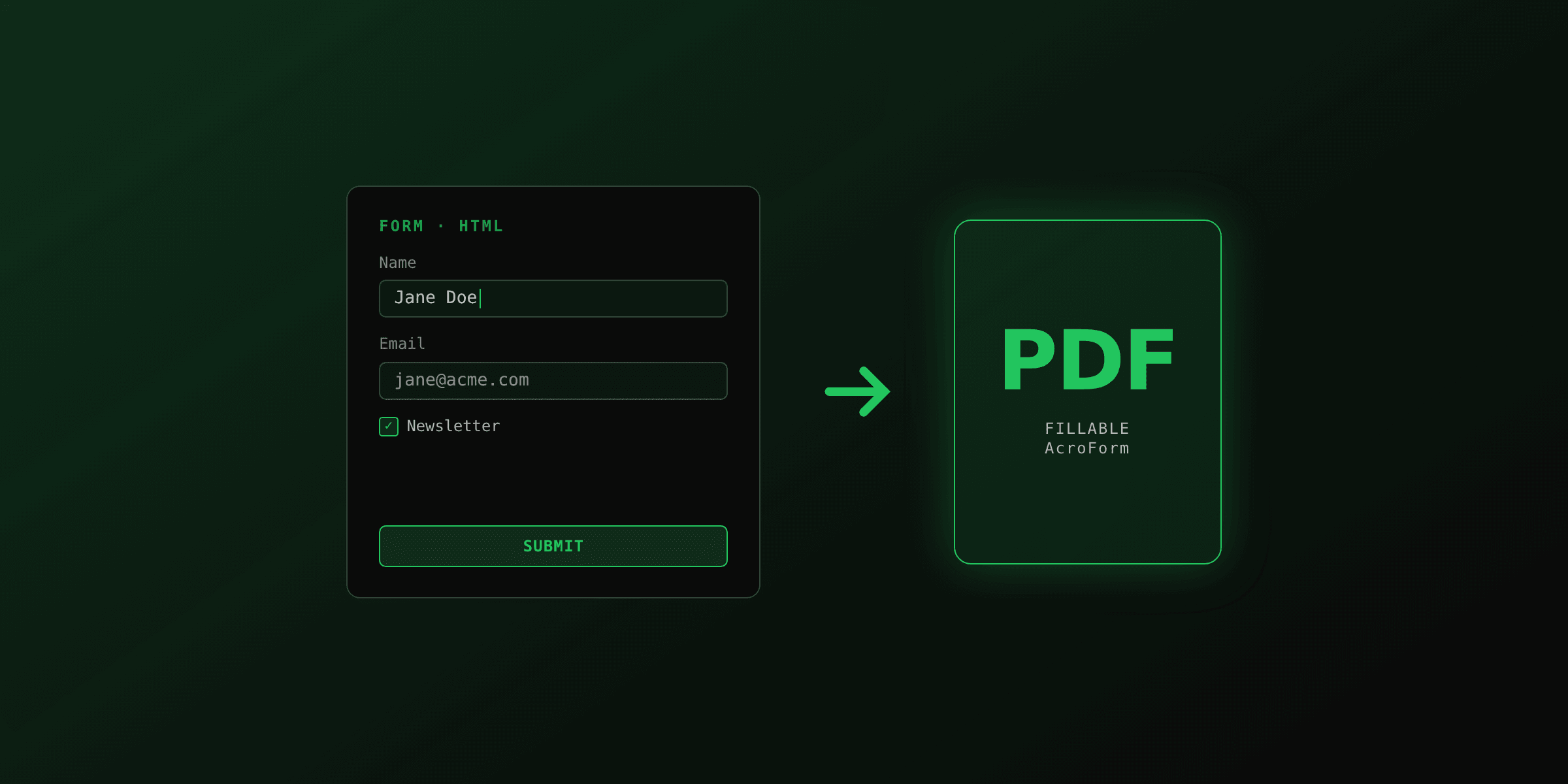
Filling a PDF form programmatically means loading the file, finding its fields by name, and setting each value in code instead of typing into a viewer. For an existing fillable PDF (a government or legal form you cannot redesign), the answer is pdf-lib: load the document, call getForm(), set each field, and optionally flatten(). If you control the layout, skip AcroForms entirely and render a filled HTML template to PDF, which is simpler for dynamic data.
This guide covers both paths with real code, the exact pdf-lib APIs for every field type, how to discover field names, when to flatten, and the font and appearance issues that make values render blank.
Which approach should you use to fill a PDF form?
The choice depends on one question: do you own the form layout, or are you stuck with a fixed PDF someone else designed? Fixed forms (tax forms, insurance claims, court filings) must be filled field by field with pdf-lib. Forms you design yourself are faster to produce from HTML.
| Criterion | pdf-lib (fill AcroForm) | Render from HTML (PDF4.dev) |
|---|---|---|
| Best for | Fixed government/legal forms | Forms and documents you design |
| Input | Existing fillable PDF + field names | HTML template + data object |
| Where it runs | Node.js, browser, serverless | Hosted API call |
| Dynamic rows/tables | Hard (fixed field count) | Easy (loop in HTML) |
| Font for non-Latin text | Manual embed with fontkit | Any web font, automatic |
| Layout control | None (locked to source PDF) | Full CSS control |
| Pixel-exact match to an official form | Yes | No |
| Maintenance cost | Low if field names are stable | Low |
Use pdf-lib when the output must match an official form pixel for pixel. Use HTML rendering when you own the design and the data is dynamic (variable line items, repeating sections, conditional blocks).
How do you find the field names in a PDF form?
List the fields before filling anything. pdf-lib looks fields up by their exact name and throws if the name is wrong, so the first step on any unfamiliar form is to print every field name and type. Load the file, call getForm().getFields(), and read getName() plus the constructor name of each field.
import { PDFDocument } from "pdf-lib";
import { readFile } from "node:fs/promises";

const bytes = await readFile("form.pdf");
const doc = await PDFDocument.load(bytes);
const form = doc.getForm();

for (const field of form.getFields()) {
  const name = field.getName();
  const type = field.constructor.name; // PDFTextField, PDFCheckBox, ...
  console.log(`${type} -> ${name}`);
}
The output tells you both the names and the types, which decide the method you call next: getTextField, getCheckBox, getDropdown, getRadioGroup, or getOptionList. Copy the names verbatim, including spaces and dots, because PDF authoring tools often produce names like topmostSubform[0].Page1[0].FullName[0].
How do you fill text fields with pdf-lib?
Get the field by its exact name, then call setText(). pdf-lib regenerates the field appearance automatically when you set the value, so it renders in standard viewers without extra steps. Save with doc.save() to get the output bytes.
import { PDFDocument } from "pdf-lib";
import { readFile, writeFile } from "node:fs/promises";

const doc = await PDFDocument.load(await readFile("form.pdf"));
const form = doc.getForm();

form.getTextField("FullName").setText("Ada Lovelace");
form.getTextField("Email").setText("ada@example.com");
form.getTextField("Address").setText("12 Analytical Engine St");

const out = await doc.save();
await writeFile("filled.pdf", out);
If getTextField("FullName") throws "no field with the given name", the name is wrong: re-run the field-listing step and copy the exact string. For multiline notes, the source field must already have its multiline flag set in the original PDF; pdf-lib fills it but does not change the field's flags.
How do you check checkboxes, radio groups, and dropdowns?
Each interactive field type has its own method: check() and uncheck() for checkboxes, select() for radio groups and dropdowns, and setText() only for text fields. Calling the wrong method for a field type throws, which is why the field-listing step matters.
const form = doc.getForm();

// Checkbox: check() / uncheck()
form.getCheckBox("AgreeToTerms").check();
form.getCheckBox("Subscribe").uncheck();

// Radio group: select one option by its export value
form.getRadioGroup("Plan").select("Annual");

// Dropdown: select an existing option
form.getDropdown("Country").select("France");

// Multi-select option list
form.getOptionList("Interests").select("PDF");
For a radio group, select() takes the option's export value, not the visible label, and those can differ. Print getOptions() first. For a dropdown, the value must already exist in the list unless you allow custom entries: form.getDropdown("Country").select("Spain") throws if "Spain" is not a declared option. To permit free text, call dropdown.enableEditing() before selecting.
When should you flatten a filled PDF form?
Flatten when the values are final and must not be edited again, for example an invoice you send to a customer or a signed agreement. form.flatten() bakes the current values into the page content and removes the interactive form, so every viewer shows the values and no one can change them. Skip flattening if the recipient still needs to fill or correct fields.
import { PDFDocument } from "pdf-lib";

const doc = await PDFDocument.load(await readFile("form.pdf"));
const form = doc.getForm();

form.getTextField("FullName").setText("Ada Lovelace");
form.getCheckBox("AgreeToTerms").check();

// Bake values in, then drop the form. Order matters: fill, then flatten.
form.flatten();

const out = await doc.save();
await writeFile("filled-flat.pdf", out);
Flattening is one-way. Once you call form.flatten() and save, the fields are gone and the values cannot be programmatically read or changed. Keep the un-flattened source PDF if you might need to refill it.
Two practical reasons to flatten: it prevents tampering with the displayed values, and it sidesteps viewers that ignore form appearance streams. After flattening, the text is plain page content, so even minimal PDF renderers show it correctly.
Why do filled values show up blank, and how do you fix fonts?
Blank values almost always come from missing or stale appearance streams, or from a font that cannot draw the characters. An appearance stream is the cached drawing of a field's value; if a viewer does not regenerate it and the PDF lacks NeedAppearances, the field reads blank. pdf-lib regenerates appearances when you set values, but custom fonts need an explicit redraw.
import { PDFDocument } from "pdf-lib";
import fontkit from "@pdf-lib/fontkit";
import { readFile } from "node:fs/promises";

const doc = await PDFDocument.load(await readFile("form.pdf"));
doc.registerFontkit(fontkit);

// Embed a Unicode font for non-Latin text (Arabic, Chinese, Cyrillic...).
const fontBytes = await readFile("NotoSans.ttf");
const customFont = await doc.embedFont(fontBytes);

const form = doc.getForm();
form.getTextField("FullName").setText("Лев Толстой");

// Redraw every field appearance with the embedded font.
form.updateFieldAppearances(customFont);

const out = await doc.save();
The default AcroForm font is Helvetica, which has no glyphs for Arabic, CJK, Cyrillic, or many accented scripts, so those characters render as blank or boxes. Embedding a Unicode font with @pdf-lib/fontkit and calling updateFieldAppearances(customFont) fixes it. If you still see blank fields in one specific viewer, flatten the form so values become plain page content.
How do you fill a PDF form from HTML instead of an AcroForm?
If you design the form yourself, skip AcroForms and render a filled HTML template to PDF. You write the layout in HTML and CSS, inject data into the markup, and convert it to a PDF. This avoids field-name matching, option-value lookups, and font appearance streams, and it handles dynamic content (variable line items, repeating rows, conditional sections) that fixed AcroForms cannot.
PDF4.dev does this as a hosted API: you POST HTML or a saved template id with a data object and get a PDF back, rendered server-side with headless Chromium, so there is no browser to install and no AcroForm field plumbing. Handlebars {{variables}} in the HTML are replaced with your data.
curl -X POST https://pdf4.dev/api/v1/render \
  -H "Authorization: Bearer p4_live_xxx" \
  -H "Content-Type: application/json" \
  -d '{
    "html": "<h1>Membership form</h1><p>Name: {{full_name}}</p><p>Plan: {{plan}}</p><p>Agreed: {{agreed}}</p>",
    "data": {
      "full_name": "Ada Lovelace",
      "plan": "Annual",
      "agreed": "Yes"
    },
    "delivery": "url"
  }'
With delivery: "url" the response is JSON with a signed link to the PDF, which avoids holding a large binary in memory. Because the layout is plain HTML, a repeating section is a loop ({{#each items}}), a checkbox is just a styled character, and any web font renders correctly without embedding work. You can prototype the conversion with the free HTML to PDFTry it free tool before wiring up the API.
Can you fill a PDF form in the browser without a server?
Yes. pdf-lib runs entirely in the browser, so a user can pick a PDF, your code fills the fields, and the download happens client-side with no upload. The file never leaves the user's machine, which matters for sensitive documents like tax or medical forms.
import { PDFDocument } from "pdf-lib";

async function fillInBrowser(file, values) {
  const doc = await PDFDocument.load(await file.arrayBuffer());
  const form = doc.getForm();

  for (const [name, value] of Object.entries(values)) {
    form.getTextField(name).setText(String(value));
  }

  const out = await doc.save();
  const blob = new Blob([out], { type: "application/pdf" });
  const link = document.createElement("a");
  link.href = URL.createObjectURL(blob);
  link.download = "filled.pdf";
  link.click();
}
The trade-off: client-side filling needs the exact field names and a fillable source PDF, and non-Latin fonts still require an embedded font shipped to the browser. For privacy-sensitive forms with a fixed layout, this is the right pattern. For generated documents from your own design, server-side HTML rendering scales better.
Which option should you choose?
Pick by who owns the layout and how dynamic the data is. The decision is rarely close once you frame it that way.
| Scenario | Recommended approach |
|---|---|
| Fill an official tax/legal/government form | pdf-lib, fill by field name, flatten before sending |
| Privacy-sensitive form, no upload allowed | pdf-lib in the browser, client-side download |
| Your own invoice/contract/report design | Render filled HTML to PDF (PDF4.dev) |
| Variable line items or repeating rows | Render from HTML (loop in the template) |
| Non-Latin text and you control the design | Render from HTML with a web font |
| Non-Latin text on a fixed AcroForm | pdf-lib + fontkit + updateFieldAppearances |
Short version: use pdf-lib when the output must match a form someone else built, especially government and legal documents where pixel fidelity is required. Use HTML rendering when you own the design, because looping over data and styling with CSS is faster than mapping a fixed set of AcroForm fields, and it removes the font and appearance headaches.
A common production setup uses both: pdf-lib to fill the handful of fixed official forms a workflow requires, and HTML rendering for every document you design yourself (invoices, summaries, cover letters). They are complementary, not competing.
Key takeaways
- Fill an existing fillable PDF with pdf-lib:
load(),getForm(), thengetTextField/getCheckBox/getDropdown/getRadioGroup, set the value, andsave(). - List field names first with
form.getFields().map(f => f.getName()), because pdf-lib matches names exactly and throws on a mismatch. - Use
check()/uncheck()for checkboxes andselect()for radio groups and dropdowns; printgetOptions()to find valid values. - Call
form.flatten()to bake values in for final, non-editable documents; keep the original if you might refill it. - Embed a Unicode font with
@pdf-lib/fontkitand callupdateFieldAppearances()for non-Latin text, or flatten to render values as plain content. - If you own the layout, render a filled HTML template to PDF with PDF4.dev instead of fighting AcroForm fields, which is simpler for dynamic data.
Free tools mentioned:
Frequently asked questions
- What library fills PDF forms in Node.js?
- pdf-lib is the most common choice. It runs in Node.js and the browser with zero native dependencies, reads AcroForm fields by name, and sets values for text fields, checkboxes, radio groups, and dropdowns. Load the PDF, call getForm(), then setText, check, or select on each field.
- How do I find the field names in a PDF form?
- Load the PDF with pdf-lib, call doc.getForm().getFields(), then map each field to field.getName(). This prints every field name and type, which you need because pdf-lib looks fields up by their exact name and throws if the name does not match.
- What does flattening a PDF form do?
- Flattening bakes the current field values into the page content and removes the interactive form. After form.flatten(), the values are visible in every PDF viewer and can no longer be edited. Use it for final invoices or signed documents; skip it if the recipient still needs to edit fields.
- Why are my filled field values blank in some PDF viewers?
- This usually means the appearance streams were not regenerated, or the viewer relies on NeedAppearances. pdf-lib regenerates appearances by default when you set values. If text still shows blank, embed a font and pass it via form.updateFieldAppearances(font), or flatten the form so values render as plain page content.
- Can I fill a PDF form without an existing fillable template?
- Yes. If you control the design, skip AcroForms entirely and render a filled HTML template to PDF. You write normal HTML and CSS, inject data into the markup, and convert it to PDF. This avoids field-name matching and font appearance issues, and is simpler for dynamic tables and repeating rows.
- How do I fill non-Latin text like Arabic or Chinese in a PDF form?
- The default Helvetica font in AcroForms cannot render non-Latin characters. Embed a Unicode font with fontkit in pdf-lib, then call form.updateFieldAppearances(customFont) before saving so the new glyphs draw correctly. Rendering from HTML with a web font avoids the problem entirely.
- Is pdf-lib free for commercial use?
- Yes. pdf-lib is open source under the MIT license, so it can be used in commercial projects at no cost. It has no server requirement and runs wherever JavaScript runs, including serverless functions and the browser.
Start generating PDFs
Build PDF templates with a visual editor. Render them via API from any language in ~300ms.