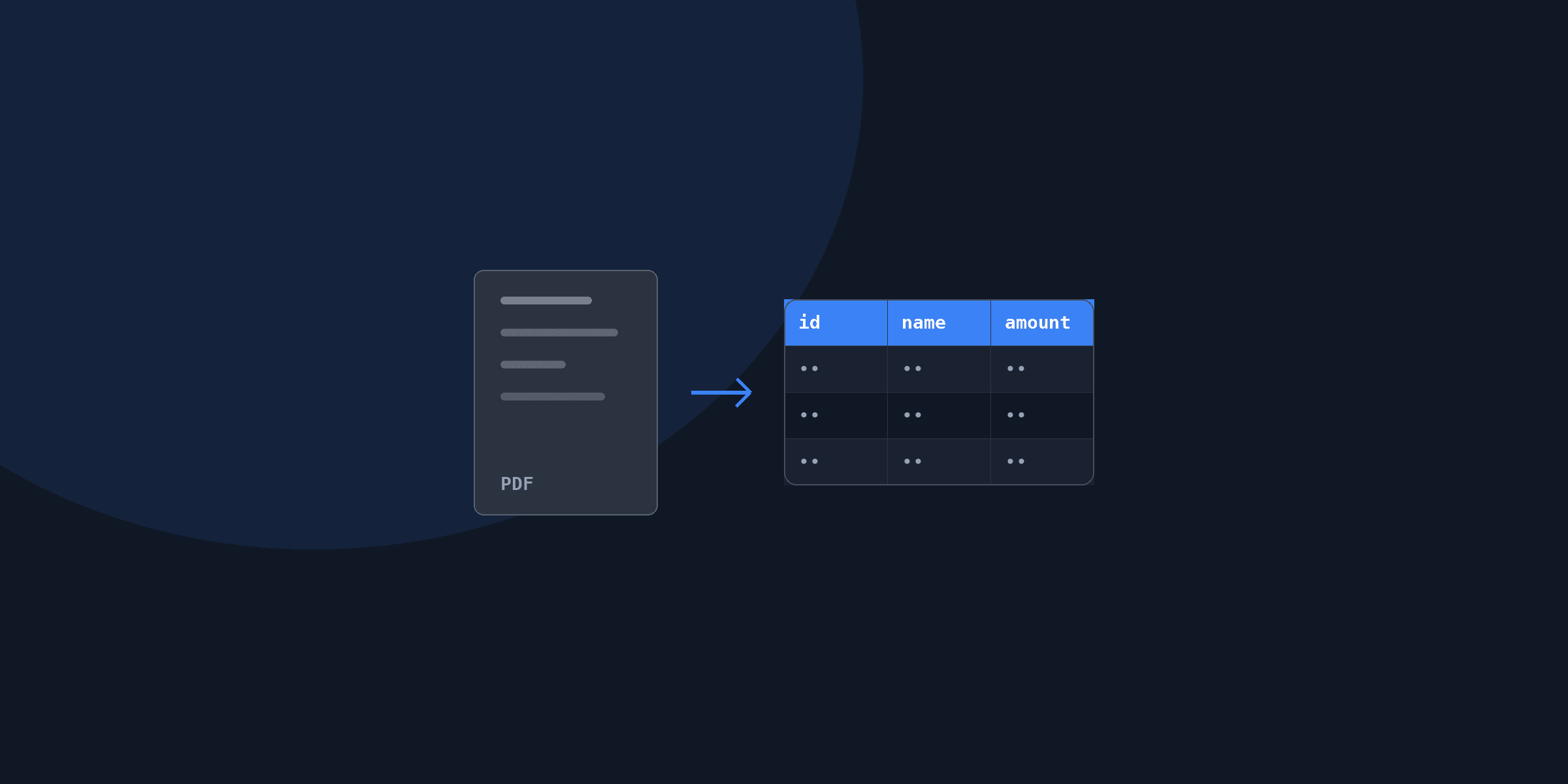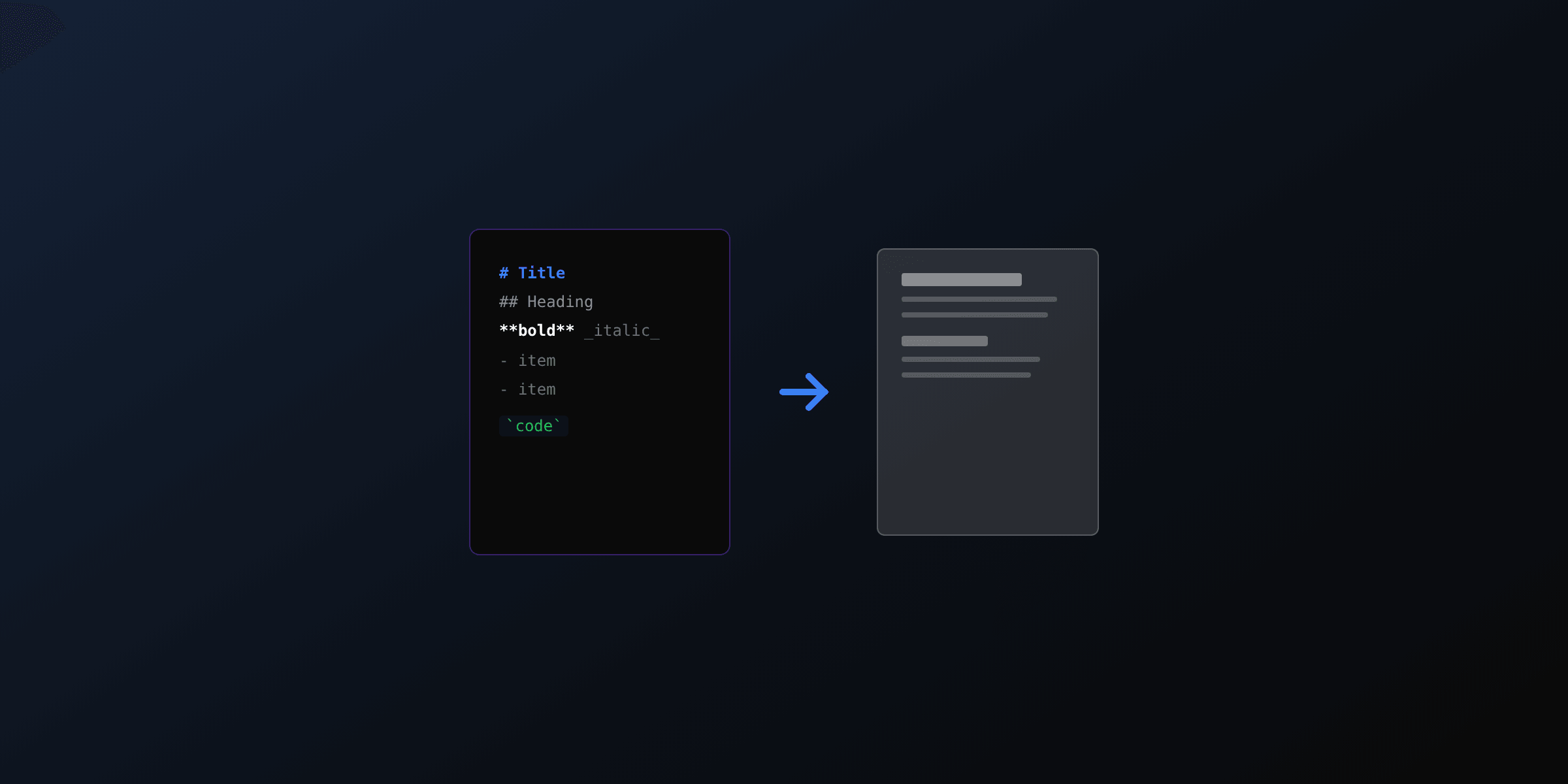
Converting a PDF to Markdown turns a fixed-layout document into clean, structured text that both people and language models can read. The fastest path in Python is Microsoft MarkItDown, which converts a PDF in a single call. For complex layouts or LLM pipelines, Marker or Docling preserve tables and reading order. In Node.js, pdfjs-dist extracts the text layer and you map it to Markdown yourself.
This guide covers every practical method, when to use each, and how to clean the output for retrieval-augmented generation (RAG). If you need the reverse direction, see the markdown to PDF guide.
What does PDF to Markdown mean?
PDF to Markdown is the process of reading a PDF's content and re-expressing it as Markdown: headings become # lines, bold text becomes **text**, tables become pipe tables, and lists become - bullets. The goal is to keep the document's meaning and structure while dropping the fixed page geometry.
A PDF stores glyphs at absolute coordinates with no reliable notion of a paragraph, heading, or table. Markdown is the opposite: a linear, semantic text format. Every converter has to infer structure from visual cues such as font size, weight, and position. That inference is where tools differ, and why the same PDF can produce very different Markdown depending on the library.
Why convert PDF to Markdown instead of plain text?
Markdown keeps the structure that plain text discards. Headings, lists, tables, and links survive the conversion, which matters for three common jobs: making documents searchable in a knowledge base, feeding them to a language model, and storing them in version control where diffs stay readable.
For LLM and RAG use, structure is not cosmetic. Chunking a document along real heading boundaries produces cleaner semantic units than splitting plain text every N characters. A study-style rule of thumb across RAG teams: heading-aware chunks retrieve more relevant passages than fixed-size splits because each chunk stays about one topic. Markdown is also token-efficient, using fewer tokens than the equivalent HTML for the same content.
Quick answer: which method should you use?
The right tool depends on your language, the document's complexity, and whether it is scanned.
| Method | Language | Best for | Handles tables | Handles scanned PDF |
|---|---|---|---|---|
| MarkItDown | Python | Fast, simple digital PDFs | Basic | No (OCR separately) |
| Marker | Python | High-fidelity layout, papers | Good | Yes (built-in OCR) |
| Docling | Python | Document AI and RAG pipelines | Strong | Yes (built-in OCR) |
| pdfplumber | Python | Full control, custom rules | Manual | No (OCR separately) |
| pdfjs-dist | Node.js / browser | JavaScript stacks, client-side | Manual | No (OCR separately) |
| pandoc | CLI | Batch, once you have HTML | Depends on input | No |
Digital PDFs with a text layer convert well with any of these. Scanned PDFs need OCR first, so reach for Marker or Docling, which bundle it.
How to convert PDF to Markdown in Python with MarkItDown
MarkItDown from Microsoft is the quickest route for a digital PDF. Install it, point it at a file, and read the text_content field. It targets many formats, so the same call works for Word, PowerPoint, and HTML too.
# pip install "markitdown[pdf]"
from markitdown import MarkItDown

md = MarkItDown()
result = md.convert("report.pdf")

with open("report.md", "w", encoding="utf-8") as f:
    f.write(result.text_content)

print(result.text_content[:500])
MarkItDown is fast and low-effort but conservative on structure: it recovers headings and simple tables, not multi-column layouts or merged cells. If the output looks flat, move up to Marker or Docling.
How to convert PDF to Markdown with Marker and Docling
For complex documents, use Marker or Docling. Both reconstruct reading order, detect tables, and OCR scanned pages, which makes them the better choice for scientific papers, financial reports, and anything destined for a RAG index.
# pip install marker-pdf
from marker.converters.pdf import PdfConverter
from marker.models import create_model_dict
from marker.output import text_from_rendered

converter = PdfConverter(artifact_dict=create_model_dict())
rendered = converter("paper.pdf")
markdown, _, _ = text_from_rendered(rendered)

open("paper.md", "w", encoding="utf-8").write(markdown)
Marker and Docling are heavier: they download models on first run and go faster with a GPU on large batches. The payoff is that tables come out as real Markdown pipe tables and section order matches the printed page. Docling also exposes a structured document object if you need headings, tables, and figures as separate entities rather than a single Markdown string.
How to convert PDF to Markdown in Node.js
In a JavaScript stack, pdfjs-dist reads the PDF text layer and gives you positioned text items. You group items into lines, then map font height to Markdown headings. This runs in Node.js and in the browser with the same library, so files can stay client-side.
// npm install pdfjs-dist
import * as pdfjs from "pdfjs-dist/legacy/build/pdf.mjs";
import { readFileSync, writeFileSync } from "node:fs";

const data = new Uint8Array(readFileSync("report.pdf"));
const doc = await pdfjs.getDocument({ data }).promise;
const out = [];

for (let p = 1; p <= doc.numPages; p++) {
  const page = await doc.getPage(p);
  const content = await page.getTextContent();
  for (const item of content.items) {
    const height = item.transform[0]; // font size proxy
    const prefix = height > 16 ? "## " : "";
    if (item.str.trim()) out.push(prefix + item.str);
  }
  out.push(""); // page break
}

writeFileSync("report.md", out.join("\n"));
The font-size heuristic is a starting point, not a finished converter. Real documents need line grouping by vertical position, list detection from bullet glyphs, and table assembly from column x-coordinates. For a plain text baseline first, the free PDF to text tool and the extract text from PDF guide show the same pdfjs approach without the Markdown mapping.
How to convert a scanned PDF to Markdown
A scanned PDF is an image with no text layer, so extraction returns nothing until you run OCR. Optical character recognition (OCR) recognizes the characters in the page image, and only then can you structure them as Markdown.
Marker and Docling detect scanned pages and OCR them automatically, which is why they are the simplest option here. With MarkItDown, pdfplumber, or pdfjs-dist you run an OCR engine such as Tesseract first, then feed the recognized text through the same Markdown formatting rules. The full workflow, engine choices, and accuracy tips are in the OCR a PDF guide.
Expect OCR output to be noisier than a native text layer. Budget a cleanup pass for stray line breaks, misread characters, and headers or footers that repeat on every page.
Cleaning Markdown for LLM and RAG pipelines
Raw converter output is rarely ready for an LLM. Before you chunk and embed, run a short cleanup pass so each chunk is self-contained and free of page noise. The table below lists the fixes that matter most.
| Problem | Why it hurts | Fix |
|---|---|---|
| Repeated headers and footers | Pollutes every chunk with boilerplate | Strip lines that recur on most pages |
| Hard line breaks mid-sentence | Splits sentences across embeddings | Join lines that lack terminal punctuation |
| Page numbers and watermarks | Adds noise, no meaning | Remove with a regex pass |
| Broken tables | Model misreads columns | Re-verify pipe tables, or store tables as JSON |
| Lost heading levels | Chunking splits mid-topic | Normalize heading depth before splitting |
After cleaning, chunk along Markdown headings rather than by character count so each chunk covers one section. This keeps embeddings topical and improves retrieval. Markdown's compactness also means more content fits in a model's context window than the HTML equivalent, which matters when you pass documents to ChatGPT, Claude, or Gemini.
Once the document is clean Markdown, generating a polished PDF back from it is the reverse job. PDF4.dev renders HTML and Markdown-derived content to PDF through a REST API, so a pipeline can round-trip: ingest PDFs as Markdown, edit or template the content, then render Markdown to PDF for delivery.
Common problems and how to avoid them
Three issues account for most bad conversions. Knowing them upfront saves a debugging session.
Multi-column layouts confuse naive extractors, which read straight across both columns and interleave unrelated text. Marker and Docling handle column detection; a manual pdfplumber or pdfjs approach needs you to sort text items by column x-range before reading order.
Tables degrade the fastest. Simple grids survive, but merged cells, nested tables, and cells that wrap across lines break most converters. When table fidelity is critical, extract tables separately as structured data (the PDF to CSV guide covers Camelot and pdfplumber for exactly this) and embed them as JSON rather than trusting the Markdown pipe table.
Reading order is not guaranteed. PDFs store glyphs in draw order, not logical order, so sidebars, captions, and footnotes can land in odd places. Layout-aware tools infer order from position; heuristic scripts do not, so verify the first few pages of any new document type before trusting a batch run.
Summary
For a digital PDF in Python, start with MarkItDown for speed and move to Marker or Docling when layout and tables matter. In Node.js, pdfjs-dist gives a scriptable, browser-capable path at the cost of writing your own structure rules. For scanned PDFs, use a tool with built-in OCR or run OCR first. Whatever the source, clean the output and chunk along headings before sending Markdown to an LLM, and remember that PDF4.dev handles the reverse trip when you need a finished PDF back.
Free tools mentioned:
Frequently asked questions
- What is the best way to convert PDF to Markdown?
- For digital PDFs, Microsoft MarkItDown gives the fastest clean result in Python with one function call. For complex layouts, scientific papers, or documents heading into an LLM pipeline, Marker or Docling preserve tables and reading order much better. In Node.js, pdfjs-dist extracts the text layer and you map font sizes to Markdown headings yourself.
- Can I convert PDF to Markdown for free?
- Yes. MarkItDown, Marker, Docling, and pdfplumber are all open-source and free to run locally with no account or API key. pdfjs-dist is free in Node.js. The only cost is your own compute, and Marker and Docling run faster with a GPU on large batches.
- Why convert PDF to Markdown instead of plain text?
- Markdown keeps structure that plain text throws away: headings, lists, tables, code blocks, and links. That structure helps humans skim and helps LLMs chunk documents along real section boundaries, which improves retrieval accuracy in RAG systems.
- How do I convert a scanned PDF to Markdown?
- A scanned PDF has no text layer, so you first run OCR to recognize the characters, then structure the result as Markdown. Marker and Docling include OCR for scanned pages. With MarkItDown or pdfplumber you run Tesseract or another OCR engine first, then convert.
- Does converting PDF to Markdown preserve tables?
- It depends on the tool. Marker and Docling reconstruct tables as Markdown pipe tables reasonably well. MarkItDown handles simple tables. pdfplumber and pdfjs-dist give you raw cell text that you assemble into a table yourself. No tool is perfect on merged cells or nested tables.
- What is the difference between MarkItDown, Marker, and Docling?
- MarkItDown is a lightweight Microsoft library that converts many file types to Markdown quickly with minimal setup. Marker focuses on high-fidelity PDF conversion with layout and table detection. Docling, from IBM, adds a structured document model, strong table extraction, and OCR, aimed at document AI pipelines.
- How do I convert PDF to Markdown in the browser?
- Extract the text layer client-side with pdfjs-dist, then apply Markdown formatting rules in JavaScript. Files never leave the browser. For a quick text dump you can also use a free PDF to text tool and format the result by hand.
- Is PDF to Markdown good for feeding documents to ChatGPT or Claude?
- Yes. Markdown is compact and preserves headings and tables, so it uses fewer tokens than HTML and gives the model clearer structure than raw text. Convert once, chunk along headings, and store the Markdown for reuse across prompts.
- Can I convert PDF to Markdown without Python?
- Yes. Use pdfjs-dist in Node.js for a scriptable path, or pdf-parse for a quick text extraction you format into Markdown. In the browser, pdfjs-dist runs client-side. Command-line tools like pandoc can also convert once you have an intermediate HTML or text form.
Start generating PDFs
Build PDF templates with a visual editor. Render them via API from any language in ~300ms.