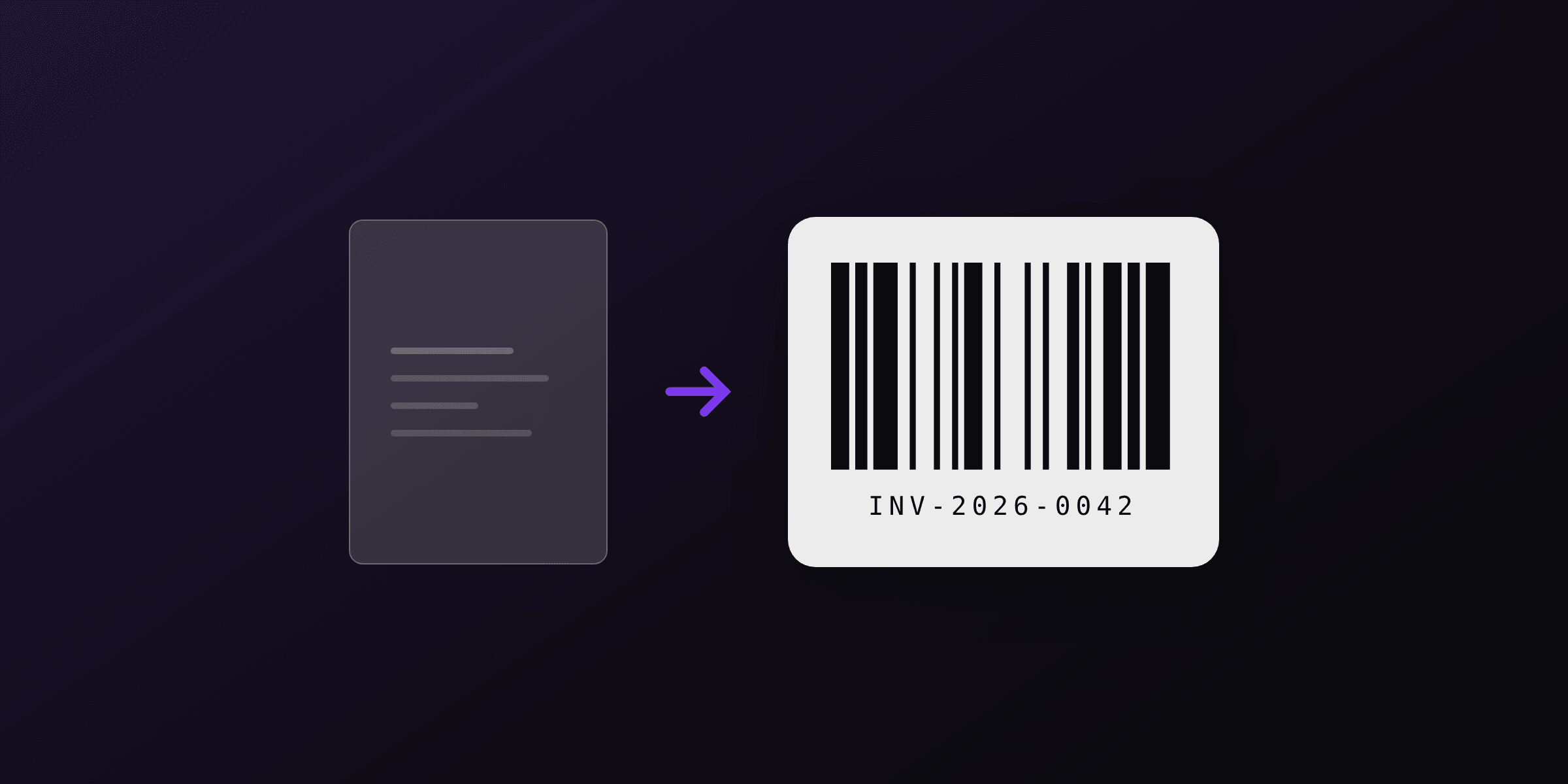
To add a QR code to a PDF built from HTML, generate the QR as a base64 data URI in your backend code, drop it into an <img> tag in your template, and render the HTML to PDF. The QR becomes part of the page and prints at full resolution. Do not link to an external QR image URL: the network request can finish after the page snapshot fires and leave a blank box.
This guide shows the data-URI method in Node.js, Python, and PHP, the inline-SVG alternative for crisp printing, the right error correction level to pick, and how to put a dynamic QR on every invoice with PDF4.dev.
What is the most reliable way to put a QR code in a PDF?
The most reliable method is to generate the QR code as a base64 data URI and embed it directly in the HTML before rendering. A data URI carries the image bytes inside the src attribute, so there is nothing to fetch. The renderer already has the pixels when it snapshots the page.
The alternative, pointing an <img> at a remote QR service, introduces a network round trip during rendering. If the request is slow or the service rate-limits you, the PDF engine may capture the page before the image loads, producing a missing-image box. For a document you email to a customer, that failure is permanent.
| Method | Renders reliably? | Works offline? | Print quality | Best for |
|---|---|---|---|---|
| Base64 data URI (PNG) | Yes | Yes | Good if sized right | Most documents |
| Inline SVG | Yes | Yes | Sharp at any size | High-resolution print |
| External image URL | No, network-dependent | No | Varies | Avoid for PDFs |
| Free QR image API | No, can rate-limit or 404 | No | Varies | Avoid for PDFs |
Google's Image Charts QR endpoint, once a popular one-line trick, was shut off on March 14, 2019 and now returns 404s. Generating the QR yourself removes that class of breakage entirely.
How do you generate a QR code as a data URI?
Use a QR library to encode your text or URL into a base64 data URI, then inject that string into your HTML. The qrcode package for Node.js, segno for Python, and endroid/qr-code for PHP all produce a data URI in a few lines.
import QRCode from 'qrcode';

// Returns a string like "data:image/png;base64,iVBORw0KGgo..."
const dataUri = await QRCode.toDataURL('https://pdf4.dev/invoice/INV-001', {
  errorCorrectionLevel: 'M',
  margin: 1,
  width: 300,
});

const html = `
  <div style="text-align:center">
    <img src="${dataUri}" alt="Scan to pay" style="width:30mm;height:30mm" />
    <p>Scan to pay invoice INV-001</p>
  </div>
`;
The width and scale options control the source pixel size. Render larger than you display so the code stays crisp when printed. Sizing the <img> in millimeters keeps the printed dimensions predictable regardless of screen DPI.
When should you use an inline SVG QR code instead of PNG?
Use an inline SVG QR code when the document will be printed at high resolution or scaled to different sizes. An SVG QR is vector: it is a set of rectangles, not pixels, so every module stays sharp at any zoom or print DPI. A PNG QR, by contrast, is fixed-resolution and softens if you scale it up in CSS.
import QRCode from 'qrcode';

// Returns an <svg>...</svg> string you can drop straight into the page
const svg = await QRCode.toString('https://pdf4.dev/invoice/INV-001', {
  type: 'svg',
  errorCorrectionLevel: 'H',
  margin: 1,
});

const html = `<div style="width:30mm;height:30mm">${svg}</div>`;
For invoices and tickets that get printed and physically scanned, inline SVG with error correction level H is the safest combination: vector sharpness plus around 30 percent damage tolerance.
Which QR code error correction level should you choose?
Error correction level is the amount of redundant data a QR code carries so it still scans when partly damaged. There are four levels defined in the ISO/IEC 18004 standard. Higher levels recover more damage but make the code denser, so each module is smaller at the same physical size.
| Level | Recovery capacity | Use case |
|---|---|---|
| L (low) | ~7% | Clean screens, large codes, short payloads |
| M (medium) | ~15% | Default for documents, good balance |
| Q (quartile) | ~25% | Codes that may get scuffed or printed small |
| H (high) | ~30% | Logo overlay, harsh print or scan conditions |
Pick M for a standard invoice or report. Move to H when you place a logo in the middle of the code (the logo covers data, so you need the redundancy) or when the page will be folded, stamped, or scanned from a low-quality printout.
How do you add a dynamic QR code to every invoice?
Generate the QR payload from each invoice's data, encode it to a data URI per render, and pass it into your template as a variable. The QR then reflects that specific invoice: a payment link, an invoice ID, or a verification URL.
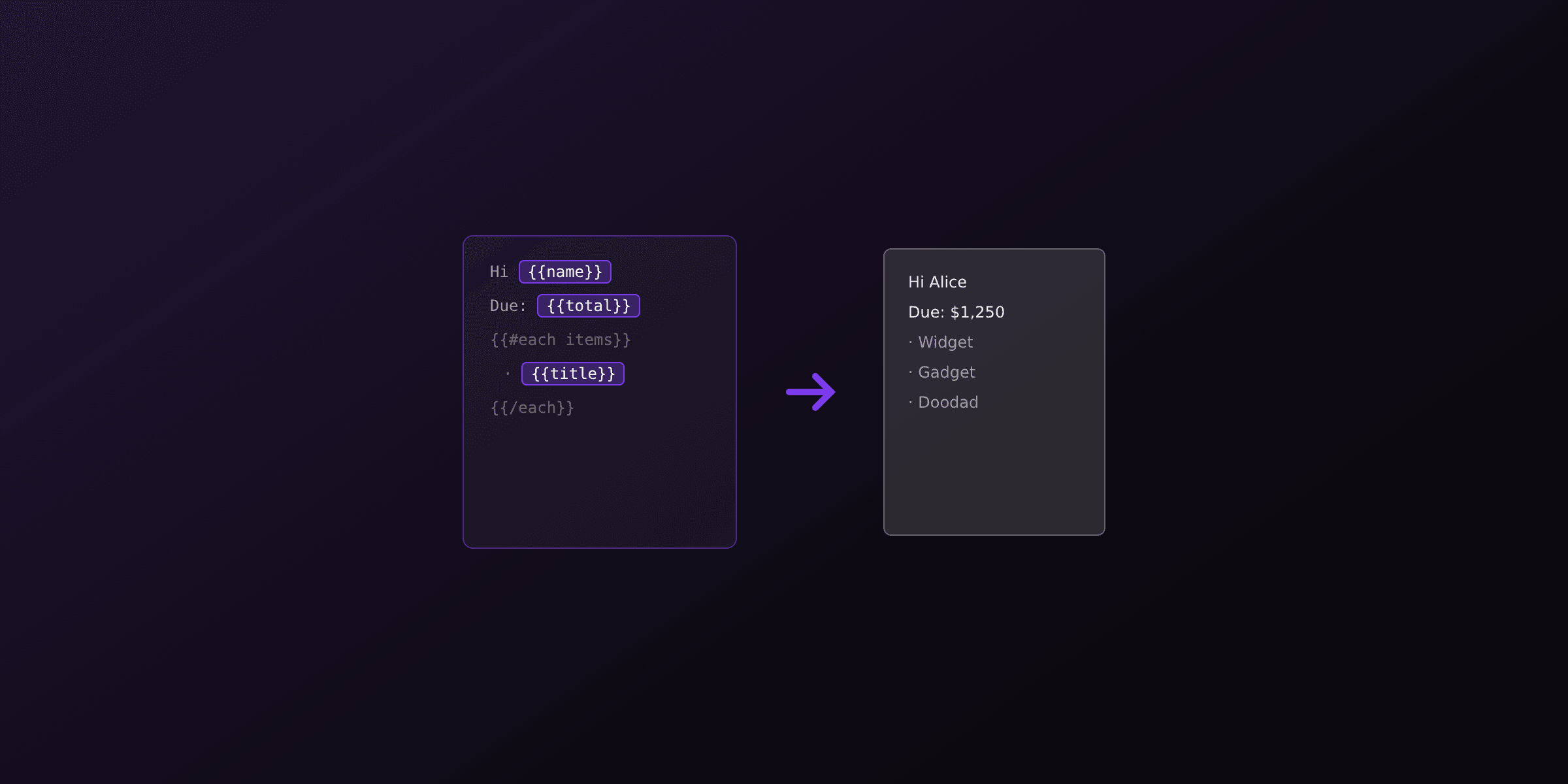
With PDF4.dev, the QR data URI travels in the data object of the render request, and the template references it with a Handlebars variable. Your template uses an <img> whose src is the variable, for example {{qr_code}}, and the API substitutes the value at render time.
import QRCode from 'qrcode';

const invoice = { id: 'INV-001', total: '$1,500.00' };

const qrCode = await QRCode.toDataURL(
  `https://pay.example.com/${invoice.id}`,
  { errorCorrectionLevel: 'M', margin: 1, width: 300 }
);

await fetch('https://pdf4.dev/api/v1/render', {
  method: 'POST',
  headers: {
    Authorization: 'Bearer p4_live_xxx',
    'Content-Type': 'application/json',
  },
  body: JSON.stringify({
    template_id: 'invoice',
    data: { ...invoice, qr_code: qrCode },
    delivery: 'url',
  }),
});
In the template, the image tag is just <img src="{{qr_code}}" style="width:30mm;height:30mm" />. Because the QR is generated server-side and passed in as data, no part of the render reaches out to a QR service. See the Handlebars templates guide for how variables and helpers work, and the invoice generation guide for the full invoice flow.
How do you add a QR code with raw Playwright?
If you render PDFs yourself with Playwright, embed the data URI in the HTML and enable printBackground so the QR's surrounding styles print. The pattern is the same as PDF4.dev under the hood, because PDF4.dev runs Chromium through Playwright.
import { chromium } from 'playwright';
import QRCode from 'qrcode';

const qr = await QRCode.toDataURL('https://pdf4.dev/invoice/INV-001', {
  errorCorrectionLevel: 'M',
  margin: 1,
  width: 300,
});

const html = `
  <html><body style="font-family: sans-serif; text-align:center; padding:40px">
    <h1>Invoice INV-001</h1>
    <img src="${qr}" style="width:30mm;height:30mm" />
    <p>Scan to pay</p>
  </body></html>
`;

const browser = await chromium.launch();
const page = await browser.newPage();
await page.setContent(html, { waitUntil: 'load' });
const pdf = await page.pdf({ format: 'A4', printBackground: true });
await browser.close();
Because the QR is a data URI, there is no networkidle wait to worry about: the image is already decoded when setContent resolves. This is one fewer race condition than loading a remote image. For the broader Playwright setup, see generate PDF from HTML in Node.js.
Common QR-in-PDF mistakes and how to avoid them
The failures below cause most "the QR won't scan" support tickets. All of them are avoidable at generation time.
| Mistake | Result | Fix |
|---|---|---|
| Linking a remote QR image | Blank box if the fetch is slow | Embed a base64 data URI |
| Scaling a small PNG up in CSS | Blurry, unscannable modules | Render at higher width, or use SVG |
No quiet zone (margin: 0) | Scanners fail to lock on | Keep margin of at least 1 module |
| Low contrast or inverted colors | Phone cameras miss the code | Dark modules on a light background |
| Long payload at small size | Dense code, hard to scan | Use a short redirect URL |
| QR across a page fold | Physical damage breaks the code | Place it in a flat, clear area |
Always test the final PDF by scanning it with a real phone at the printed size, not at full-screen zoom. A QR that scans on a 27-inch monitor can be unreadable at 2 cm on paper.
Quick comparison: build it yourself vs use an API
Both paths use the same QR libraries and the same Chromium engine. The difference is who runs and maintains the rendering infrastructure.
| Factor | DIY Playwright | PDF4.dev API |
|---|---|---|
| QR generation | Your code (qrcode, segno) | Your code, passed as data |
| Browser pool, memory, crashes | You manage | Managed |
| Render latency | Cold start unless warmed | Warm pool |
| Setup | Install Chromium, ~300 MB image | One API call |
| Template reuse | Your own system | Built-in templates and variables |
If you already run a Chromium-based pipeline, embedding a QR is a one-line addition. If you would rather not operate headless browsers in production, generate the data URI in your code and send it to the HTML to PDF API or the render endpoint. You can also try the free HTML to PDF tool with a QR <img> to see the output before writing any integration code.
Conclusion
Adding a QR code to a PDF comes down to one rule: generate the code as a base64 data URI or inline SVG and embed it in the HTML, never link to an external image. Pick error correction level M for clean documents and H when a logo or rough printing is involved, size the code in millimeters, and keep a quiet zone. For dynamic codes on invoices or tickets, generate the data URI per render and pass it in as a template variable. Whether you run Playwright yourself or call PDF4.dev, the QR is just another part of the page.
Free tools mentioned:
Frequently asked questions
- How do I add a QR code to a PDF generated from HTML?
- Generate the QR code as a base64 data URI in your backend code with a library like qrcode (Node.js) or segno (Python), inject it into an img tag in your HTML template, then render the HTML to PDF. The QR code is part of the page, so it prints at full resolution.
- Should I embed the QR code as a data URI or link to an image URL?
- Embed it as a base64 data URI. An external image URL forces the PDF renderer to make a network request that can time out or finish after the page snapshot fires, leaving a blank box. A data URI is already in the HTML, so it always renders.
- Can I use a free QR code image API instead of a library?
- You can, but it adds a network dependency and a point of failure. Google's Image Charts QR endpoint was shut off on March 14, 2019, and many free QR APIs rate-limit or disappear. Generating the QR yourself with a library is more reliable and works offline.
- What error correction level should I use for a QR code in a PDF?
- Use M (around 15 percent recovery) for clean documents and H (around 30 percent) if you overlay a logo or expect the page to be printed and scanned in poor conditions. Higher levels make the QR denser but more tolerant of damage and smudging.
- How big should a QR code be in a printed PDF?
- Aim for at least 2 by 2 cm (about 0.8 inch) for a code scanned at arm's length, and add a quiet zone of at least 4 modules around it. For codes holding a long URL, go larger so each module stays crisp when printed at 300 DPI.
- Why does my QR code look blurry in the PDF?
- You likely embedded a small raster PNG and scaled it up in CSS. Either render the QR at a higher pixel size before embedding, or use an SVG QR code, which stays sharp at any size because it is vector, not pixels.
- Can I generate a QR code in the browser for a client-side PDF?
- Yes. The qrcode npm package runs in the browser and returns a data URI or draws to a canvas. You can then pass that data URI into a client-side PDF library, though server-side rendering gives more consistent output.
- How do I put a dynamic QR code on every invoice?
- Build the QR payload from the invoice data (a payment link or invoice ID), generate the data URI per render, and pass it into your template as a variable. With PDF4.dev you send the data URI in the data object and reference it in the template.
- Does the QR code payload have a size limit?
- Yes. A version 40 QR code holds up to about 4,296 alphanumeric characters or 2,953 bytes, but practical scanning gets harder as density rises. Keep payloads short, use a redirect URL rather than a long query string.
- Can a QR code in a PDF be scanned after printing?
- Yes, as long as it prints at sufficient size and contrast. Use dark modules on a light background, keep the quiet zone clear, and avoid placing the code across a page fold or near the trim edge.
Start generating PDFs
Build PDF templates with a visual editor. Render them via API from any language in ~300ms.