Claude, Claude Code and ChatGPT now connect to the PDF4.dev MCP server by signing you in. There is no API key to create, copy or paste: the assistant opens PDF4.dev in your browser, you sign in, you pick what it may do, and you choose Allow access. This article walks through the flow screen by screen, explains what runs underneath, and shows how admins decide who can connect.
The server URL does not change: https://pdf4.dev/api/mcp.
How do you connect Claude or ChatGPT to PDF4.dev?
You add https://pdf4.dev/api/mcp as a connector in the assistant, then sign in when PDF4.dev opens. The steps differ only in where the connector lives:
| Client | Where to add it | How the sign-in starts |
|---|---|---|
| Claude (claude.ai, Desktop, mobile) | Customize then Connectors then Add custom connector | Choose Connect |
| Claude Code | claude mcp add --transport http pdf4dev https://pdf4.dev/api/mcp | Run /mcp, select pdf4dev, choose Authenticate |
| ChatGPT | Developer mode, new connector with the same URL | Create the connection |
In Claude Code the full sequence is two commands:
claude mcp add --transport http pdf4dev https://pdf4.dev/api/mcp
# then, inside Claude Code:
/mcp
Once /mcp shows pdf4dev as connected, you ask in plain language ("render my invoice template for Acme, 3 items") and the assistant picks the tools. The full setup guide, including Team and Enterprise plans where an owner adds the connector once, is in the Connect with OAuth documentation.
What happens between Connect and Allow access?
The connection takes four steps in the browser: sign in, pick an organization, review the consent screen, allow. Each step answers one question the user should be able to answer before an AI assistant touches their account.
- Sign in. The sign-in page says which app is asking, so you know why you landed there. If you have no account, you create one in the same step.
- Pick an organization. A connection is bound to one organization. If you belong to several, a picker asks which one this assistant should act on.
- Review the consent screen. It shows who is asking, where the answer goes, which account and organization you are granting, and the access level.
- Allow or cancel. Allow access completes the flow. Cancel sends
access_deniedback to the client, so the assistant knows you declined rather than timing out.
What does the consent screen show?
The consent screen reads "Claude Code wants to access your PDF4.dev account" (with the requesting app's name) and lists everything the grant covers on one page. Nothing is hidden behind a second click.
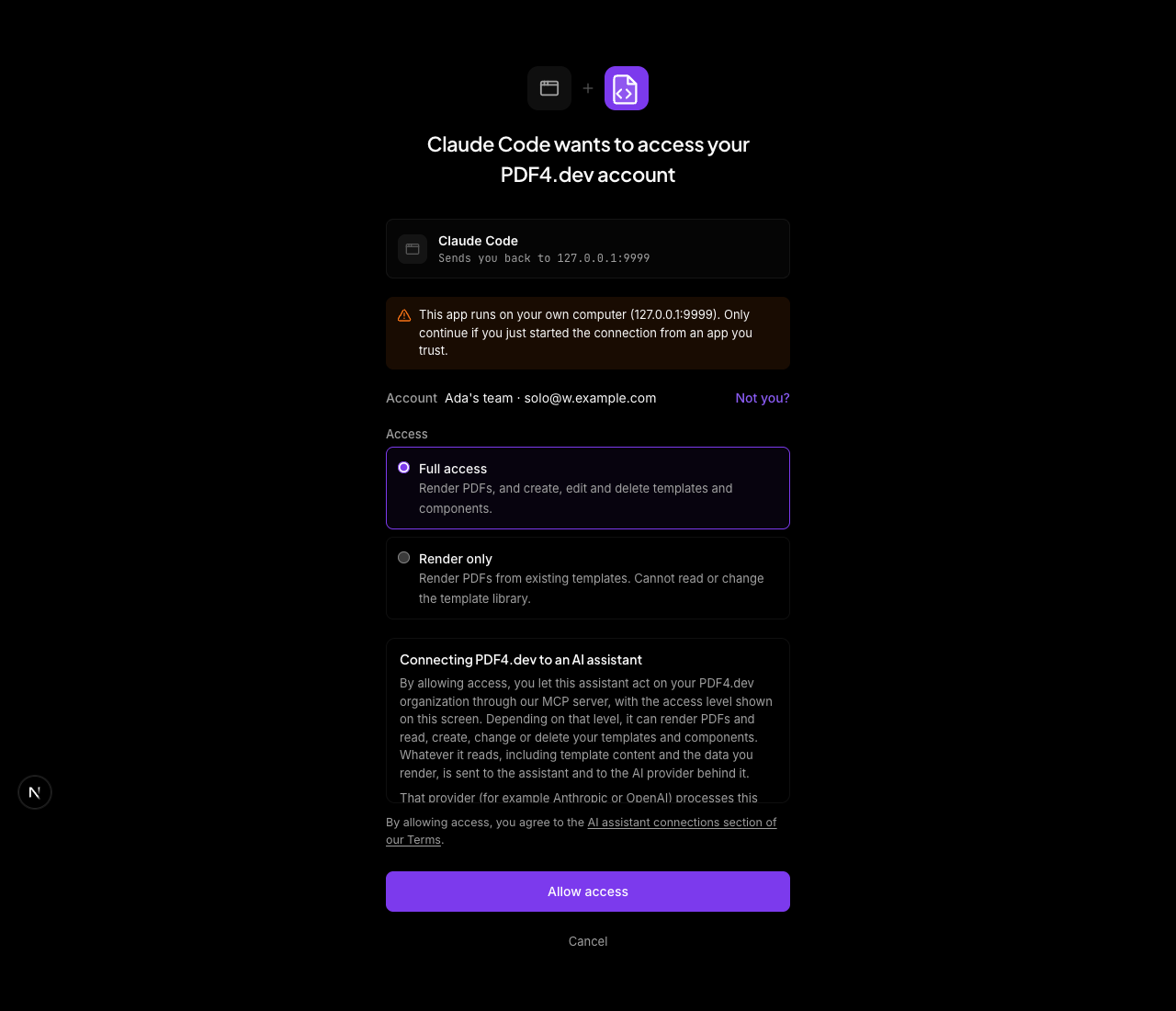
- The app's verified domain. The client identifies itself with a Client ID Metadata Document: its client id is an HTTPS URL that PDF4.dev fetches. The domain shown is the host of that URL, so an app cannot claim a domain it does not control. PDF4.dev shows no third-party logo on purpose, since a logo is the easiest thing to copy.
- Where it sends you back. The redirect address that receives the answer. When it is a loopback address such as
127.0.0.1, as with Claude Code, a warning says the app runs on your own computer and to continue only if you just started the connection. - The account. Organization and email, with Switch to pick another organization and Not you? to sign out and use another account.
- The access level. Full access or Render only, detailed below.
- A data notice. A scrollable text explaining that whatever the assistant reads, including template content and the data you render, goes to the assistant and its AI provider under that provider's terms.
- A link to the terms section on AI assistant connections.
Which access level should you choose?
Pick Render only when the assistant should generate PDFs from templates you already built, and Full access when it should also design and edit templates. The level maps onto OAuth scopes (pdf4:render and pdf4:full), and the MCP server enforces it on every tool call.
| Level | Tools the assistant can call | Typical request |
|---|---|---|
| Full access | All 14 tools: render, templates, components, logs | "Make a certificate template with a name and a date" |
| Render only | get_info, render_pdf, preview_template | "Render the March invoice for Acme" |
Render only fits a shared assistant used by a sales or support team: it can produce documents but cannot read or change the template library. The full tool list is on the MCP server documentation.
What runs under the hood?
PDF4.dev implements the authorization flow from the MCP authorization specification, which builds on the OAuth 2.1 draft. The specification states that "MCP servers MUST implement OAuth 2.0 Protected Resource Metadata", defined in RFC 9728. PDF4.dev answers an unauthenticated request with a 401 whose challenge points at that metadata document, which tells the client where to sign the user in.
| Piece | PDF4.dev choice |
|---|---|
| Grant type | Authorization code with refresh, no client_credentials |
| PKCE | Required, S256 only (RFC 7636) |
| Client registration | Client ID Metadata Documents, dynamic registration off |
| Access token | JWT, valid 1 hour, audience https://pdf4.dev/api/mcp |
| Refresh token | Rotated on every use |
| Organization | Carried as a claim in the access token |
| Membership | Re-checked on every MCP call |
The client registration row follows the specification's own direction: it says clients and servers "SHOULD support" Client ID Metadata Documents, while Dynamic Client Registration "is deprecated and retained for backwards compatibility". The audience row matches the rule that "MCP servers MUST validate that access tokens were issued specifically for them as the intended audience". A token minted for another service is rejected.
Re-checking membership on each call matters more than the token lifetime. A JWT cannot be recalled before it expires, so PDF4.dev does not rely on expiry alone: if a member is removed from the organization, their next MCP call fails, even with an hour left on the token.
How do admins control who can connect?
Admins choose who may connect an AI assistant in Settings then Team then AI assistants, with three options: All members (the default), Admins only, or Off.
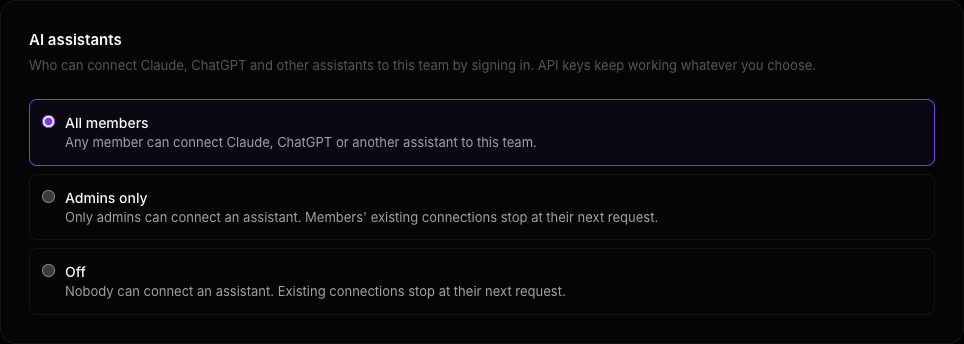
The setting is enforced in three places: at the organization picker, when the grant is created, and on every MCP call. The third one is what makes Off immediate. Switching it off does not wait for tokens to expire or for users to sign in again: each existing connection stops at its next request. Members blocked by Admins only see a message on the picker or the consent screen asking them to contact an admin.
The design takes its cue from how the KYC provider Sumsub connects its own MCP server, with a sign-in and consent flow. The pattern of sign in, scoped consent and role-based permission is becoming the expected shape for SaaS MCP servers, because the admin of a company account needs a switch that does not depend on every employee cleaning up their own keys.
When should you still use an API key?
Use an API key whenever there is no person and no browser in the loop. OAuth sign-in is for assistants a human uses interactively; API keys are for code.
| OAuth sign-in | API key | |
|---|---|---|
| Who it is for | Claude, Claude Code, ChatGPT users | Cursor, VS Code, Windsurf, Codex, Gemini CLI, CI, scripts |
| Setup | Add the URL, sign in, allow | Create a key in the dashboard, paste it as a header |
| Credential | Short-lived token, refreshed by the client | Long-lived p4_live_ key |
| Scope | Full access or Render only, chosen at consent | Full access or render-only key permission |
| Bound to | One user in one organization | The organization it was created in |
| Revocation | Disconnect, remove the member, or set AI assistants to Off | Delete the key |
| Affected by the AI assistants setting | Yes | No |
API keys are sent as Authorization: Bearer p4_live_... and keep working exactly as before. The two paths share the same MCP server and the same 14 tools, so a team can let people connect Claude by signing in while CI keeps rendering with a key. For the REST side of the same keys, see how to connect Claude to a PDF generation API and the ChatGPT equivalent.
What should you try first?
Connect Claude Code or Claude with Render only, then ask for a PDF from a template you already have. If you have none, generate one from a starter in the dashboard, or test raw HTML with the free HTML to PDF tool first. When you want the assistant to design templates with you, disconnect PDF4.dev in the assistant, connect again, and pick Full access on the consent screen.
Free tools mentioned:
Frequently asked questions
- Do I need an API key to connect Claude or ChatGPT to PDF4.dev?
- No. Claude (web, desktop and mobile), Claude Code and ChatGPT connect to https://pdf4.dev/api/mcp by signing you in to PDF4.dev in the browser. You choose an access level on a consent screen and paste nothing. API keys remain available for clients and scripts that cannot sign in.
- Which access levels can I give an AI assistant?
- Two. Full access lets the assistant call all 14 PDF4.dev MCP tools, including creating, editing and deleting templates and components. Render only limits it to get_info, render_pdf and preview_template, so it can generate PDFs from existing templates but cannot read or change the template library.
- How do I revoke an assistant's access?
- Disconnect PDF4.dev in the assistant, remove the member from the organization, or set Settings, Team, AI assistants to Off. Membership and the organization setting are checked on every MCP call, so the last two take effect at the connection's next request.
- Can an AI assistant reach several of my organizations at once?
- No. Each connection is bound to one organization, carried as a claim in the access token. To use another organization, add the connector again and pick the other organization, or choose Switch on the consent screen.
- Does turning AI assistants off break my API keys?
- No. The AI assistants setting only governs sign-in connections. API keys sent as Authorization Bearer p4_live tokens keep working for Cursor, VS Code, Windsurf, Codex, Gemini CLI, CI jobs and scripts.
- What happens to the data the assistant reads?
- Whatever the assistant reads through the MCP server, including template content and the data you render, is sent to the assistant and to the AI provider behind it, under that provider's terms. The consent screen states this before you choose Allow access.
- Why does the consent screen warn about an app running on my computer?
- Clients such as Claude Code ask to be sent back to a loopback address like 127.0.0.1 on your machine. The warning tells you to continue only if you just started the connection yourself from an app you trust.
Start generating PDFs
Build PDF templates with a visual editor. Render them via API from any language in ~300ms.